Operations CRM - Using the Cash Quote Data Grid
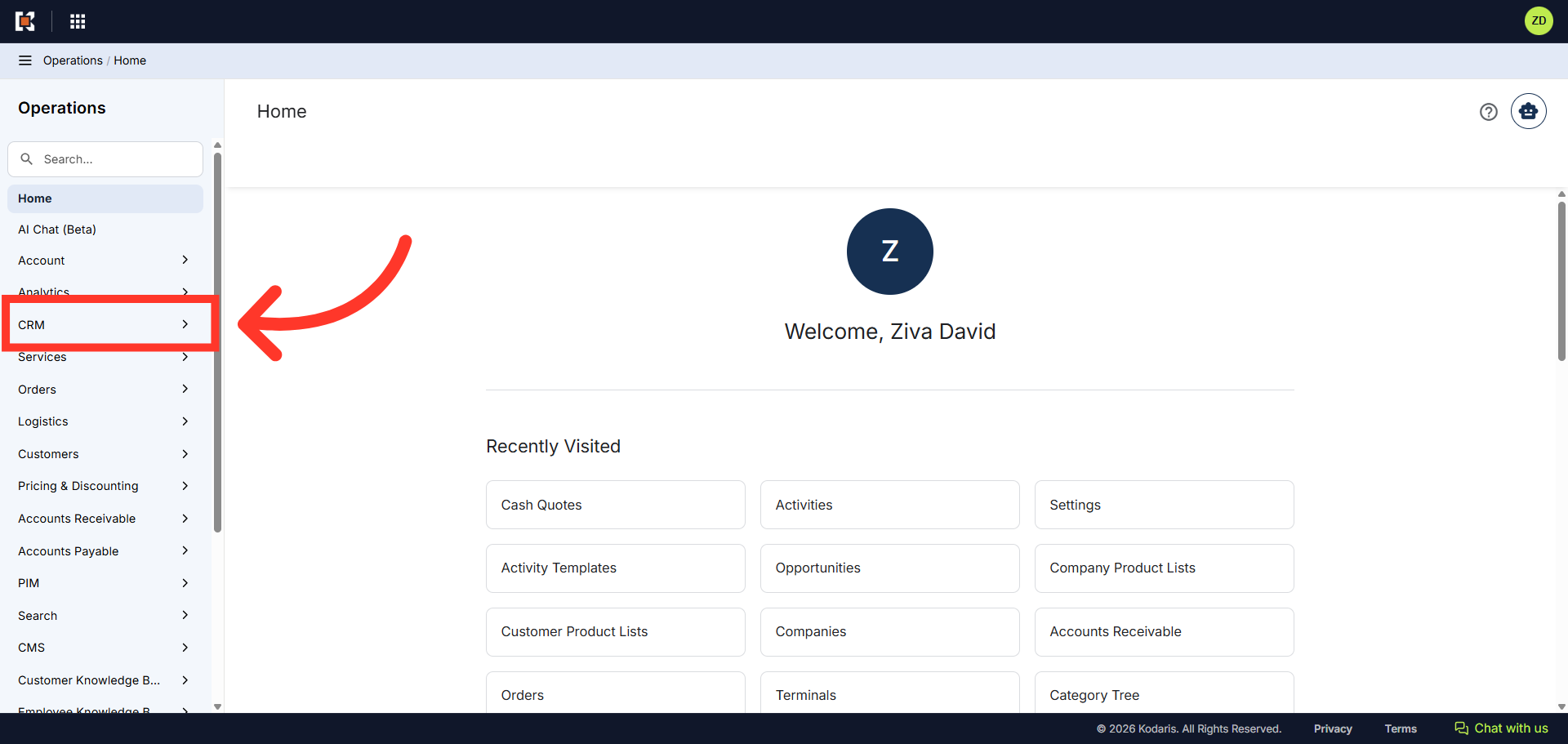
Navigate to "CRM"
Another way Cash Quotes can be viewed in the operations portal is by using the spreadsheet view. To use this view, navigate to the "CRM" section.
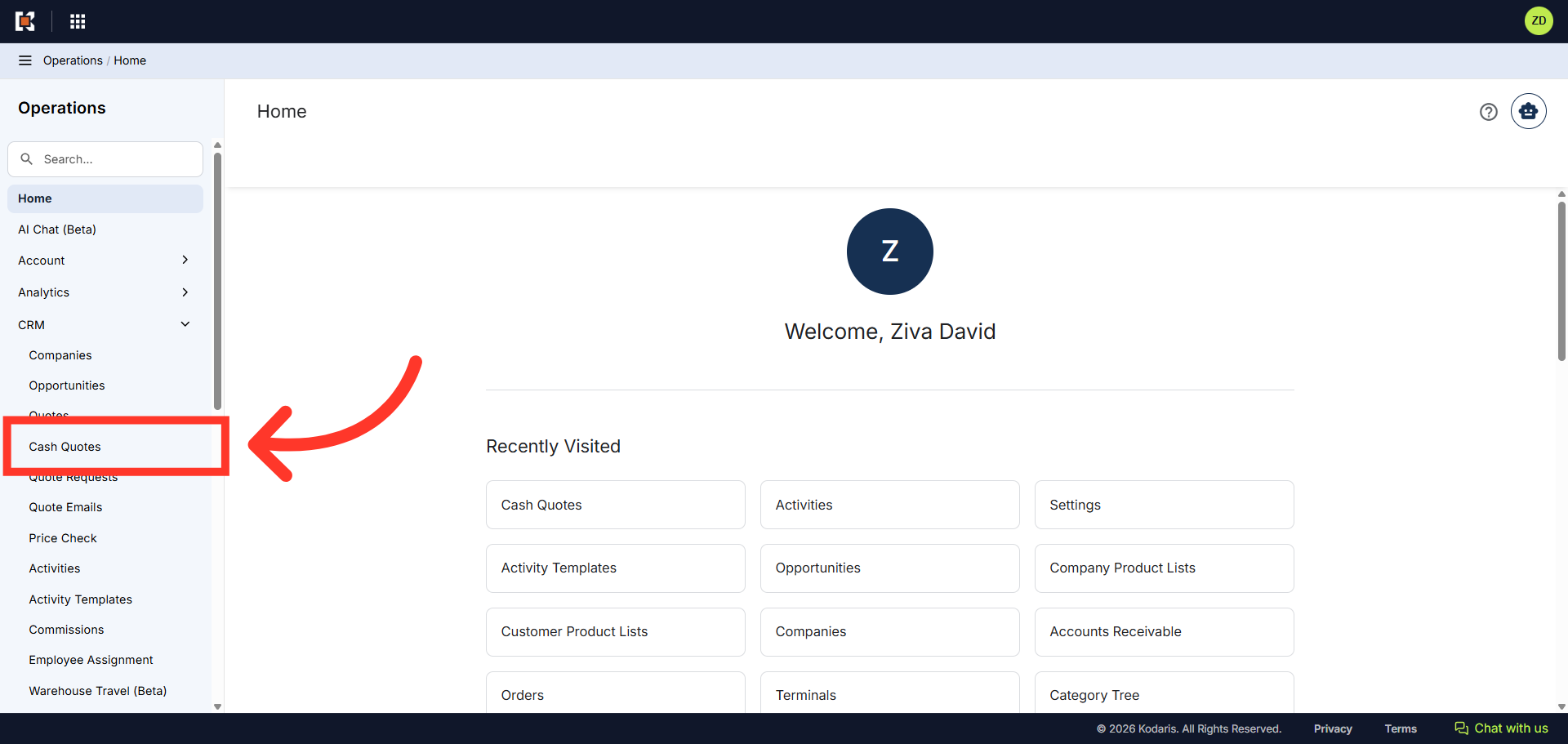
Click "Cash Quotes"
Then, click "Cash Quotes". In order to access and update Cash Quotes, you need to be set up either as an "administrator" or "superuser" or have the appropriate rolls of: "dashboardSearch", "dispatchorderView", "orderEdit", and "crmCompanyOrderEdit".
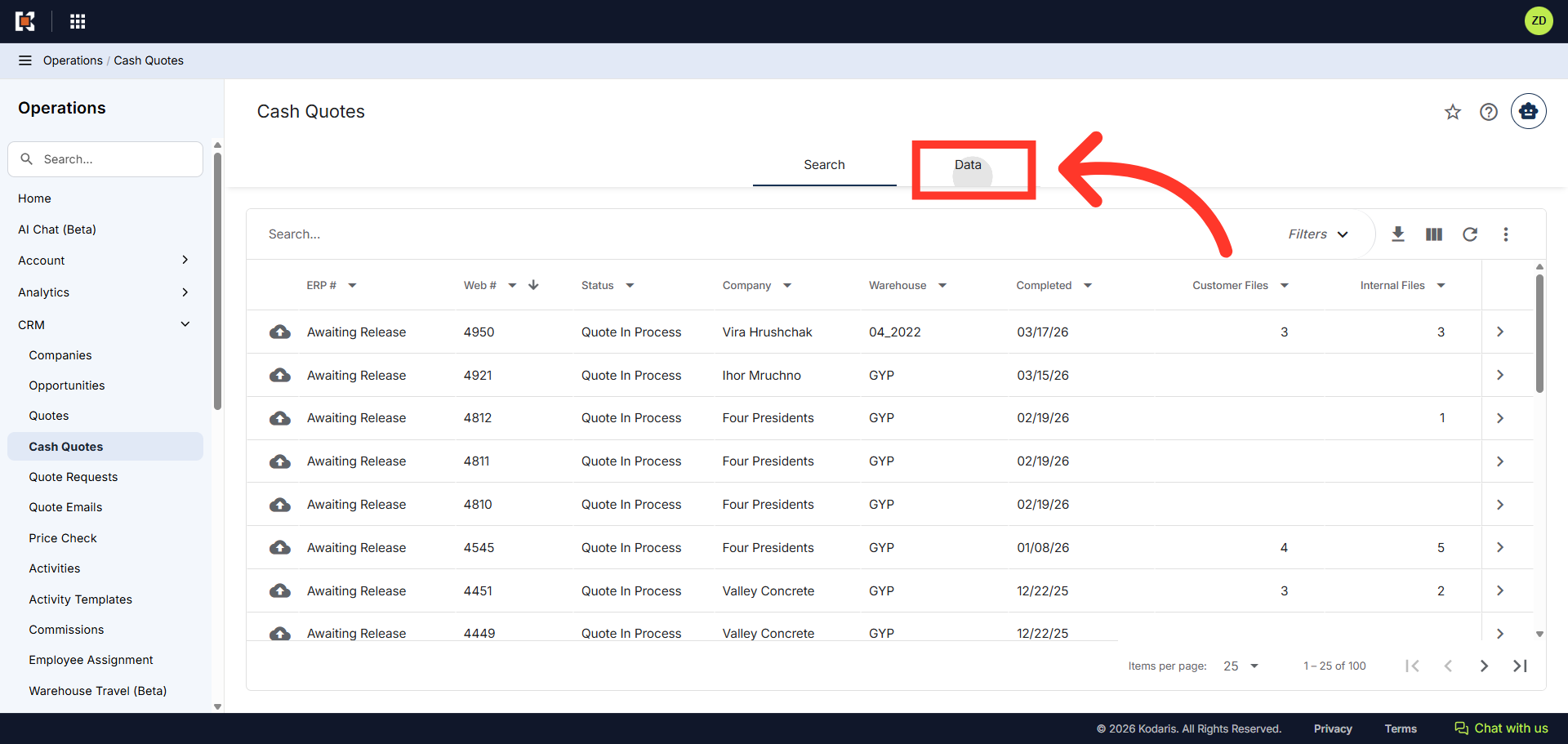
Click "Data" tab
Next, click the "Data" tab to view the Cash Quotes in the spreadsheet view.
"Order ID" Column Filter
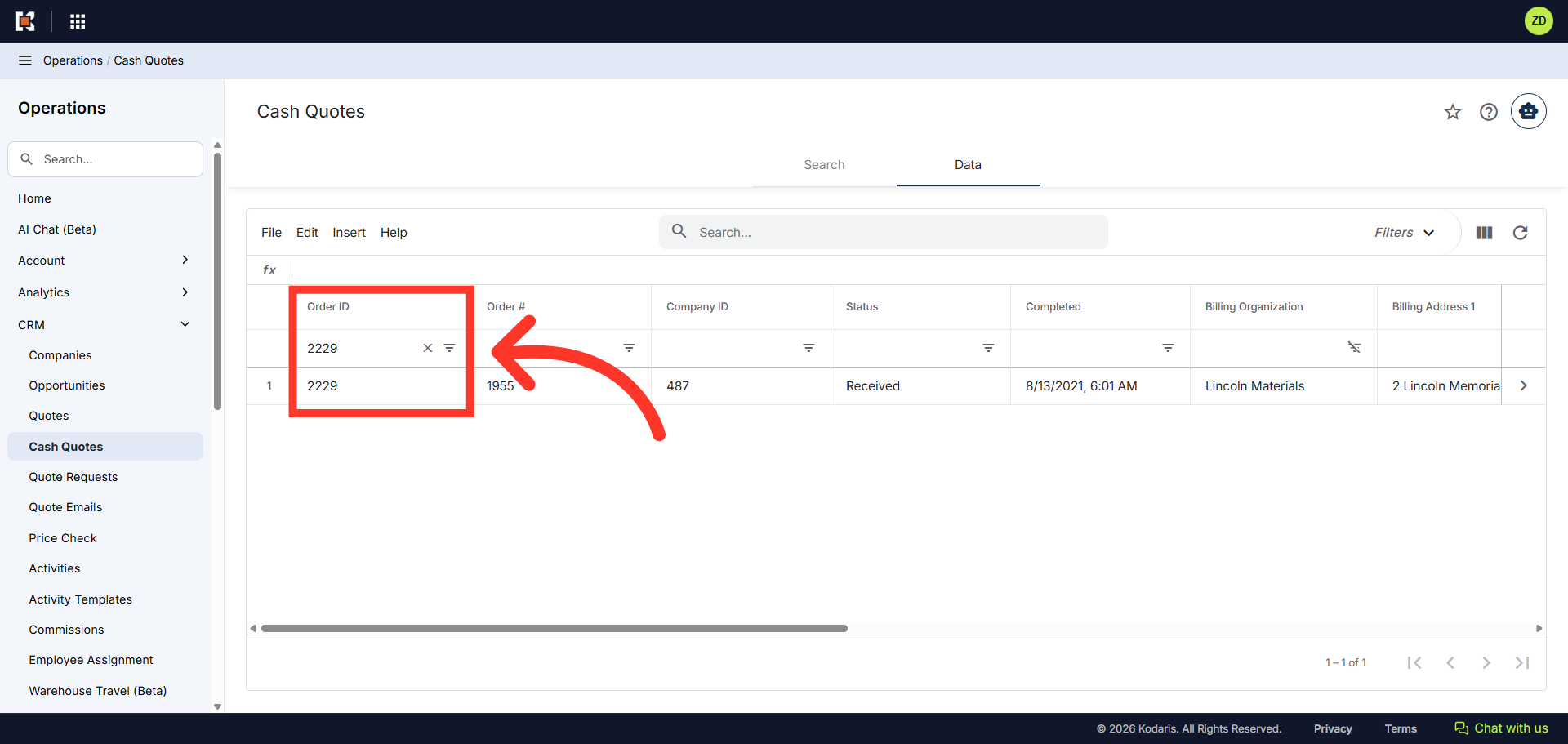
You can use the column headers to filter the data. For example, you can click in the "Order ID" column and enter a Cash Quote number. In this example, we will search for quote number 2229.
"Status" Column Filter
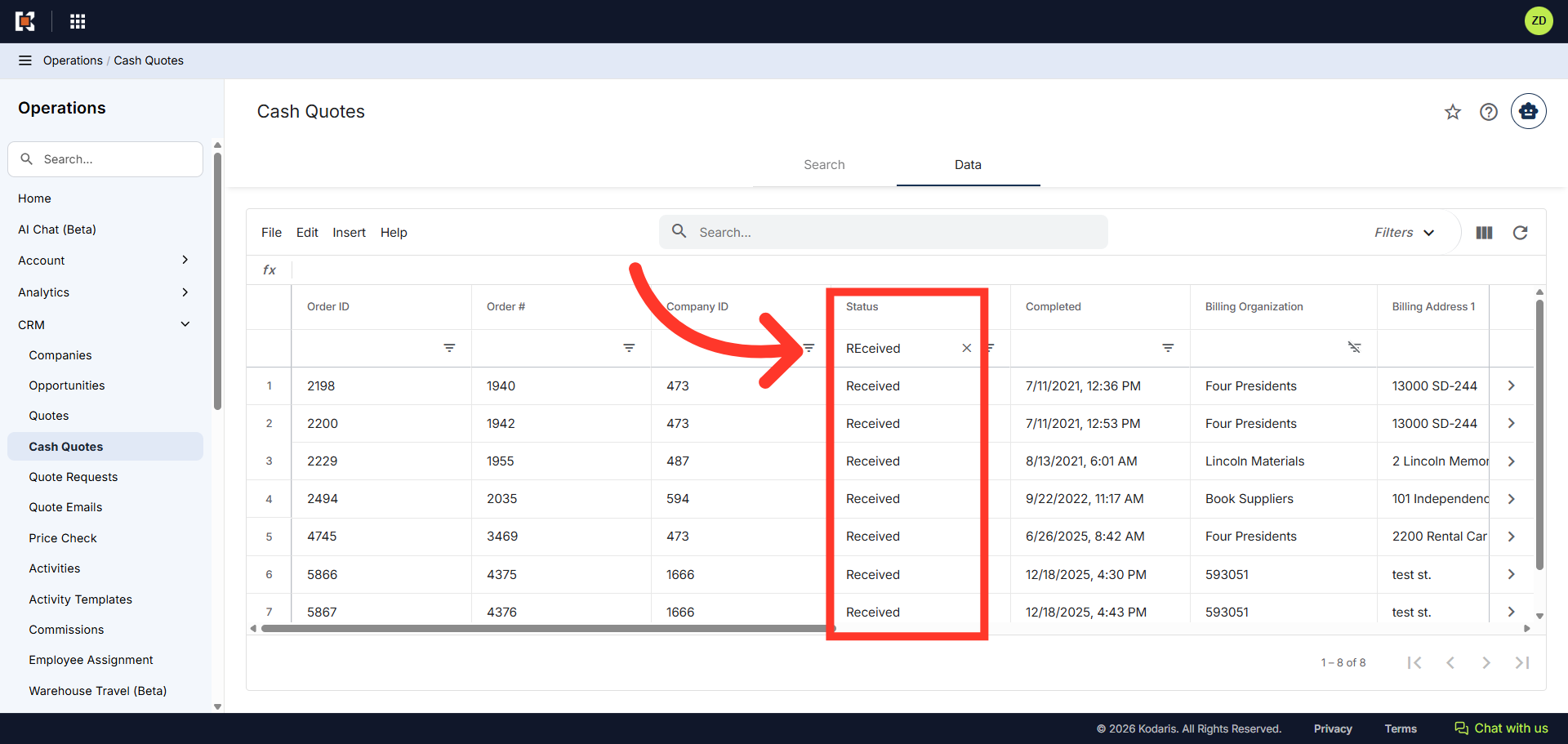
You can also filter the grid by status. For example, you can click in the "Status" column and enter "Received" to display the Cash Quotes marked "Received".
"Sort" icon
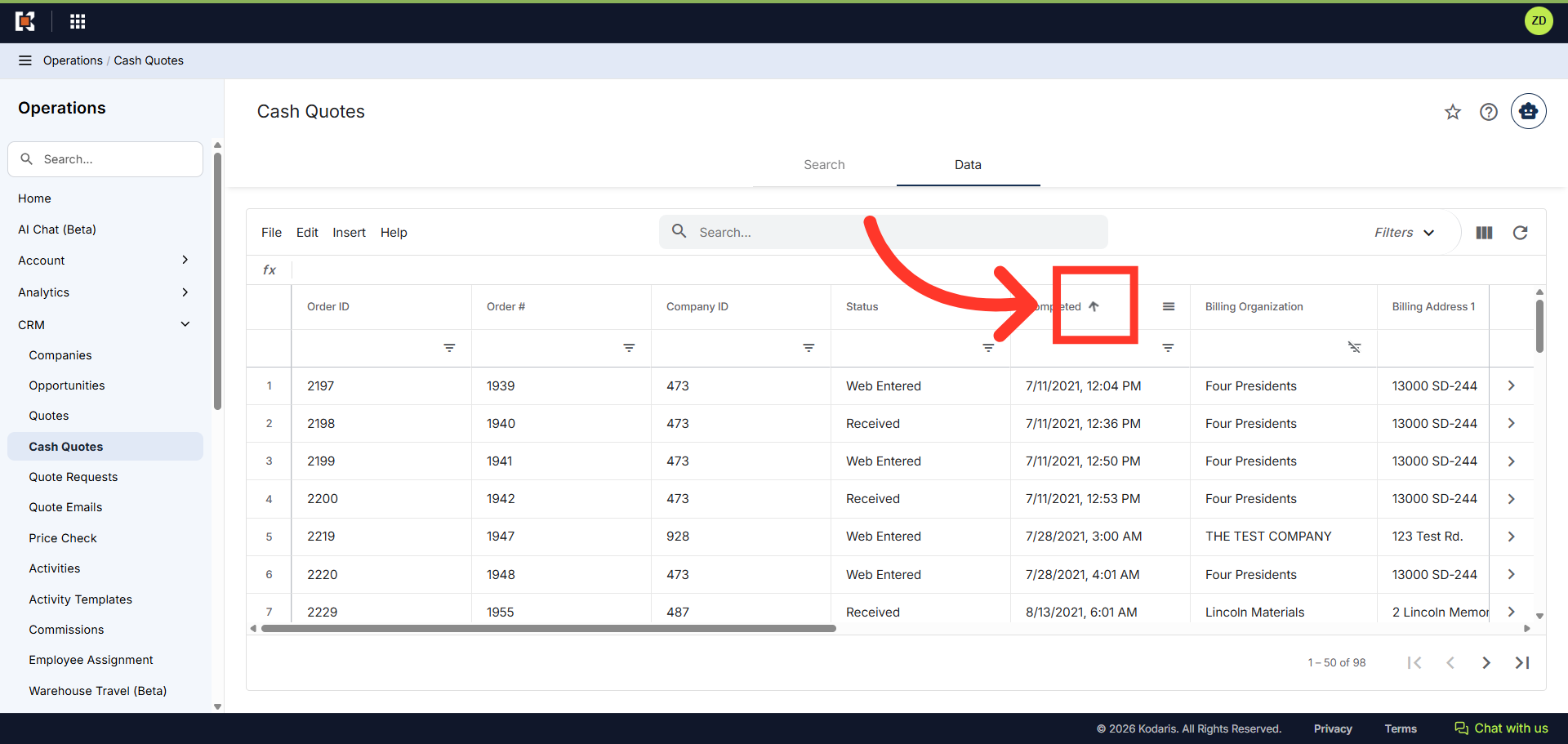
"Sort" icon is also available in selected columns. Simply click the arrow to start sorting.
Click the more details icon
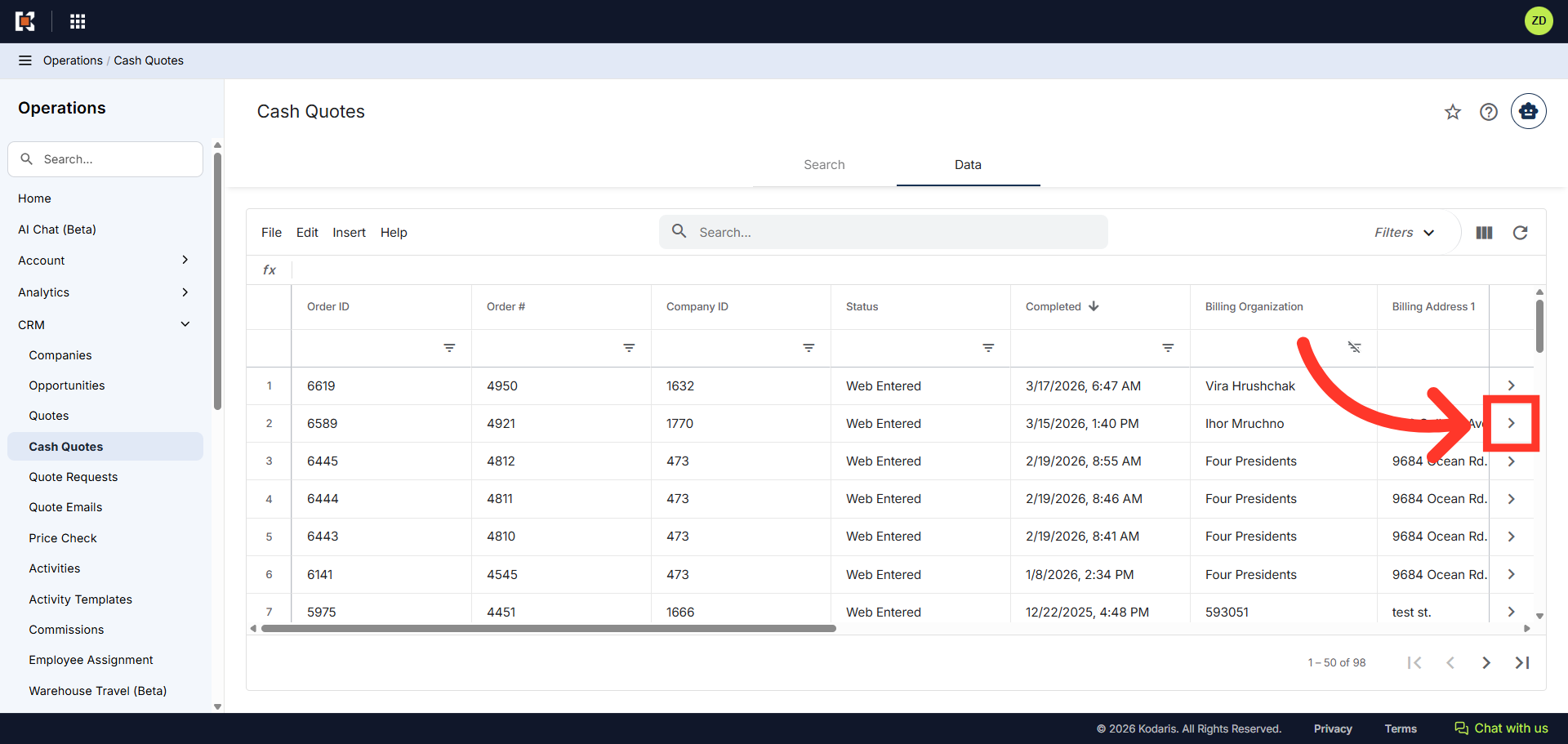
You can also click the more details icon on a specific Cash Quote to see the details of the quote.
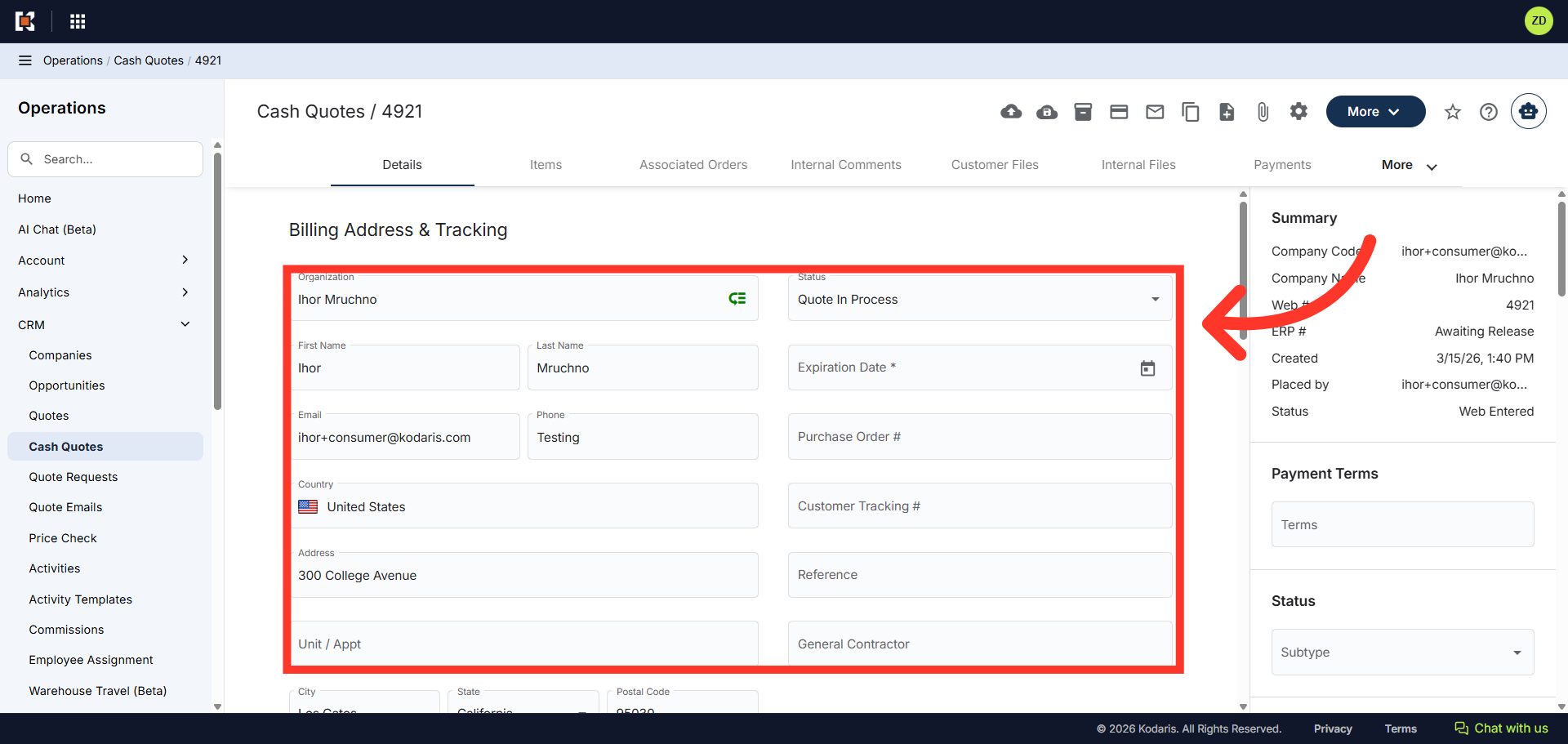
"Details" tab
In the "Details" tab, you can view and edit details on the Cash Quote such as status, expiration date, and reference numbers.
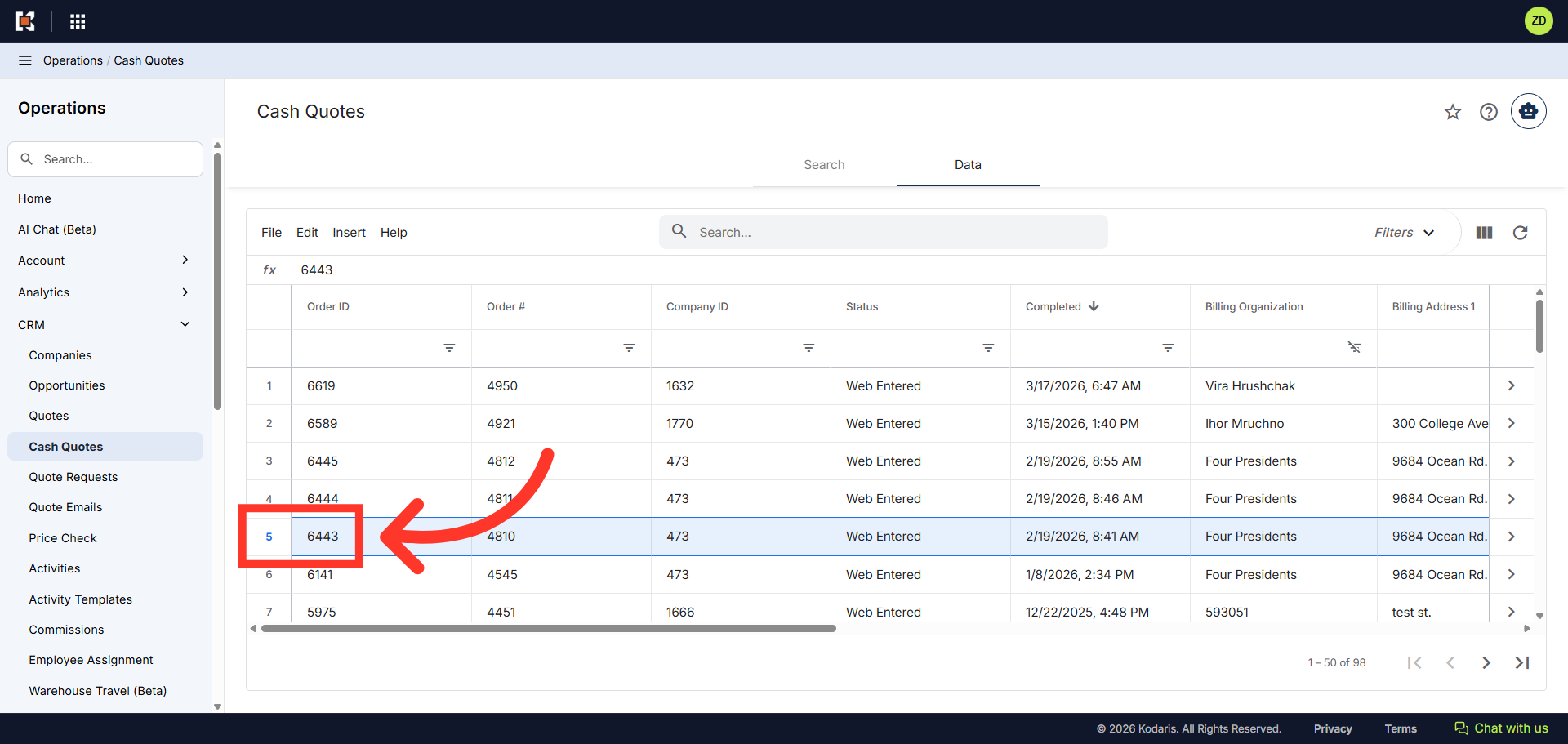
Select a row to Delete
If needed, you can also delete a Cash Quote from the grid view. Click on the row that contains the Cash Quote you wish to delete.
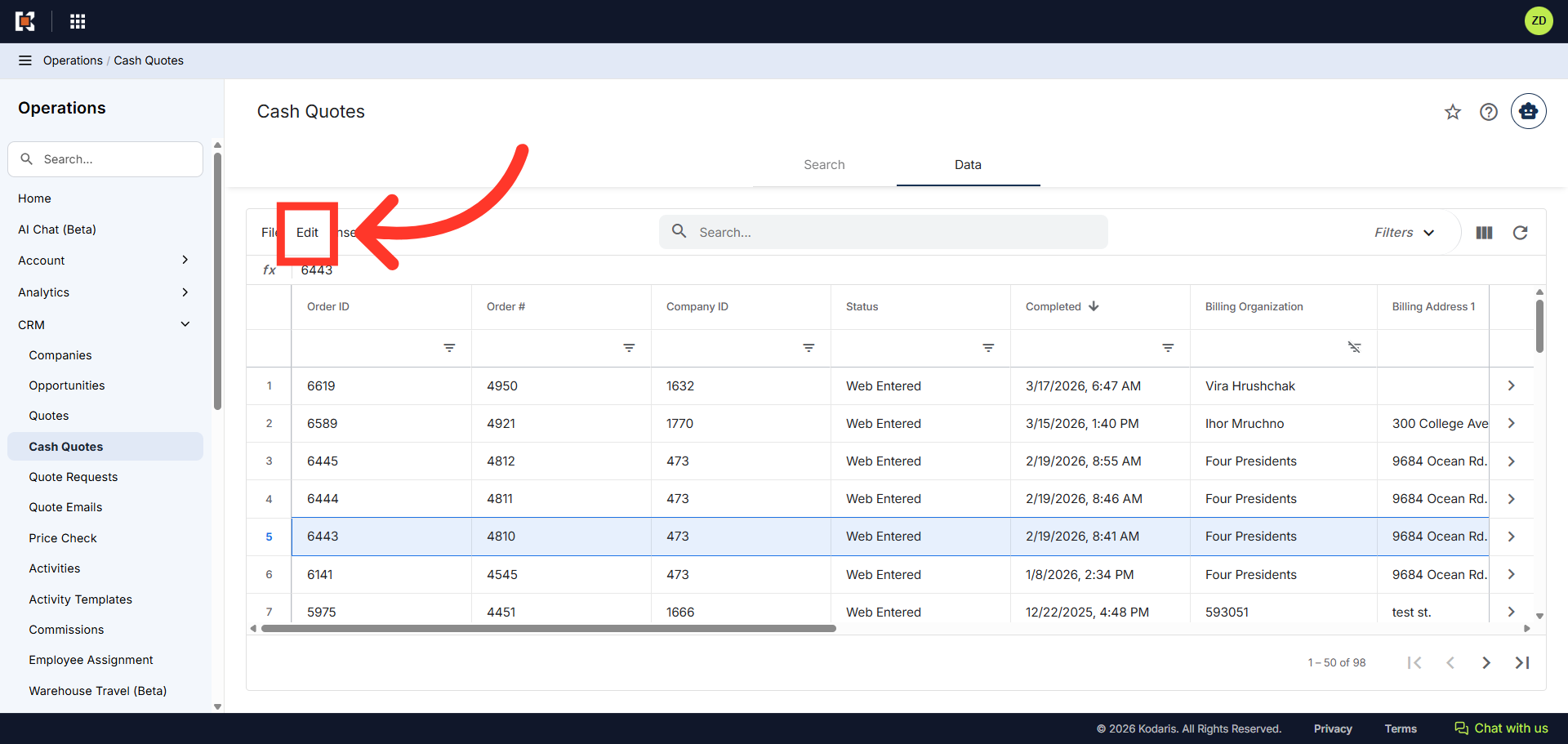
Click "Edit"
Then, click the "Edit" menu option.
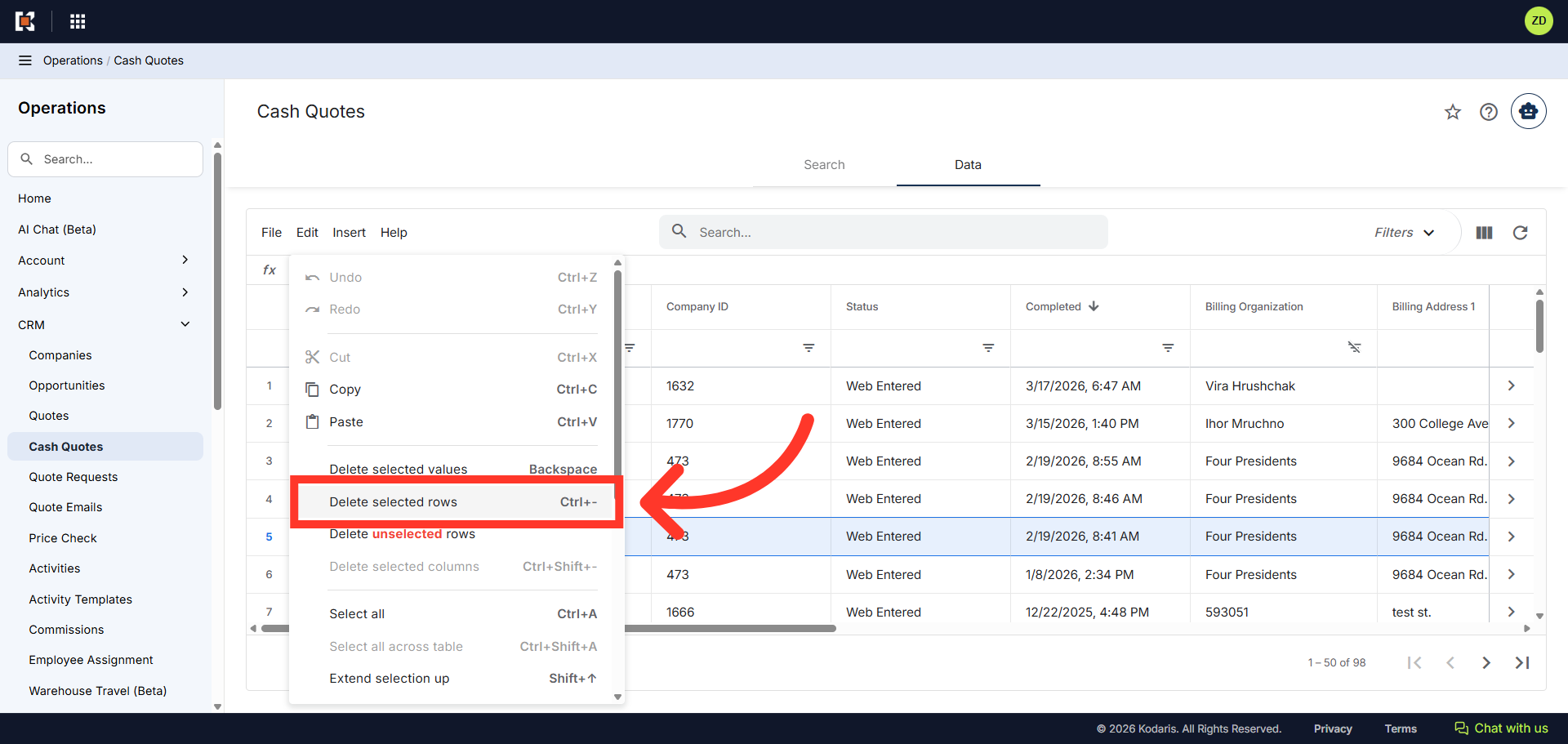
Select "Delete Selected Rows"
Next, select the "Delete selected rows" option from the drop-down menu.
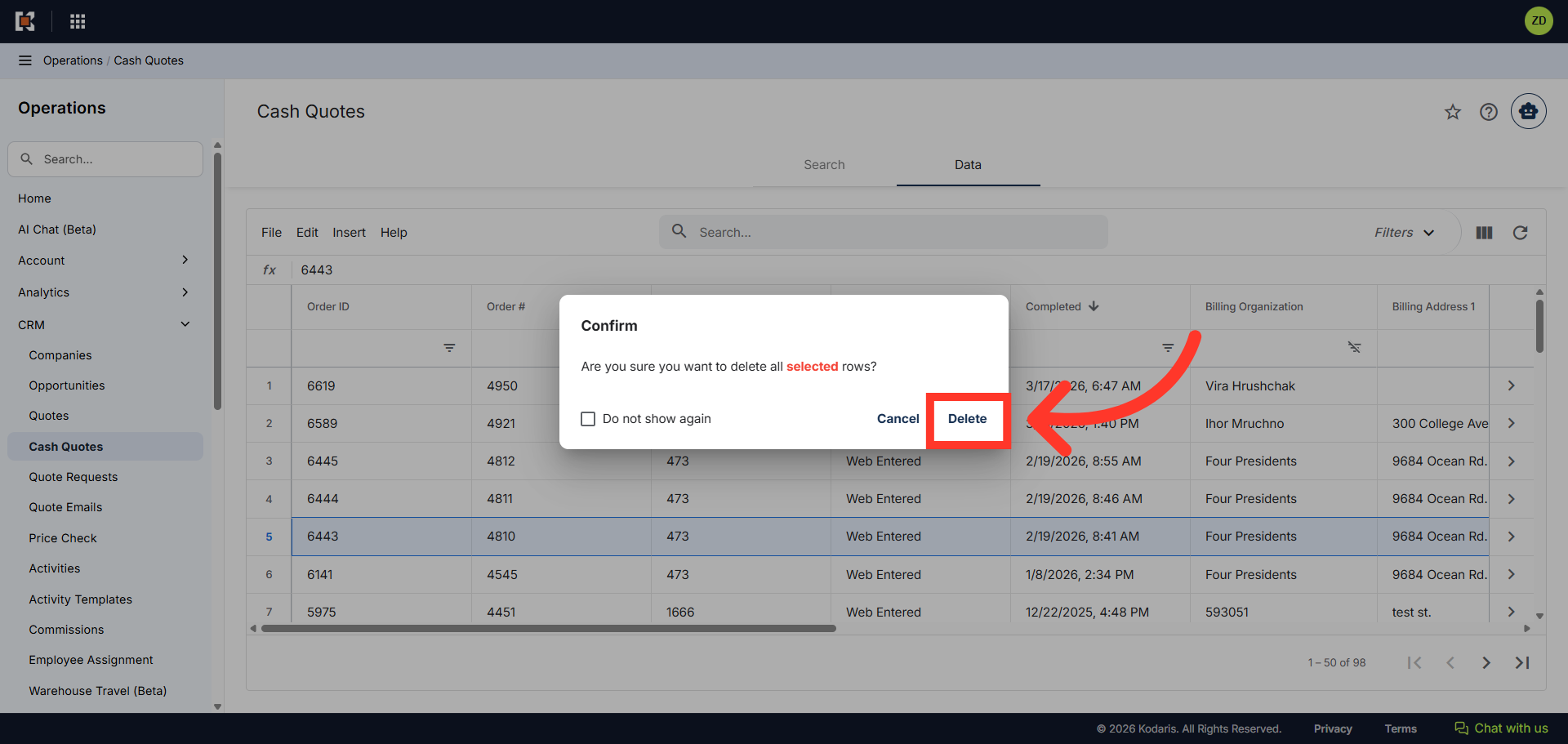
Click "Delete"
Click "Delete" to confirm and permanently remove the selected row.
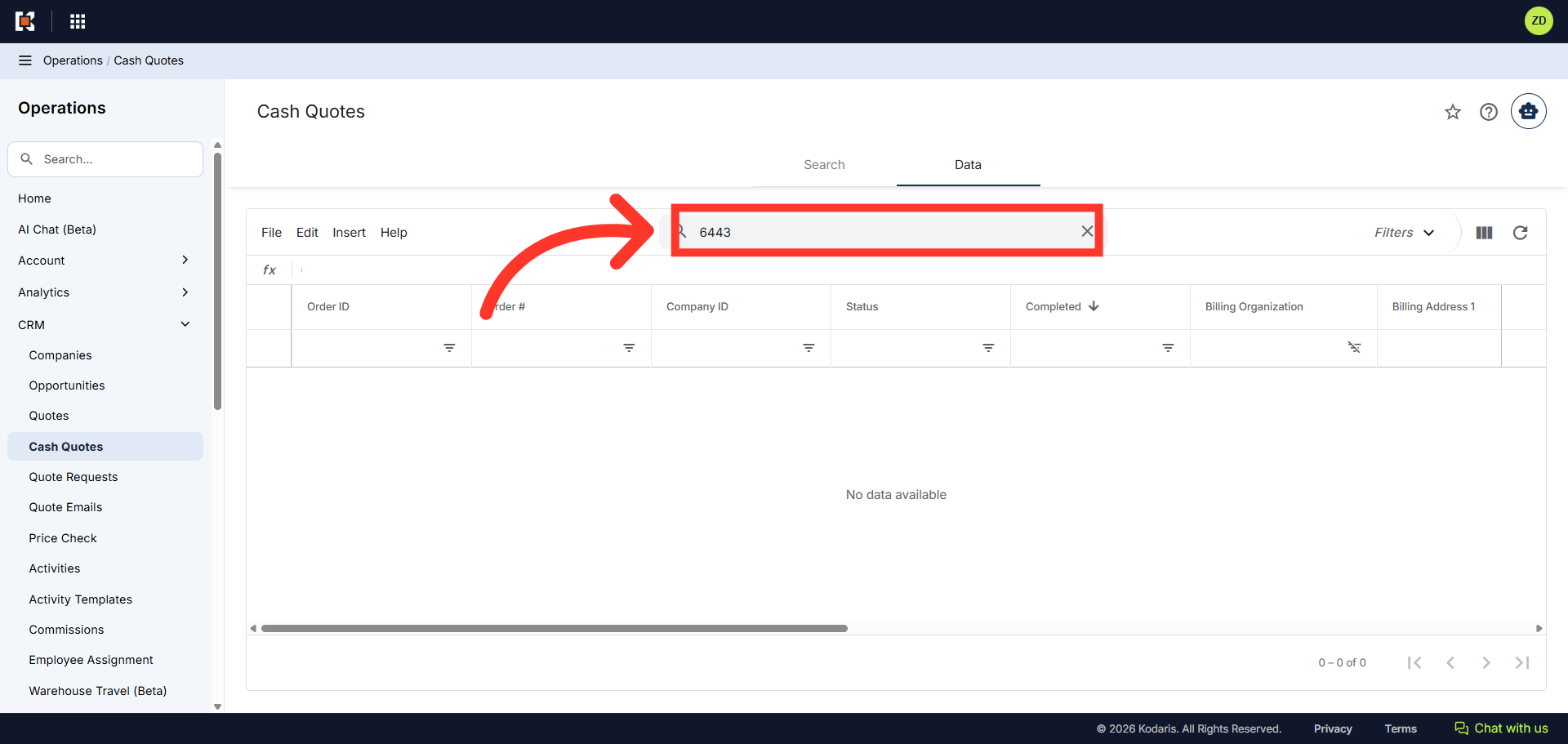
Search for the Quote
To confirm the Cash Quote has been deleted, you can enter the quote number in the search field and hit enter. You will see a "No data available" note in the middle of the grid indicating the record has been deleted.