Operations CRM - Preview Company Statement Template
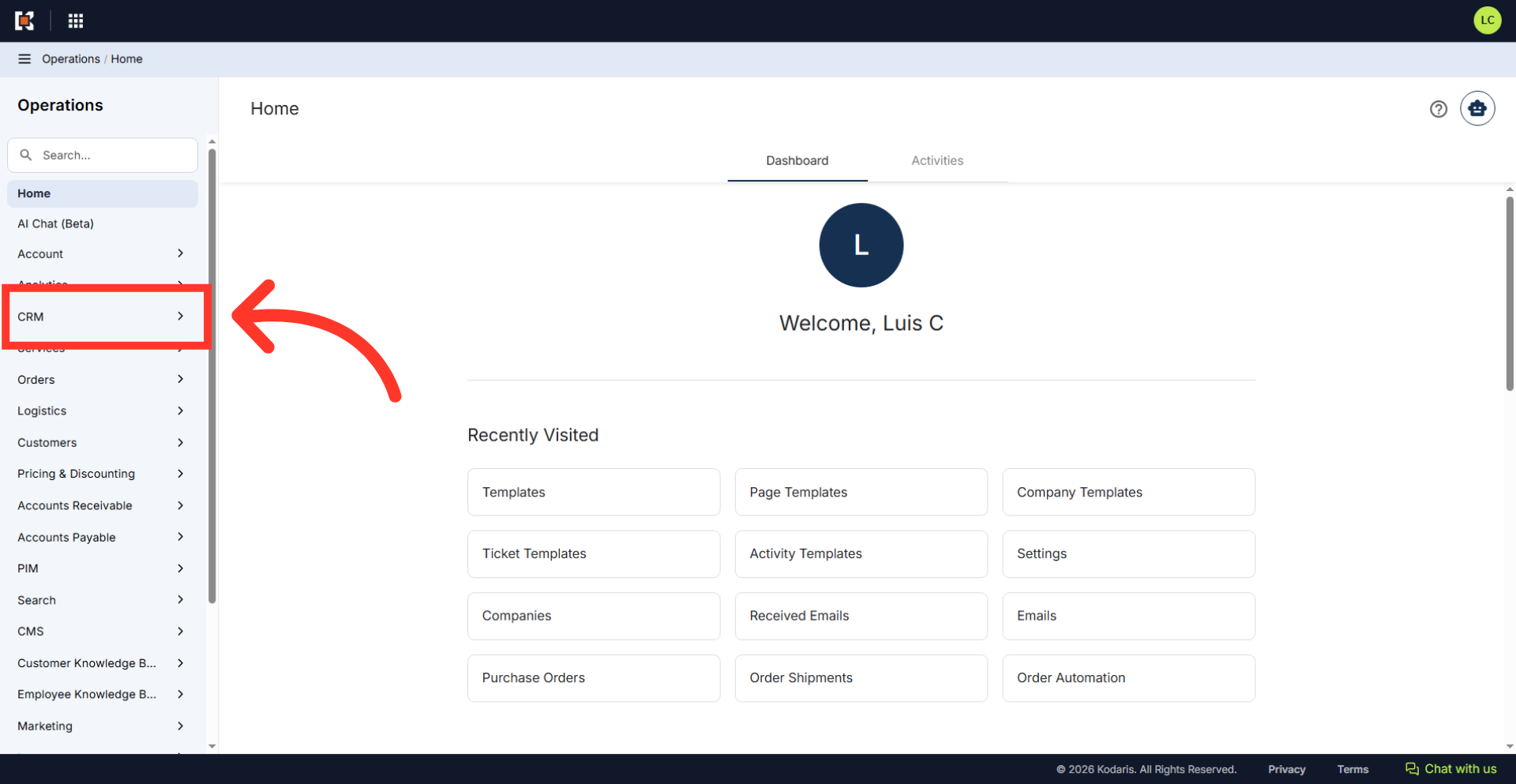
Navigate to "CRM"
To generate a company statement template, navigate to the "CRM" section in the Operations Portal.
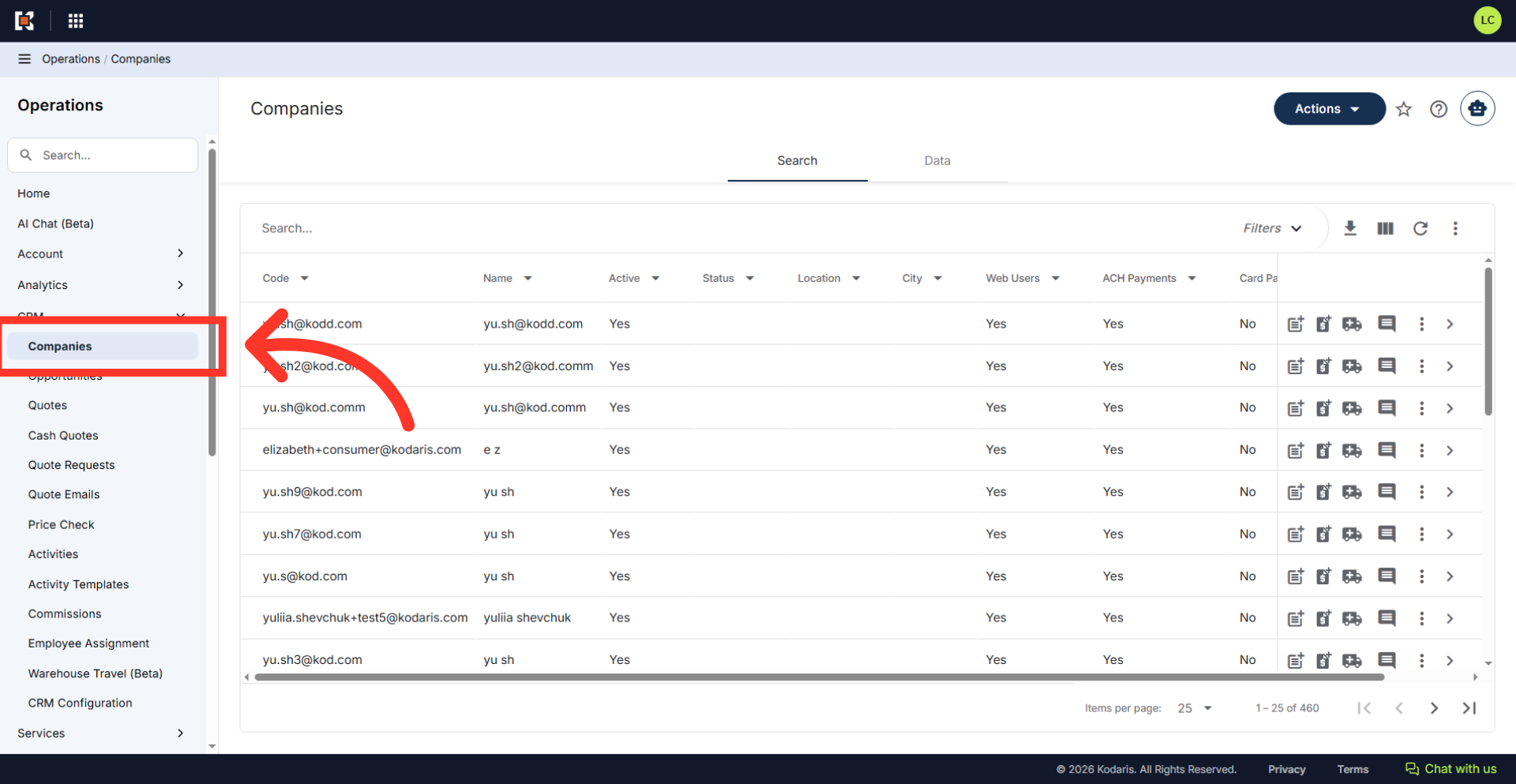
Click "Companies"
Then, click "Companies". In order to access "Companies" the account will need to be set up either as an "administrator" or a "superuser", or have the appropriate roles: "companyView," "crmCompanyView," "companyEdit," "crmCompanyEdit," and "dispatch." Just a reminder, "crmCompanyEdit" access only allows employees to access companies that are assigned to them.
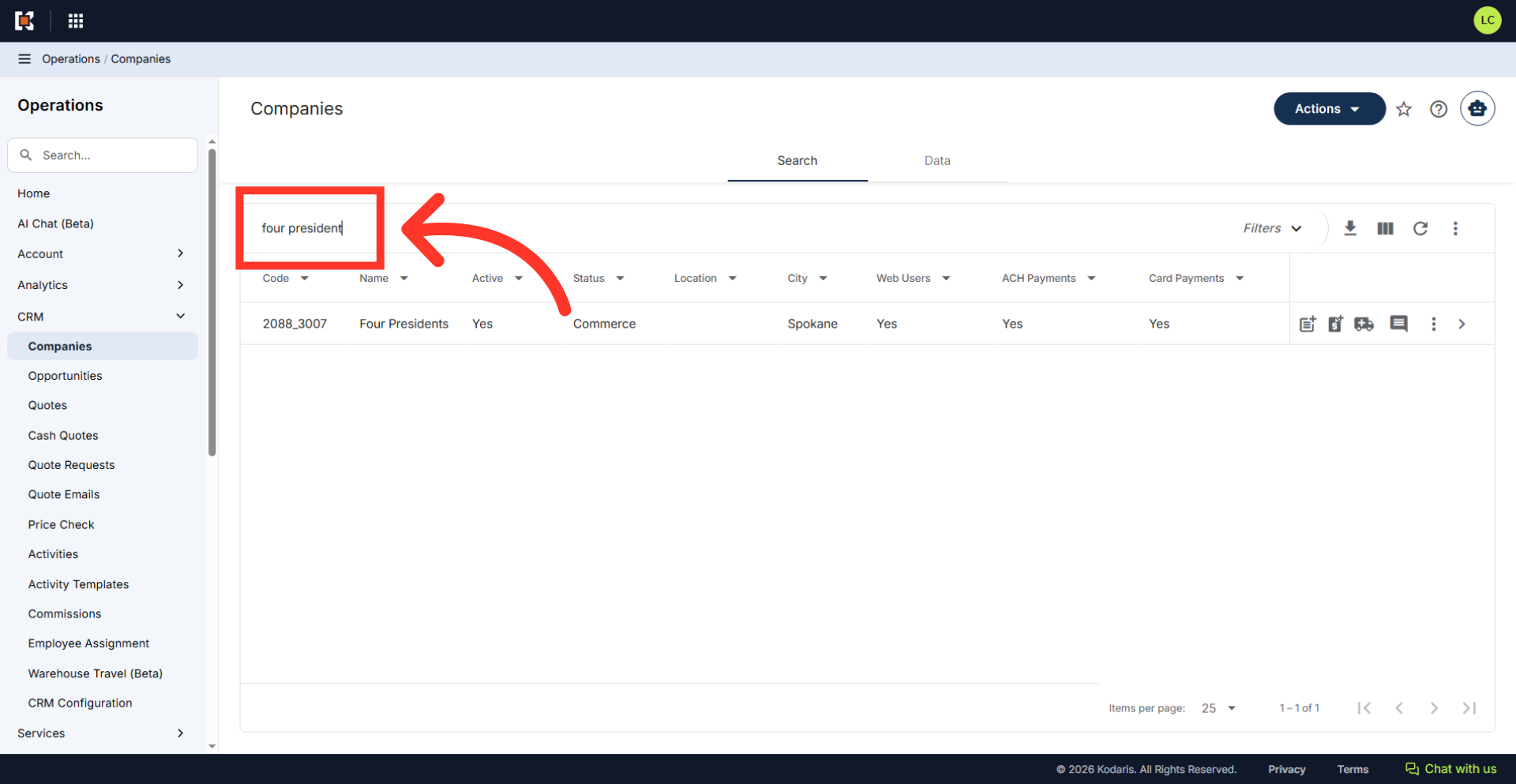
Search for the company
Search for the company you would like to view.
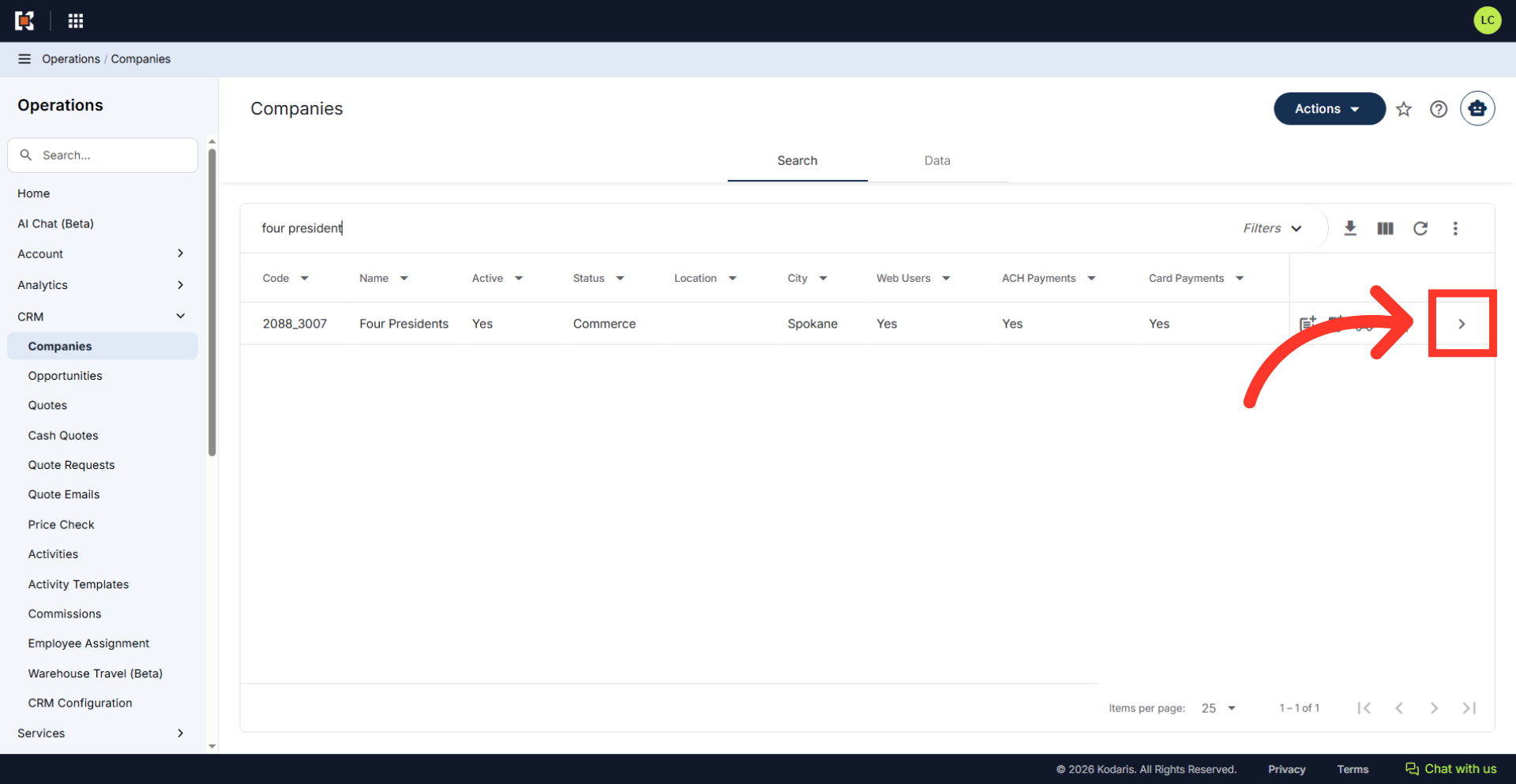
Click the more details icon
Click the more details icon to go to the company’s details screen.
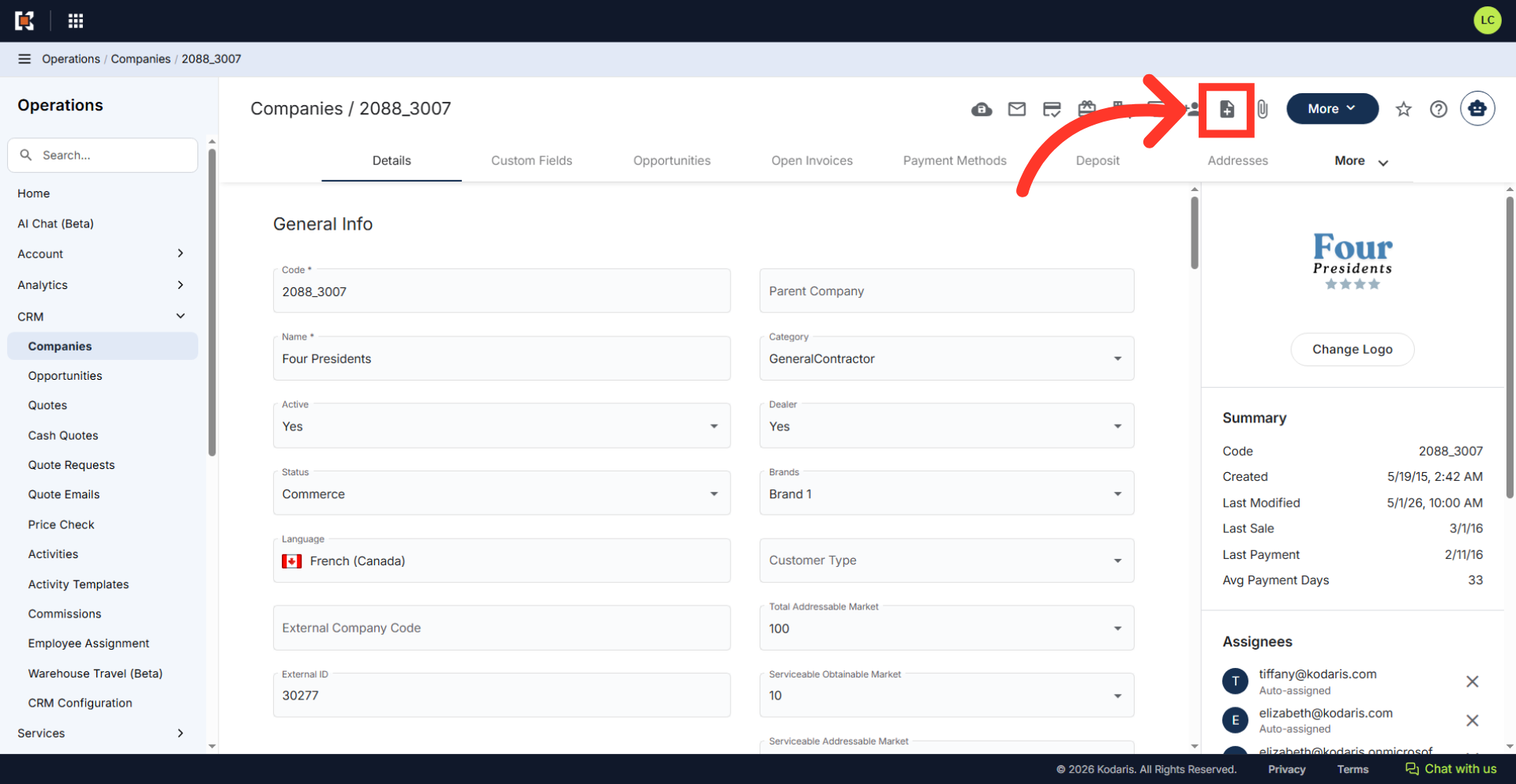
Click the "Generate Statement PDF" icon
Click on the "Generate Statement PDF" icon.
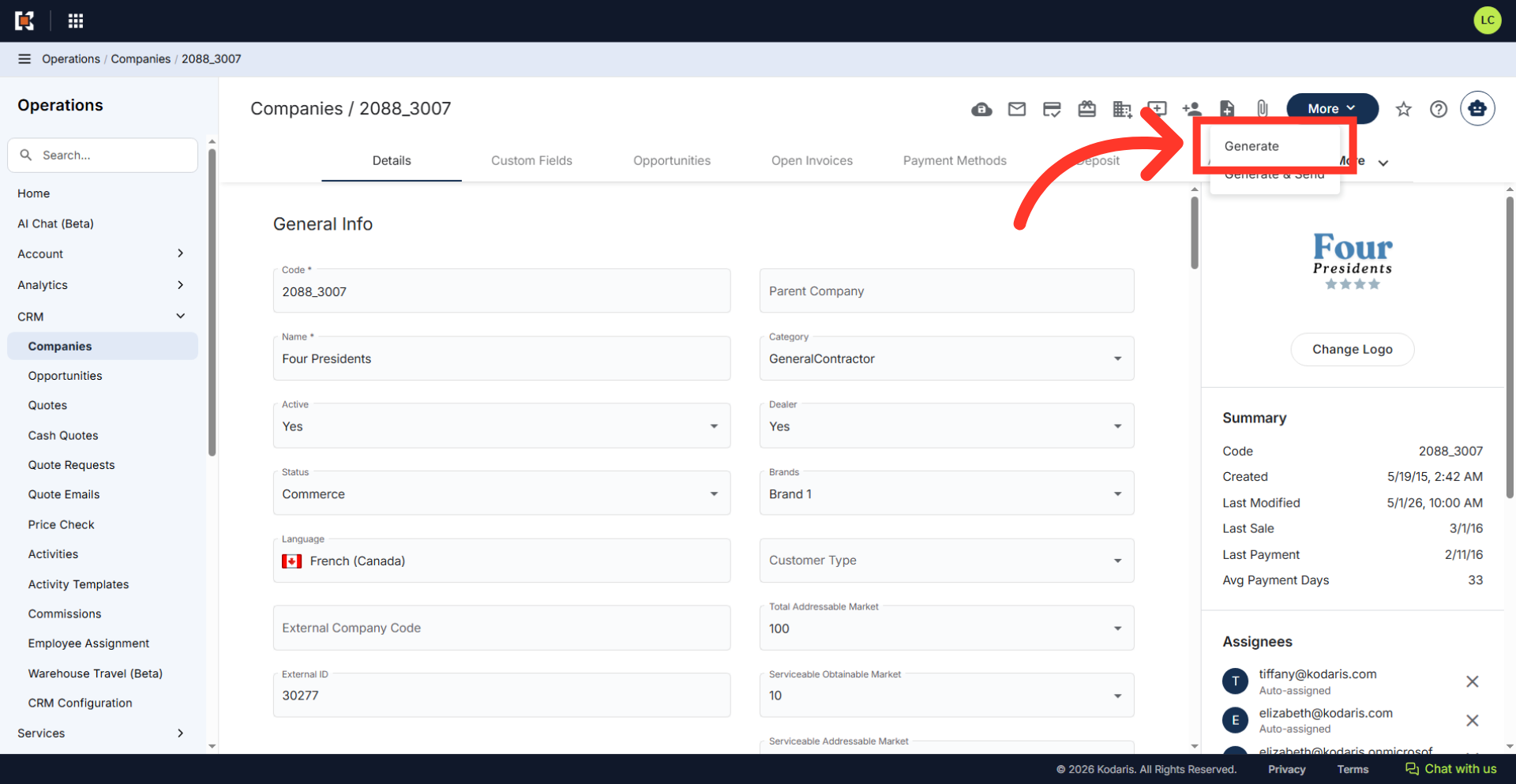
Select the "Generate" option
Then, select the "Generate" option from the dropdown to create the file. The other option of "Generate & Send" will generate and send the statement to your customer. If you are not ready to do this, only select "Generate".
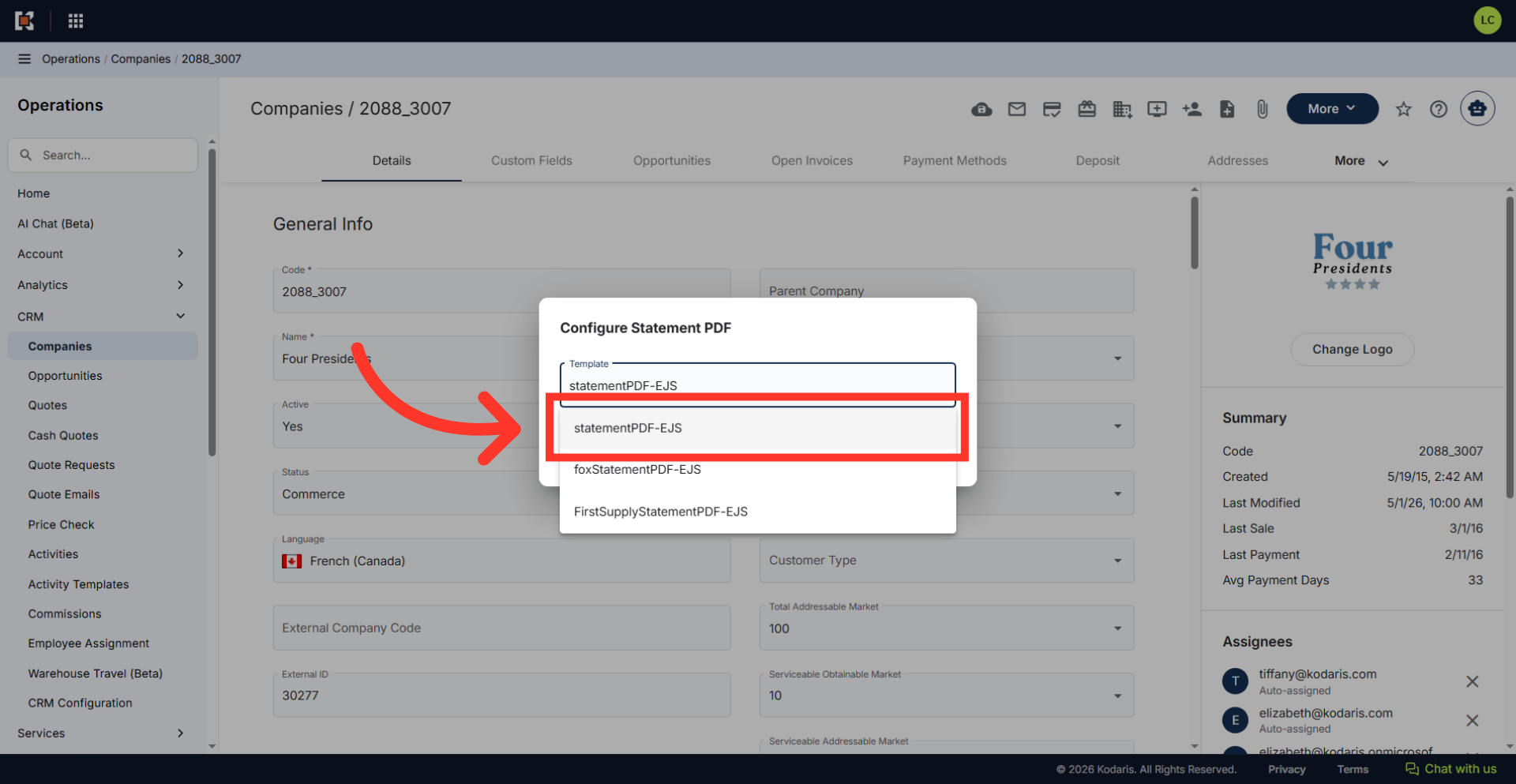
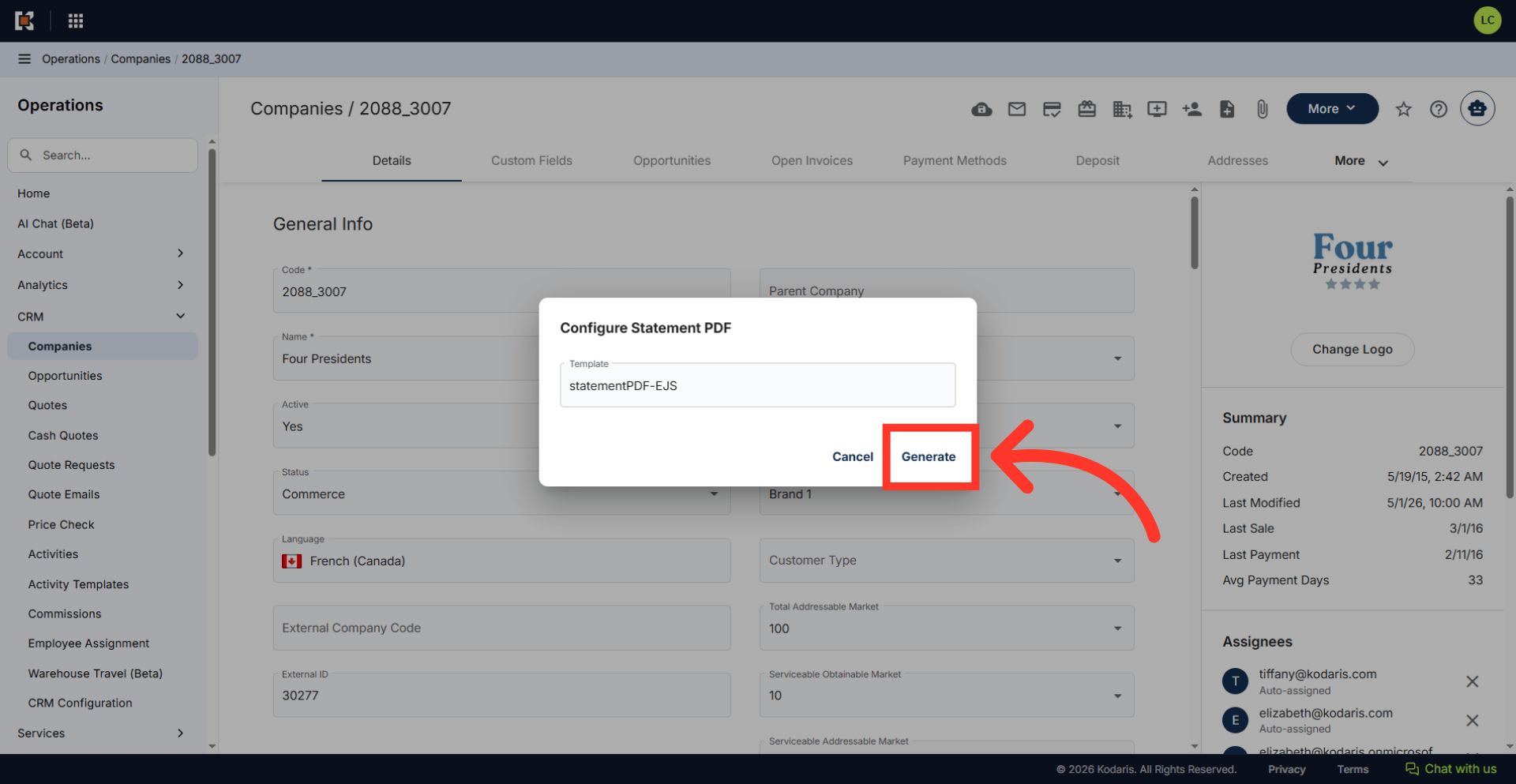
Select the template
Select the "statementPDF-EJS" template from the list.
Click "Generate"
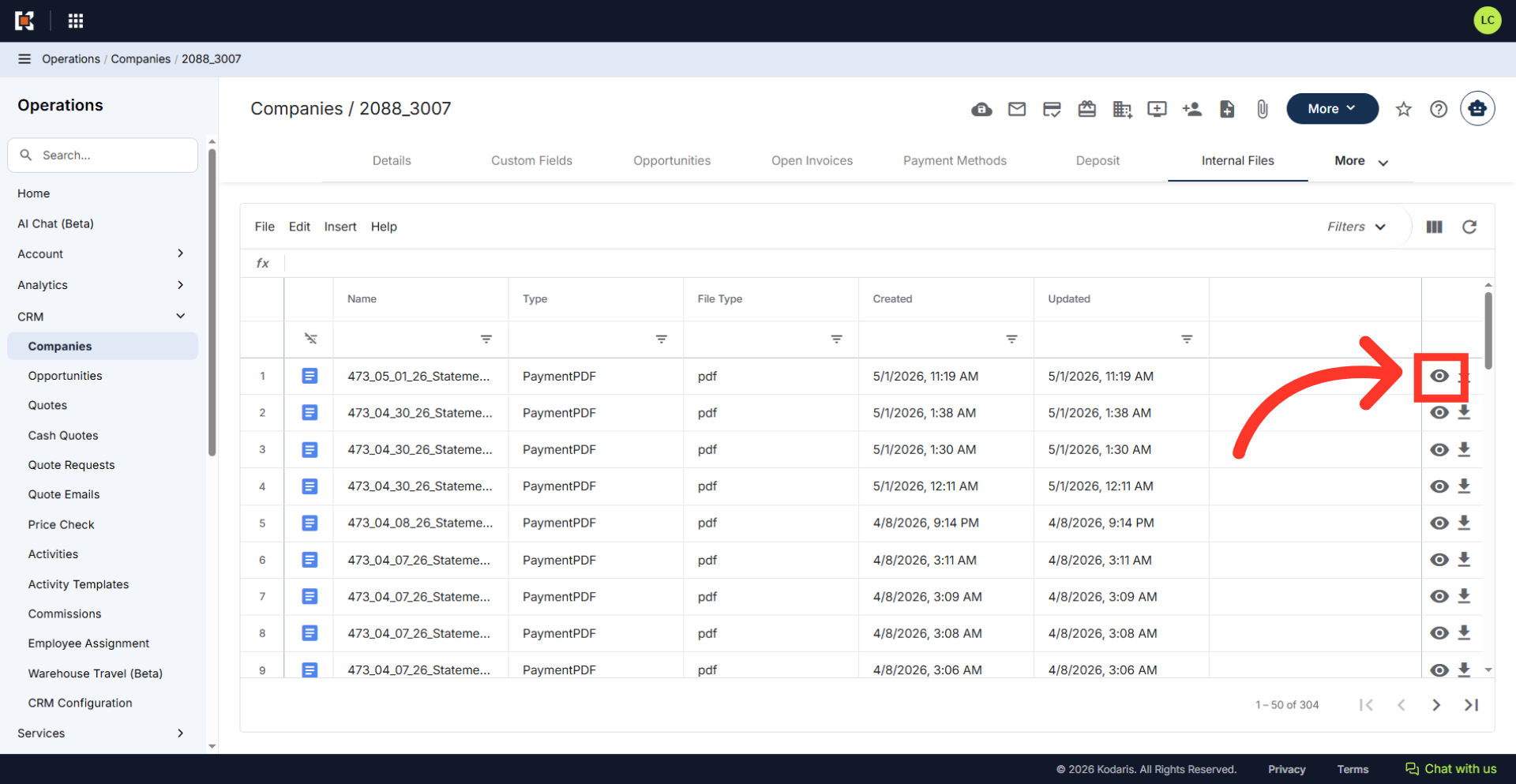
Click "Generate". You will be redirected to the "Internal Files" tab where you can view the generated PDF.
Click the preview icon
Select the preview icon to view the file.
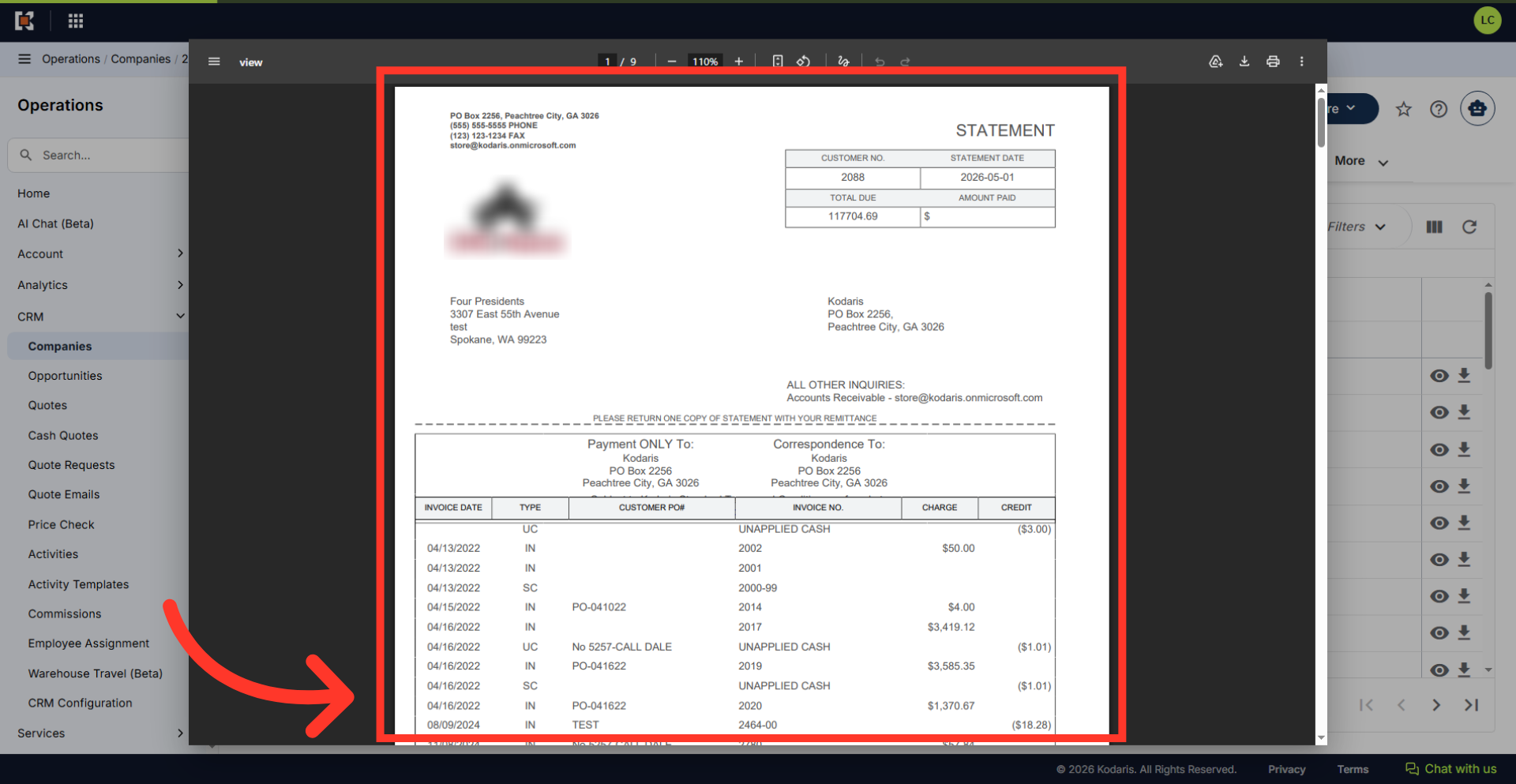
Review PDF
View the generated PDF within the browser.
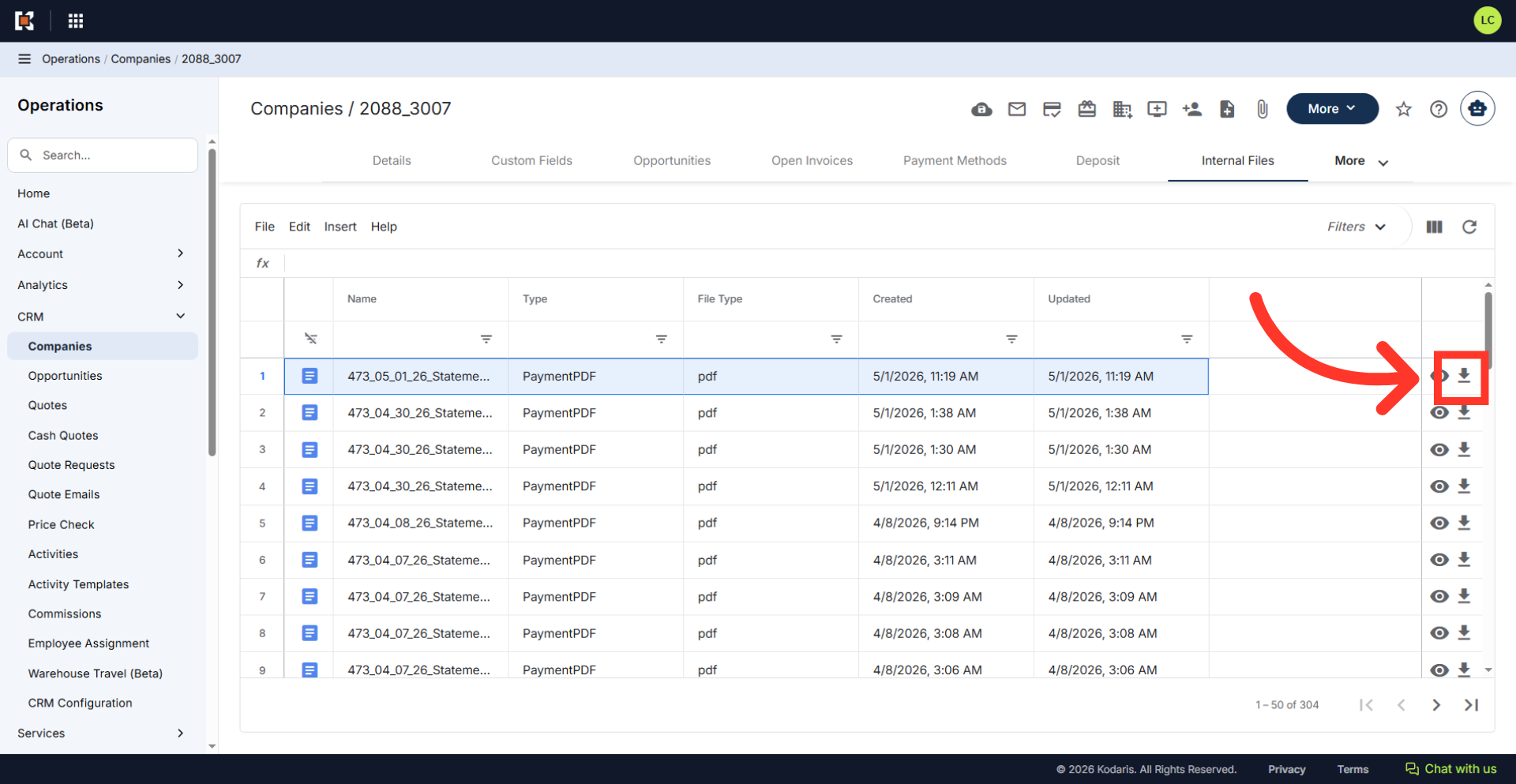
"Download" icon
Return to the "Internal Files" tab and click the icon to download the generated statement to your device.