Operations CRM - Pay Flat Sum on Account
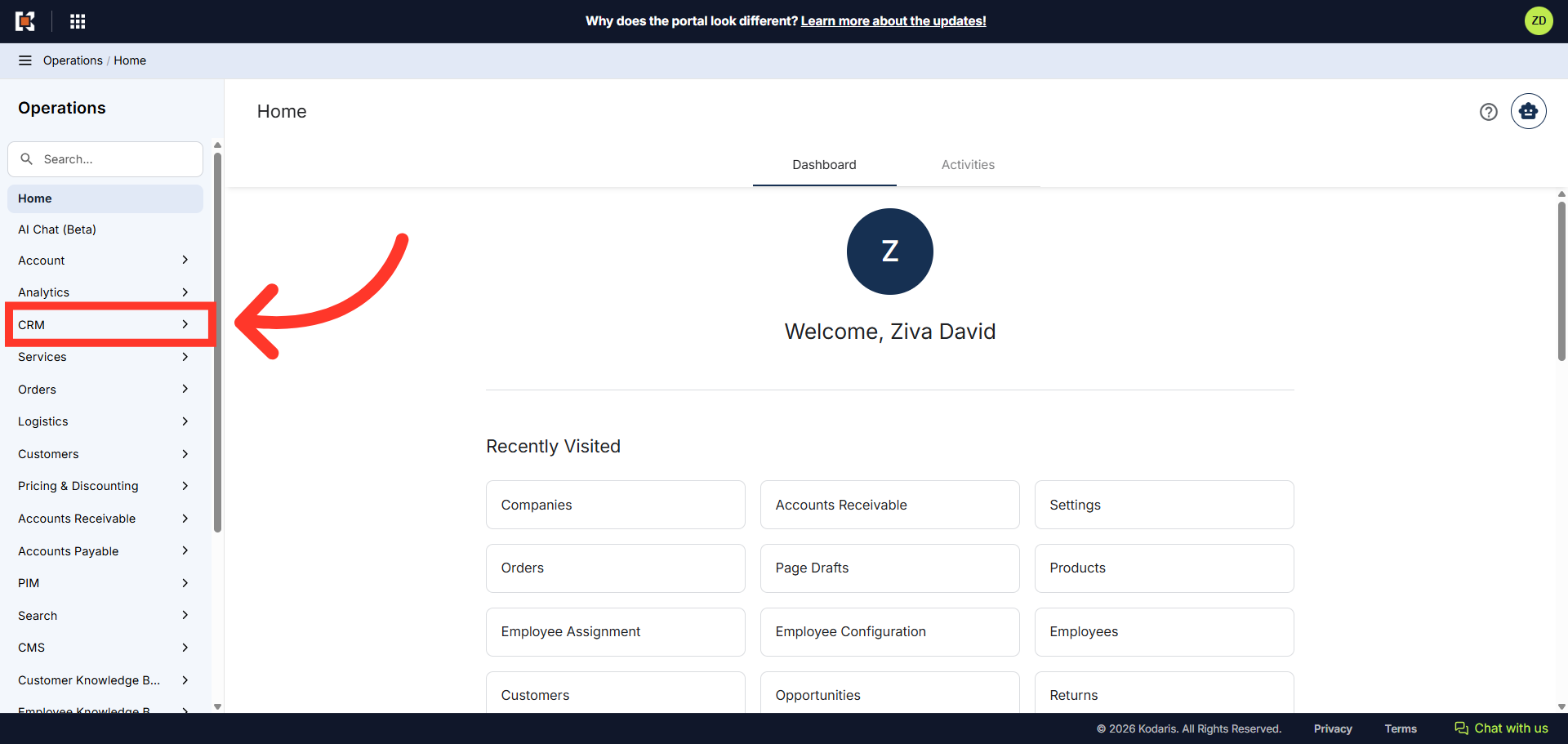
Navigate to "CRM"
The "Deposit" feature is available if customers would like to pay a flat sum on their account. To do this, navigate to the "CRM" section in the Operations Portal.
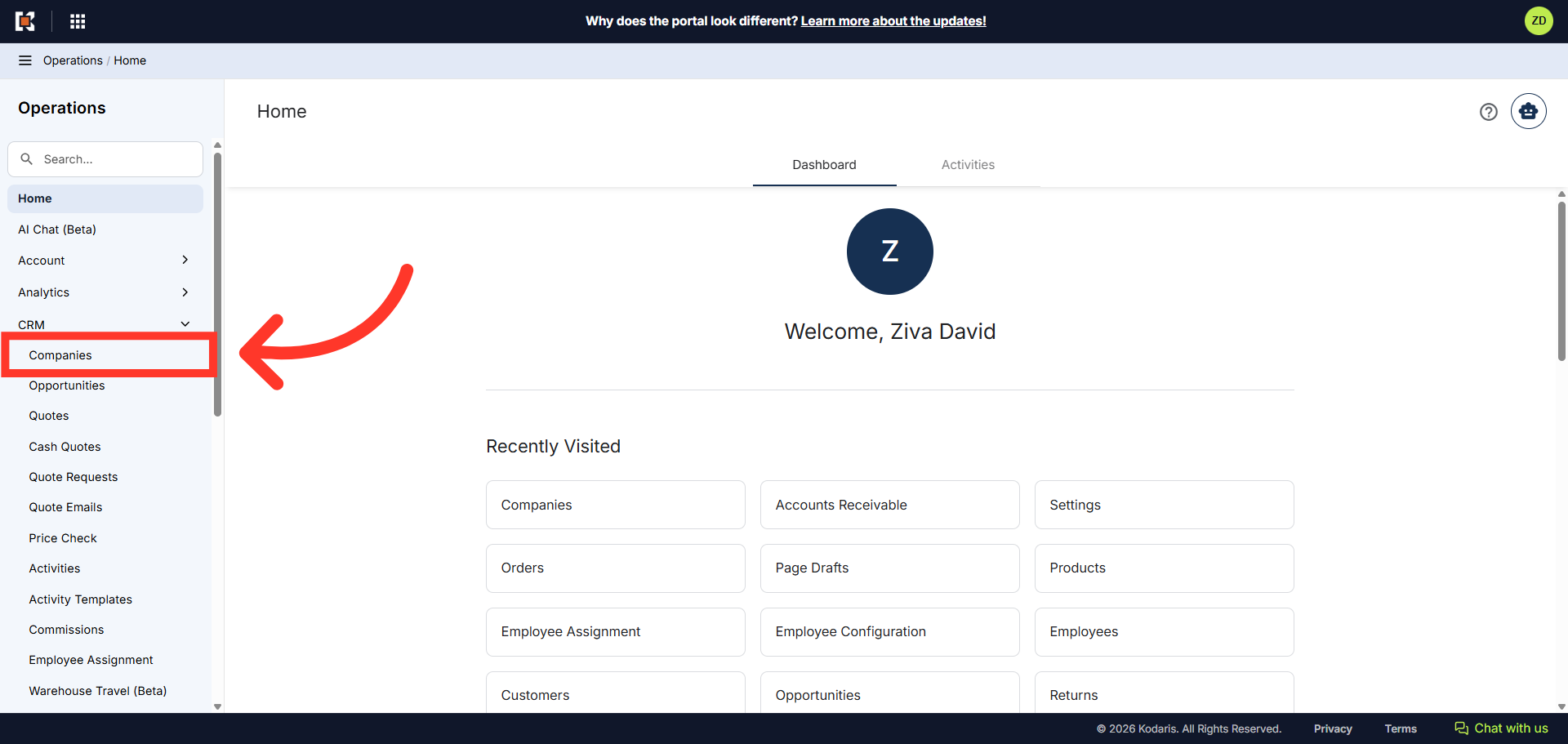
Click "Companies"
Then, click "Companies". In order to access "Companies" you will need to be set up either as an "administrator" or a "superuser", or have the appropriate roles: "companyEdit", or "crmCompanyEdit". Just a reminder, "crmCompanyEdit" access only allows employees to access companies that are assigned to them.
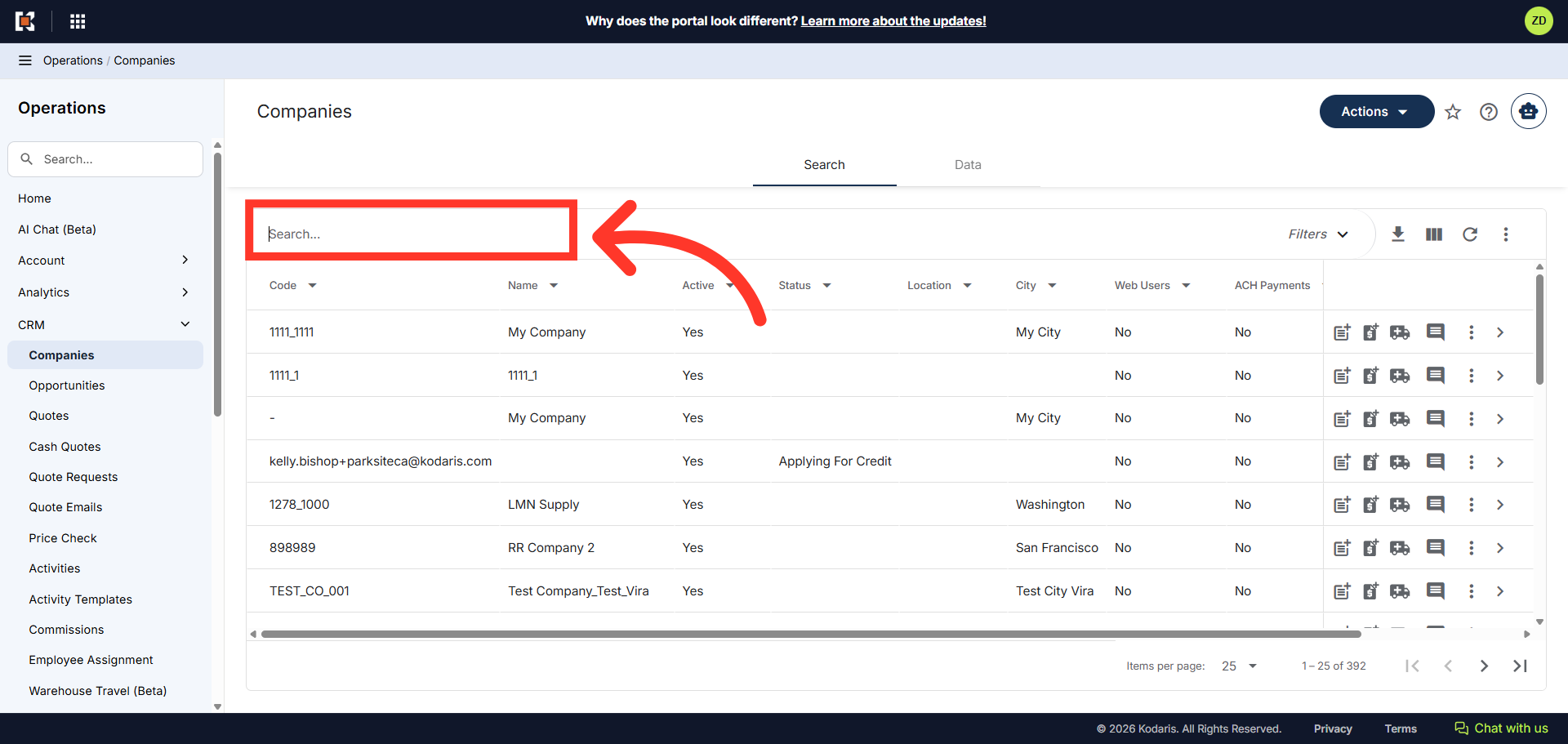
Search for company
To quickly locate the company you wish to view, use the "Search..." field and search for the company using the company name or company code. In this example, we will a use company name.
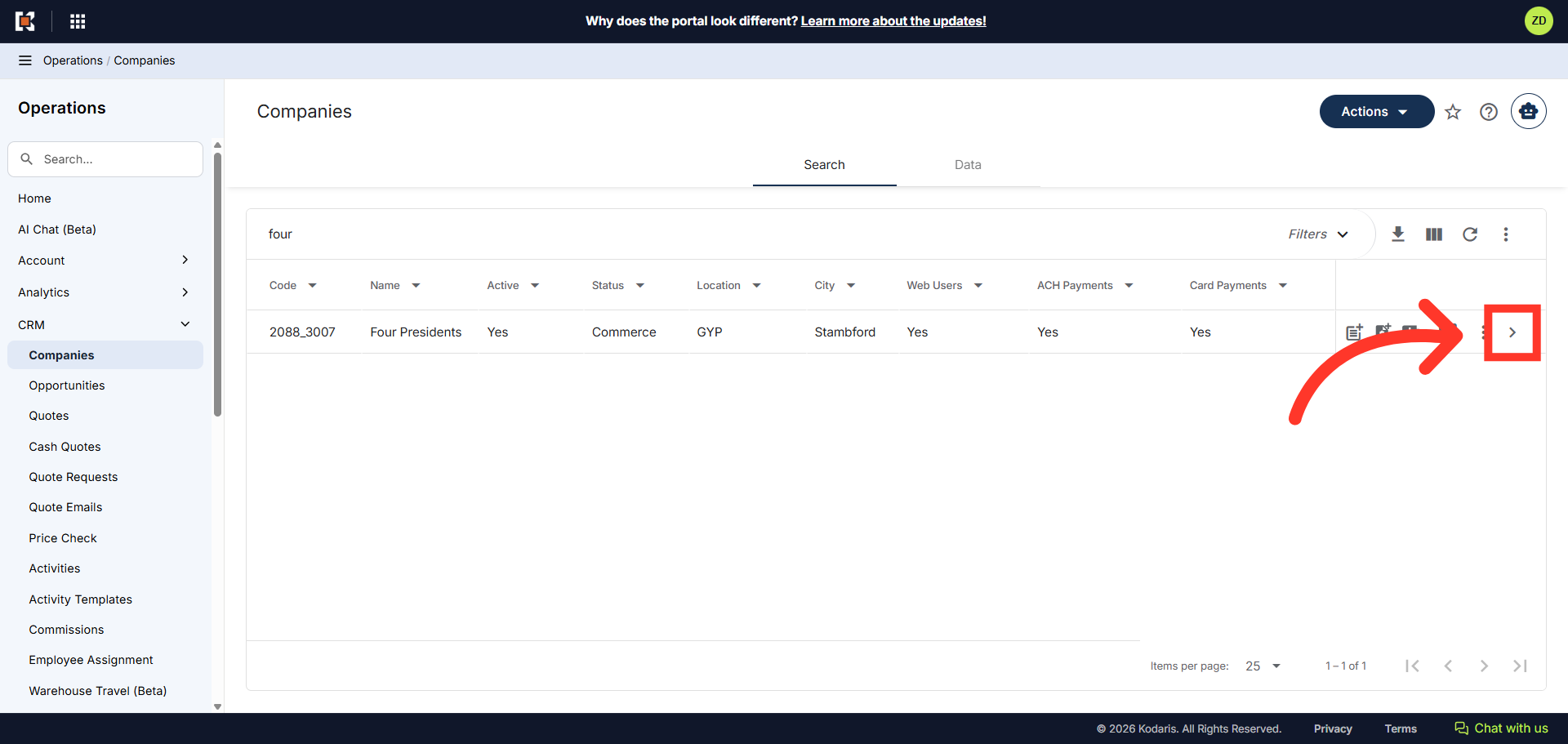
Click on the more details icon
Then, click on the more details icon to access the company details.
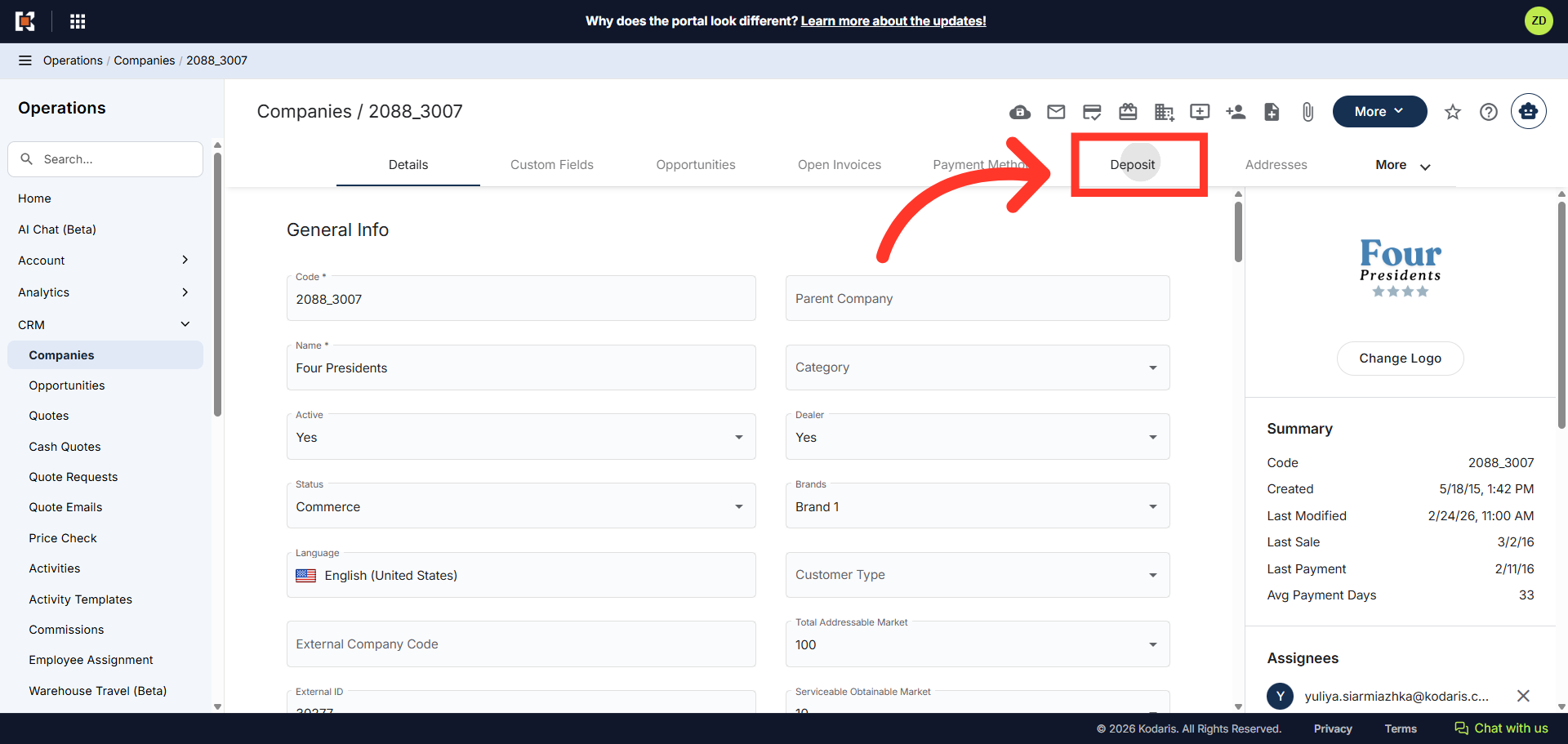
Click "Deposit"
Next, click the "Deposit" tab.
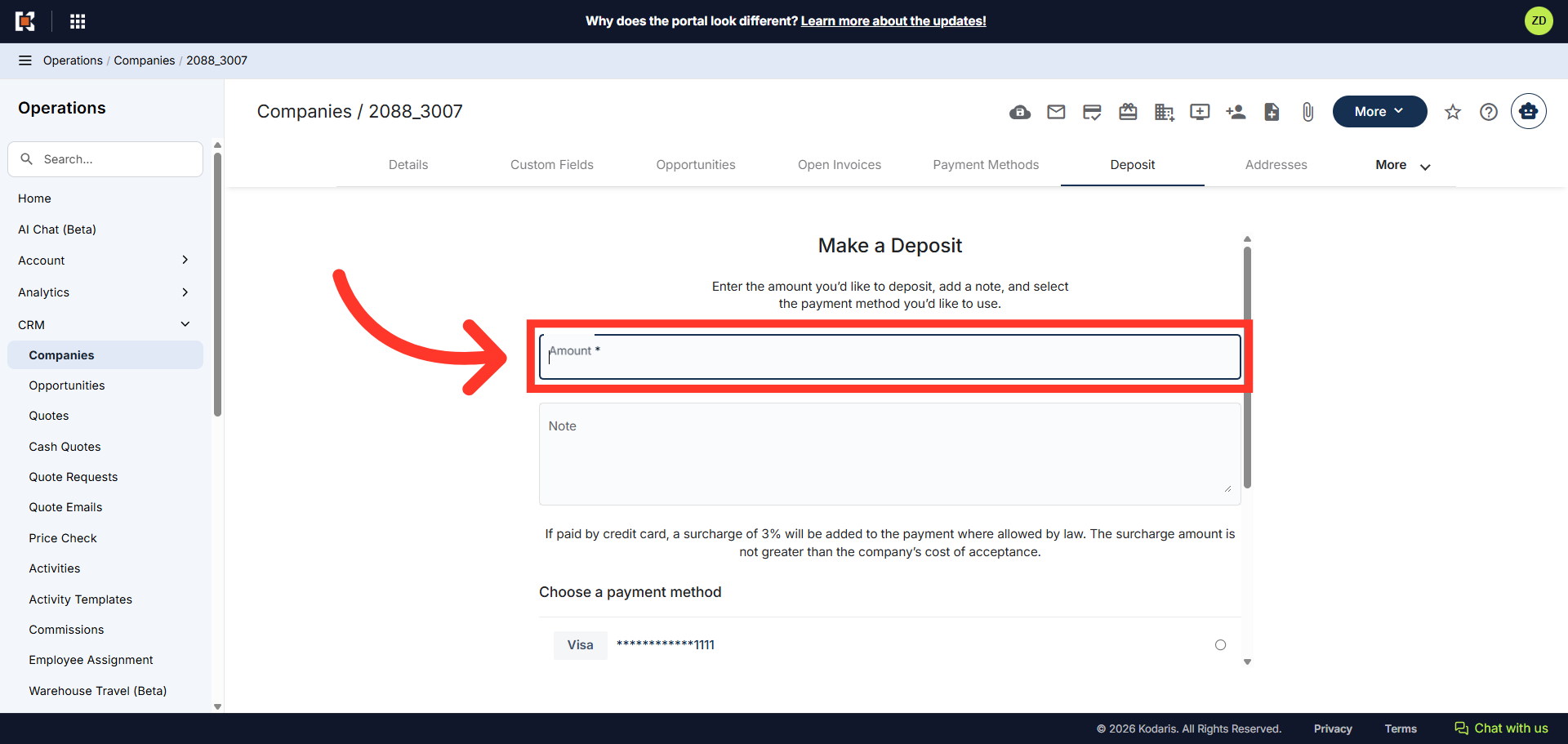
Enter the amount
Enter a dollar value in the "Amount" field to specify the deposit amount.
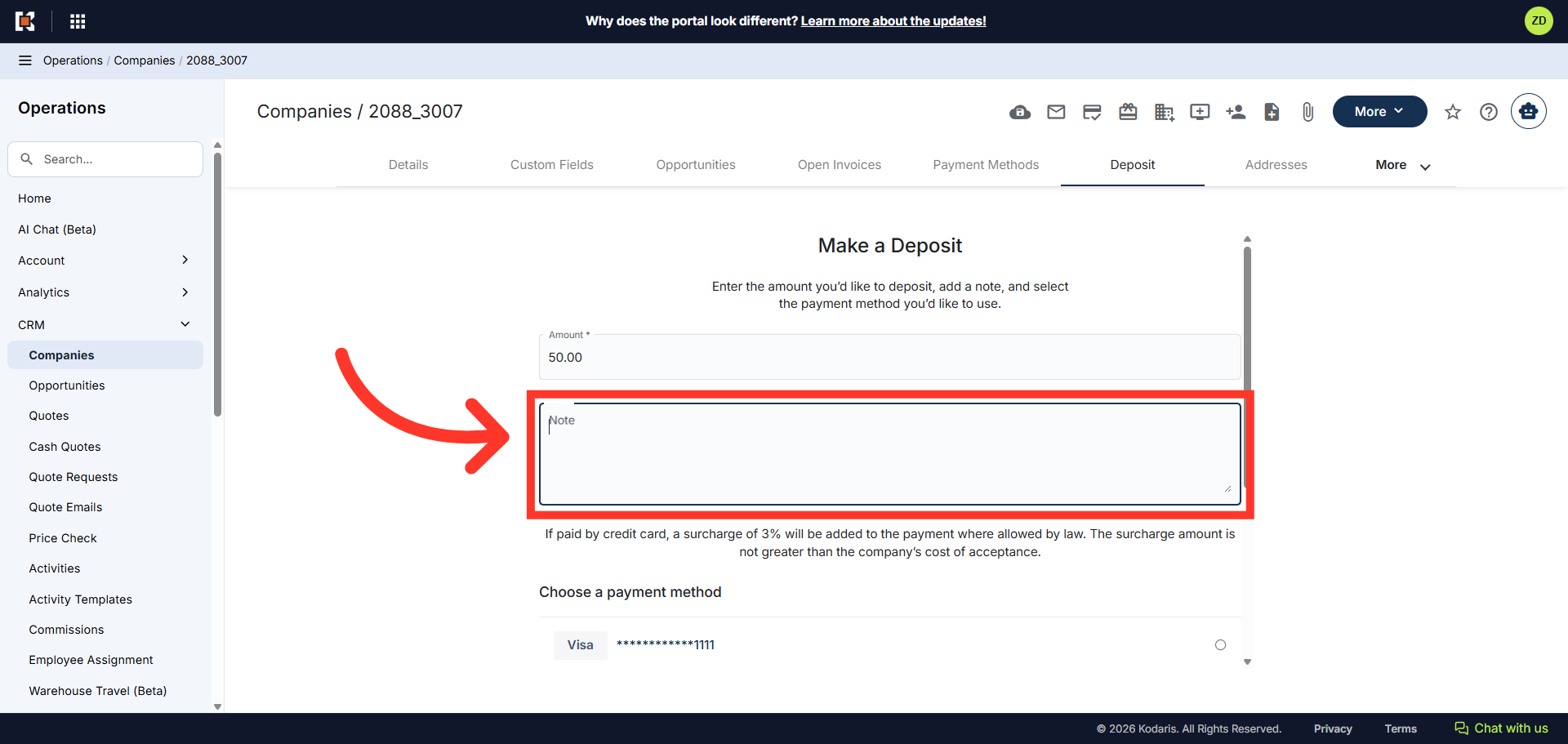
Add a Note
Click the "Note" field to add a note to describe the purpose of the deposit. This is not required, but can be helpful.
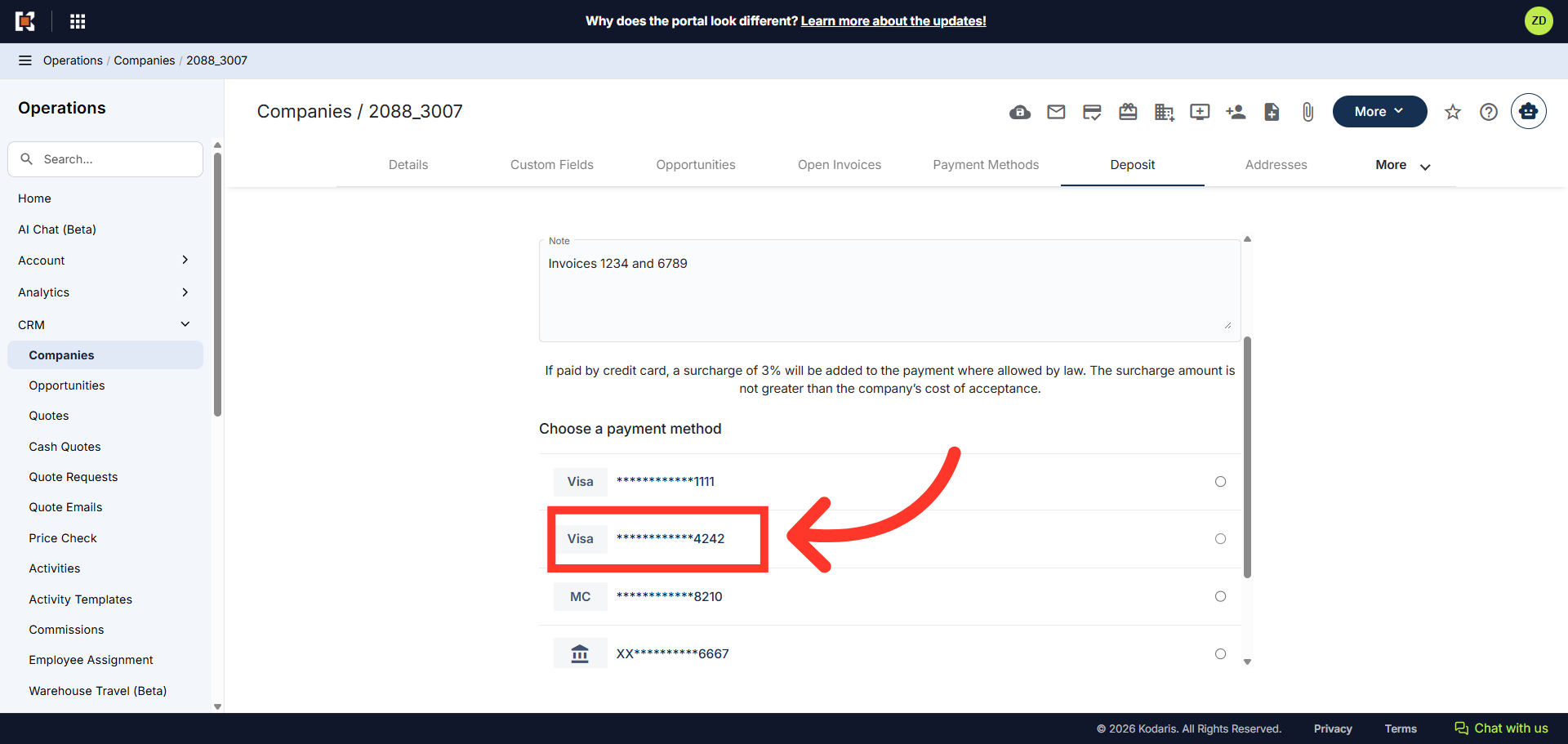
Choose a Payment
Select the method of payment from the list of available payment methods. You can also add a new payment method if needed.
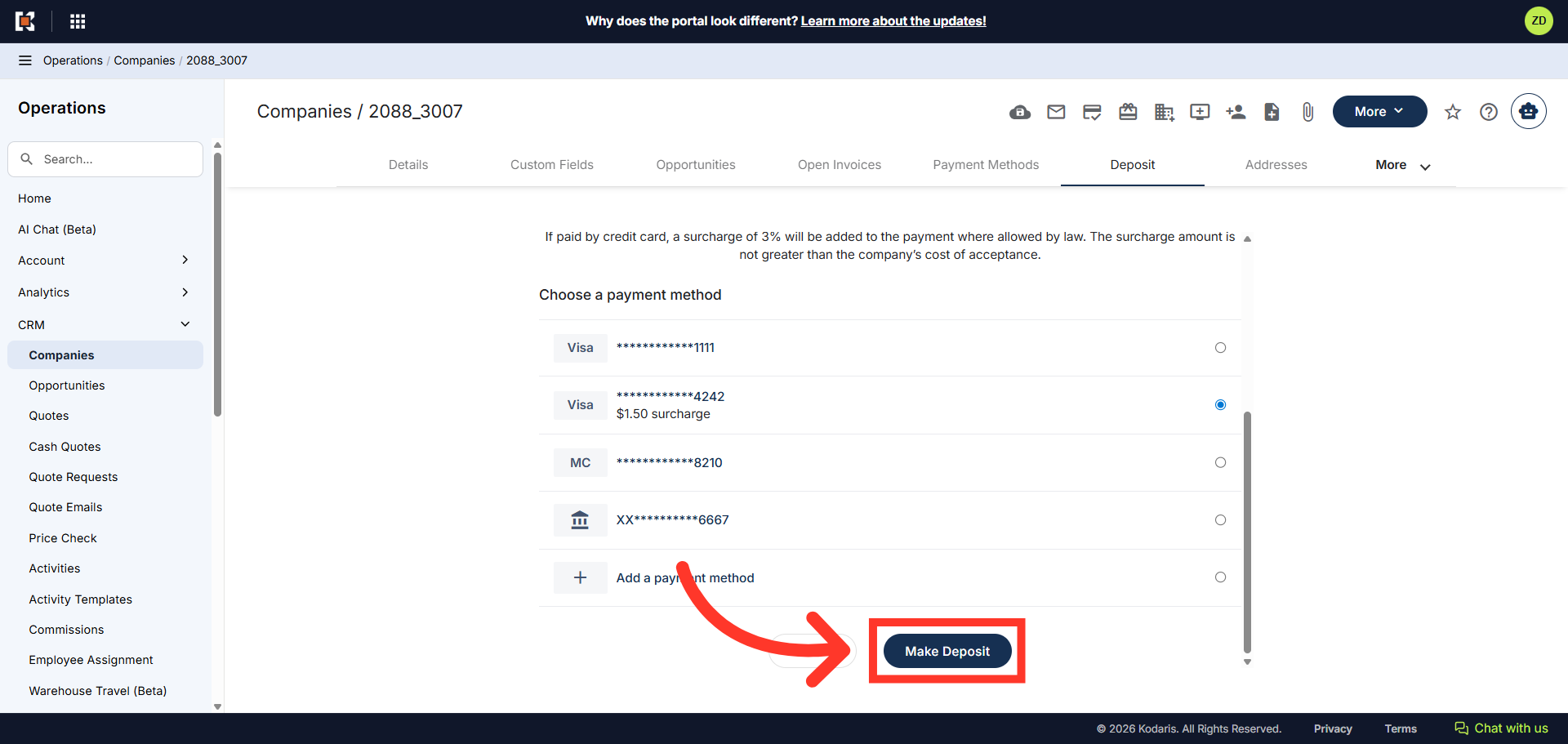
Click "Make Deposit"
Click the "Make Deposit" button to finalize the deposit transaction.
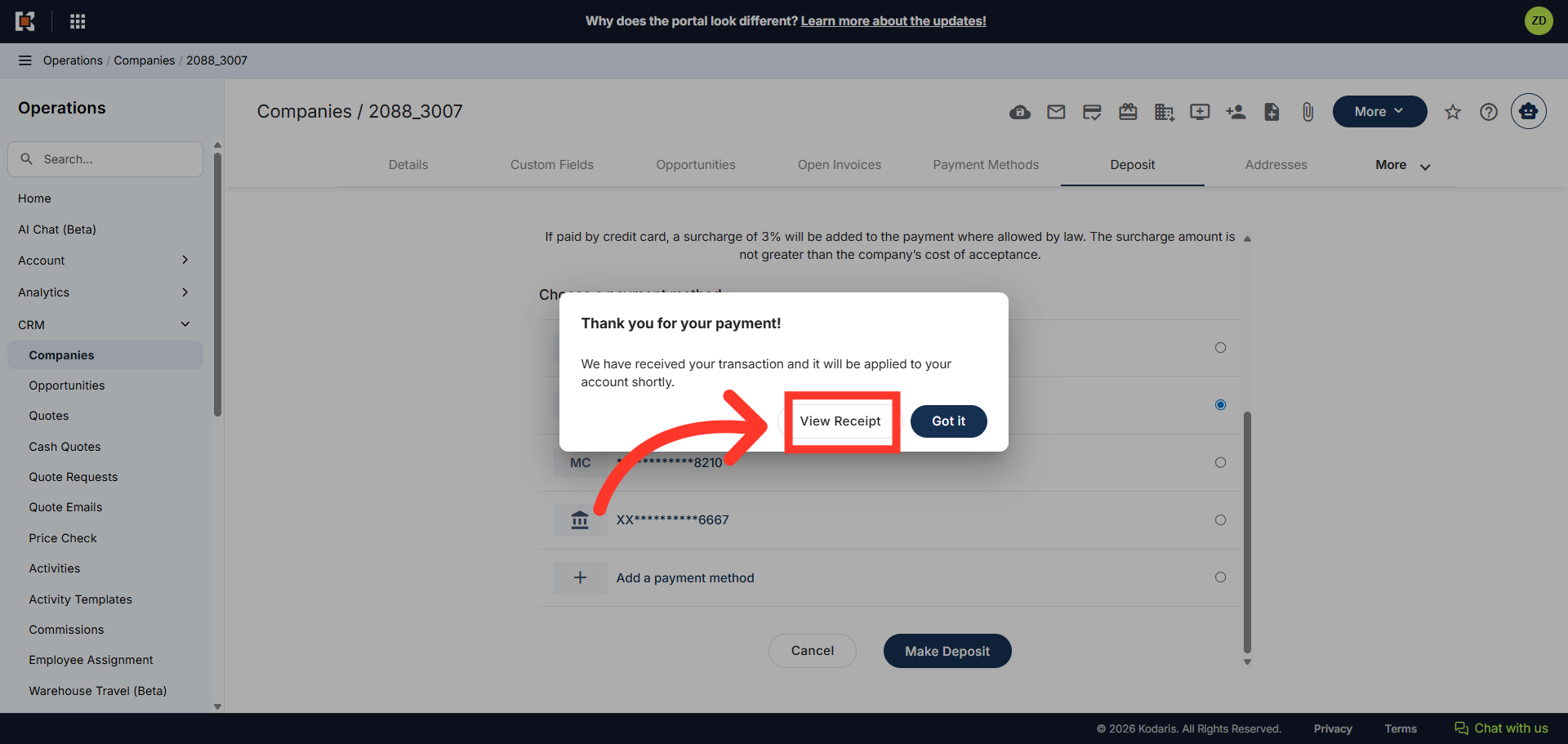
Click "View Receipt"
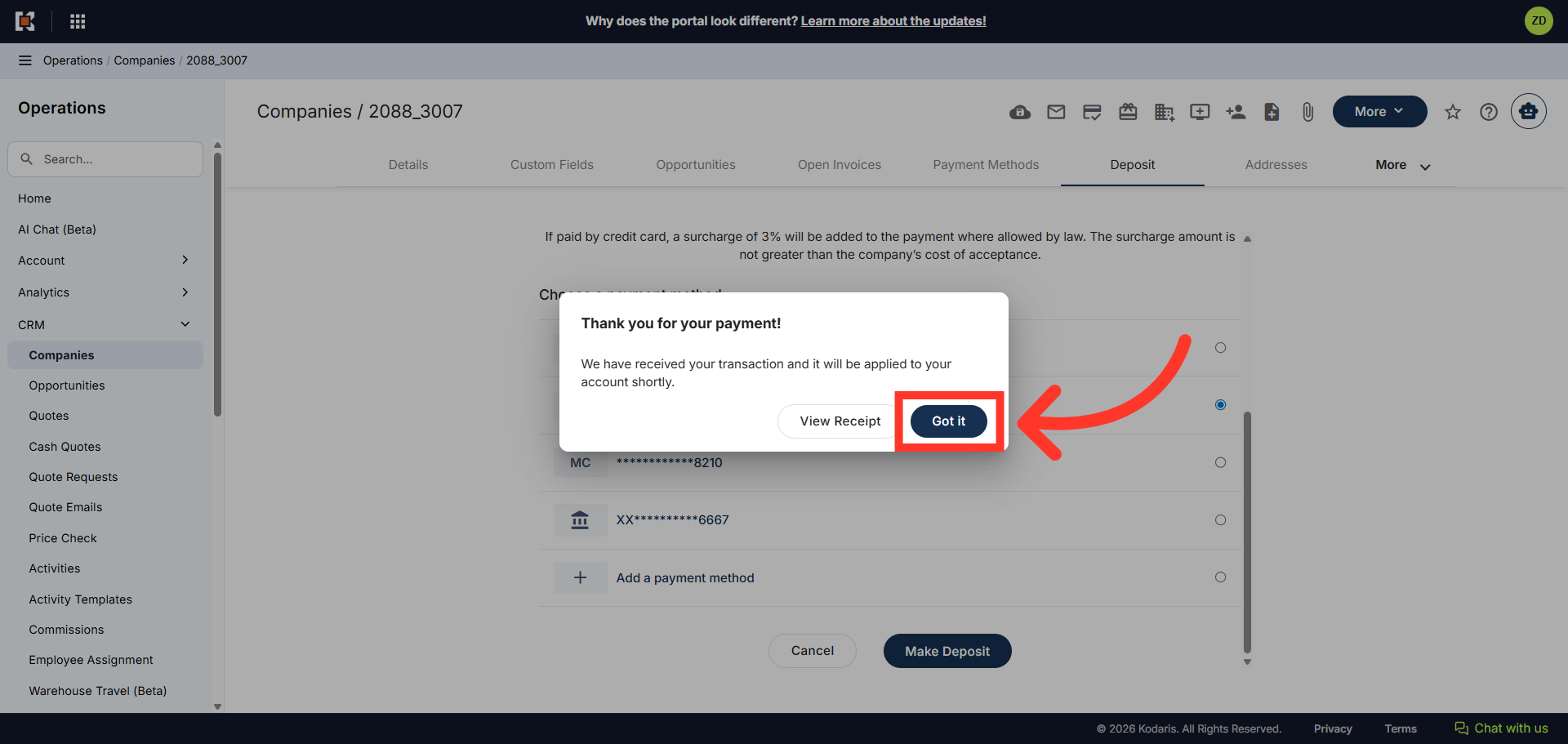
You will see a confirmation message stating the transaction was received and it will be applied to the account. You can click the "Got it" button to acknowledge and dismiss the the confirmation message. You can also choose to view and print the receipt by clicking "View Receipt".
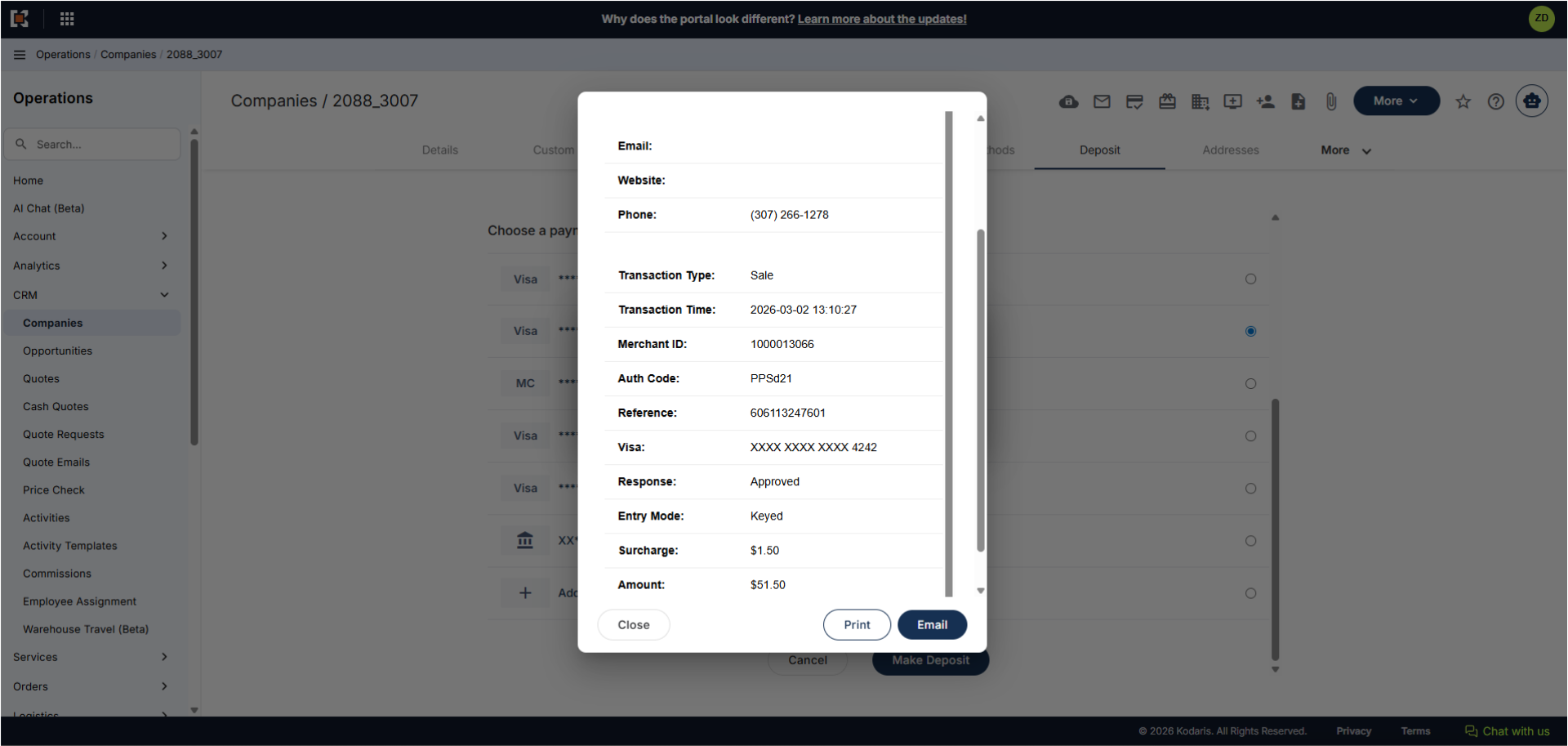
Review the receipt
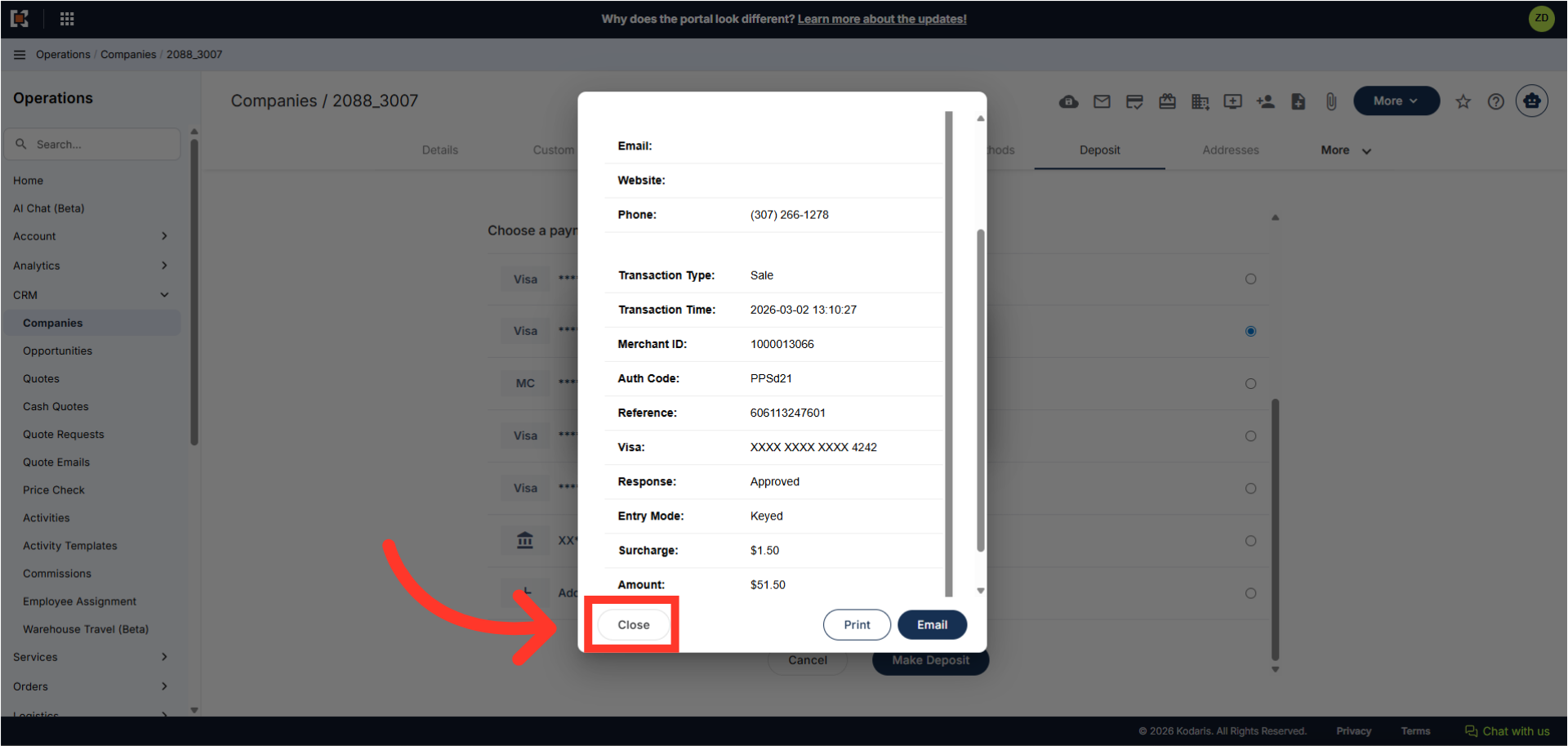
The receipt preview screen allows you to view receipt details and print or email a copy of the receipt.
Click "Close"
Click the "Close" button to close the screen and return to the deposit confirmation message.
Click "Got it"
Click the "Got it" button to acknowledge and dismiss the the confirmation message.