Customer Portal - Submit Returns
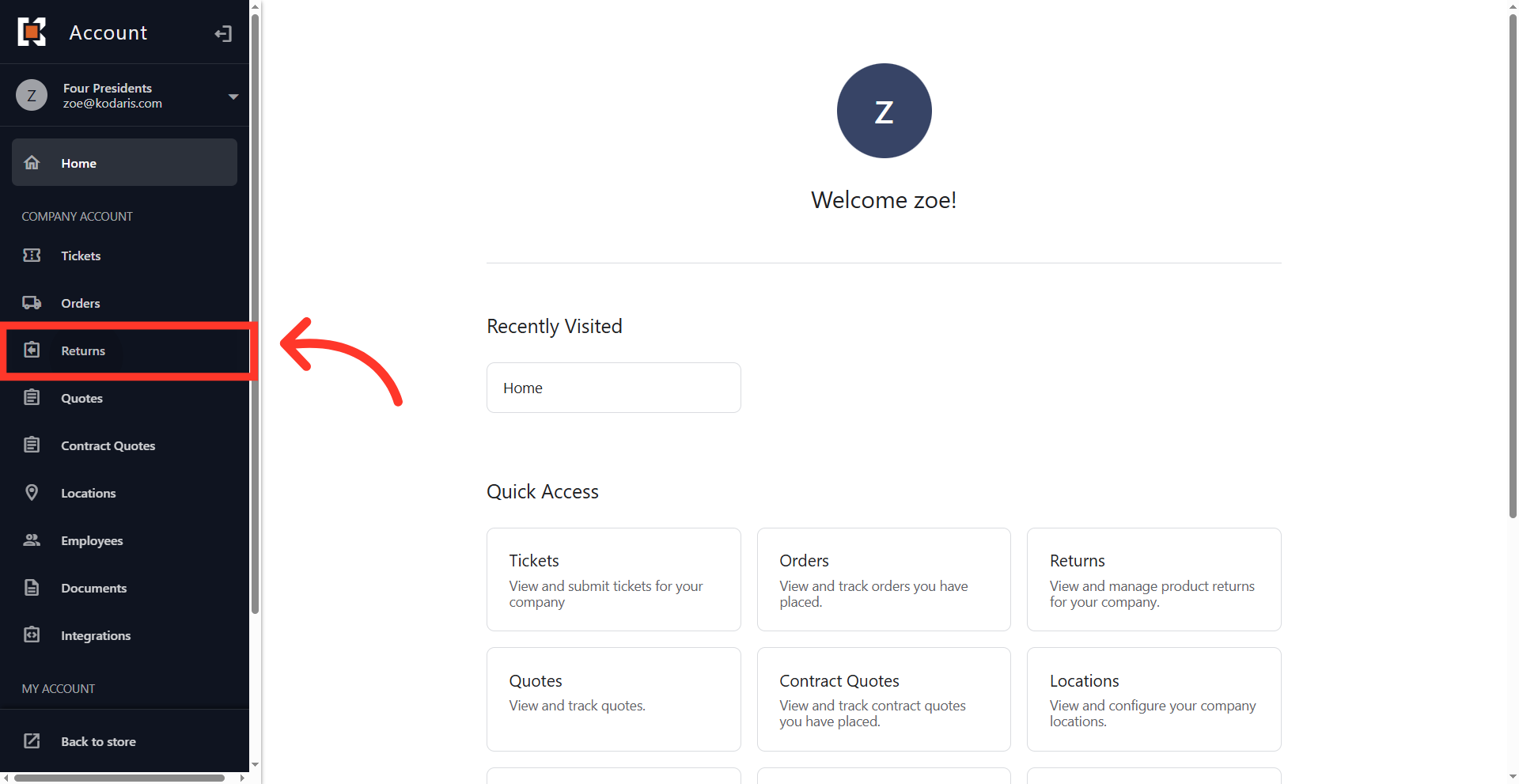
Navigate to "Returns"
Once a commerce site has been configured for customers to submit returns, customers can initiate a return through their customer portal. To begin a return request, log into your customer portal. Navigate to the "Returns" screen, which displays all your active order returns.
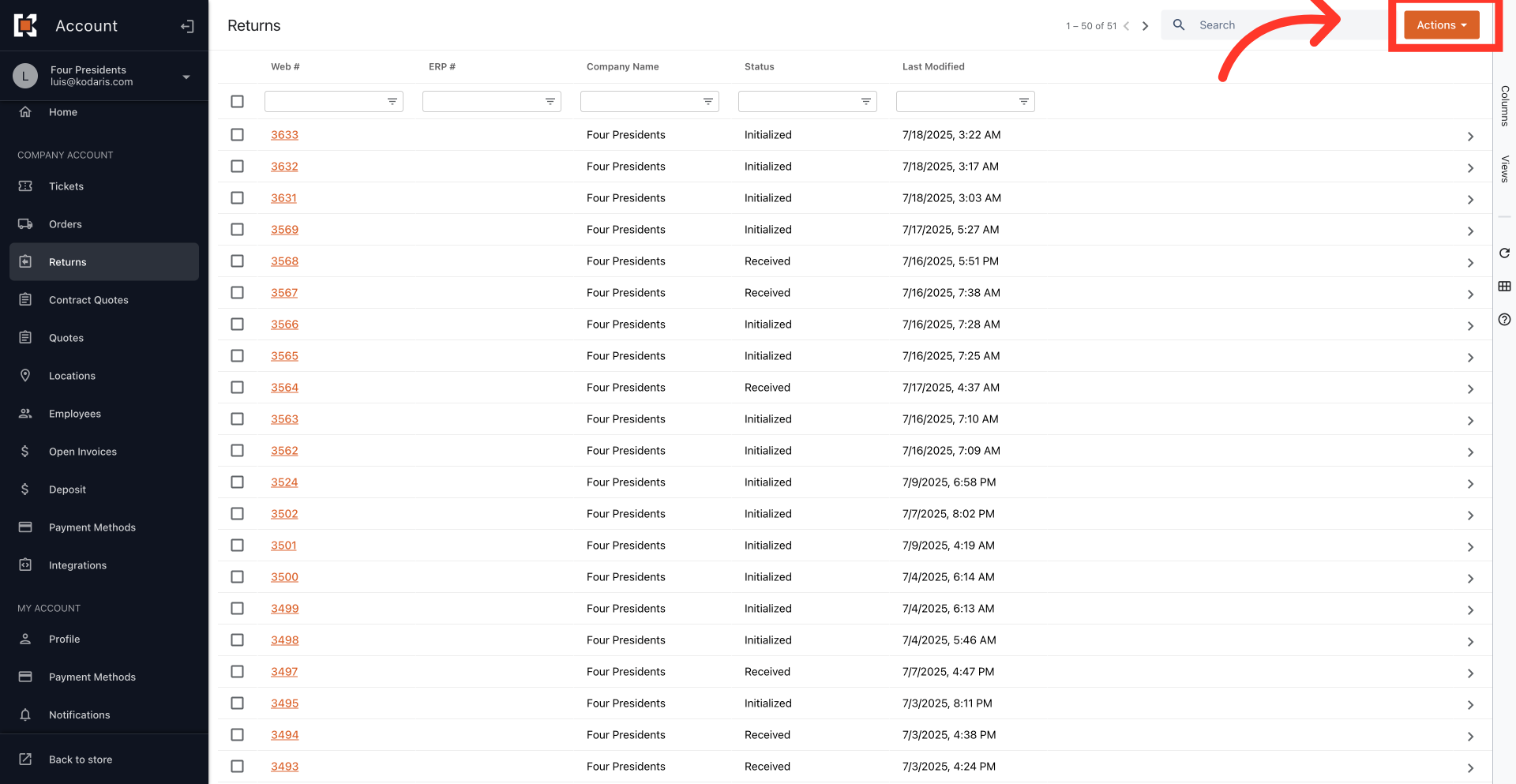
Click "Actions"
Click the "Actions" button.
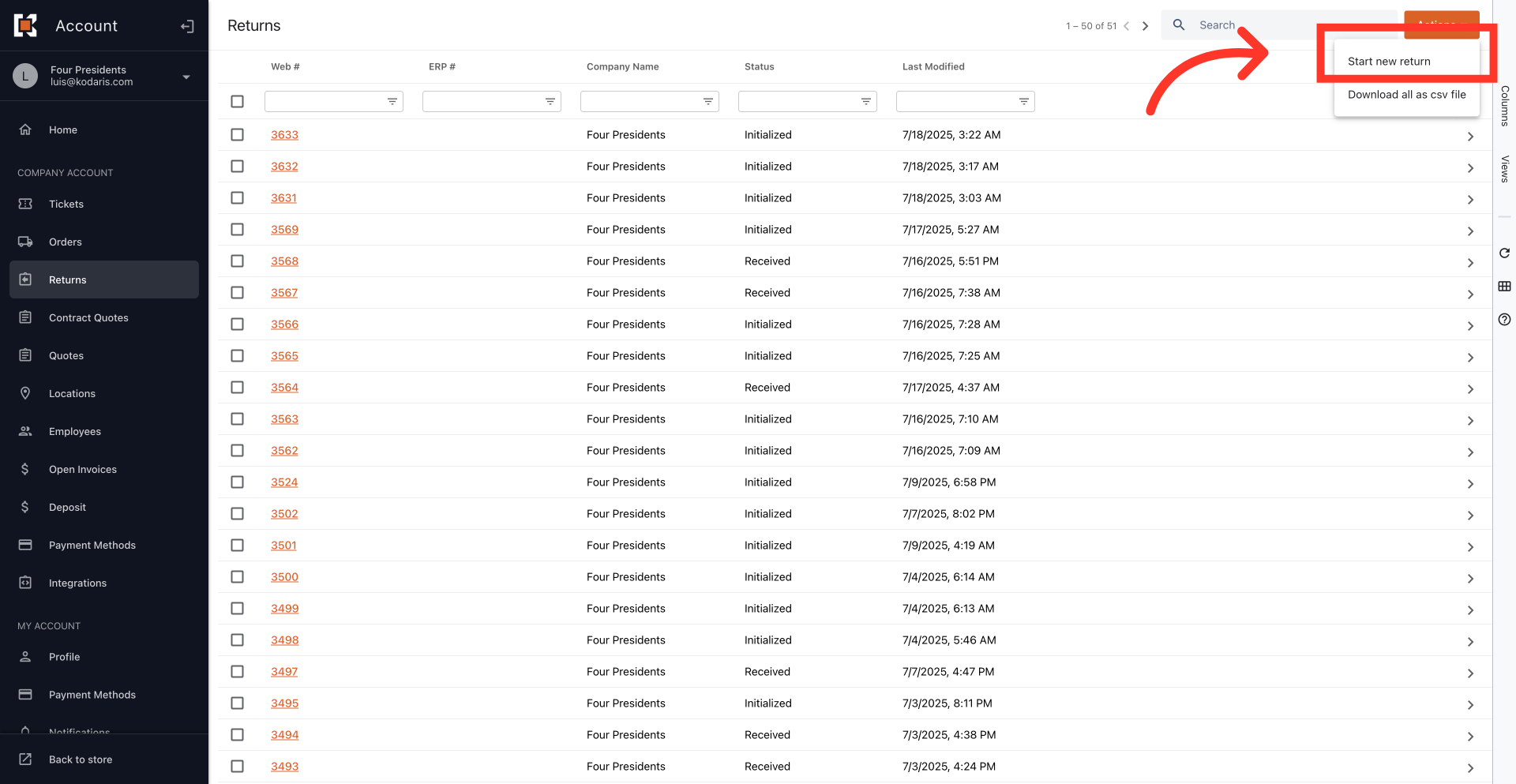
Select "Start a Return"
Then, select "Start a Return" from the dropdown menu.
Fill out product code field
Fill out the "Product Code" field with the product code of the item you want to return. This will automatically link the product to your original invoices they were purchased on.
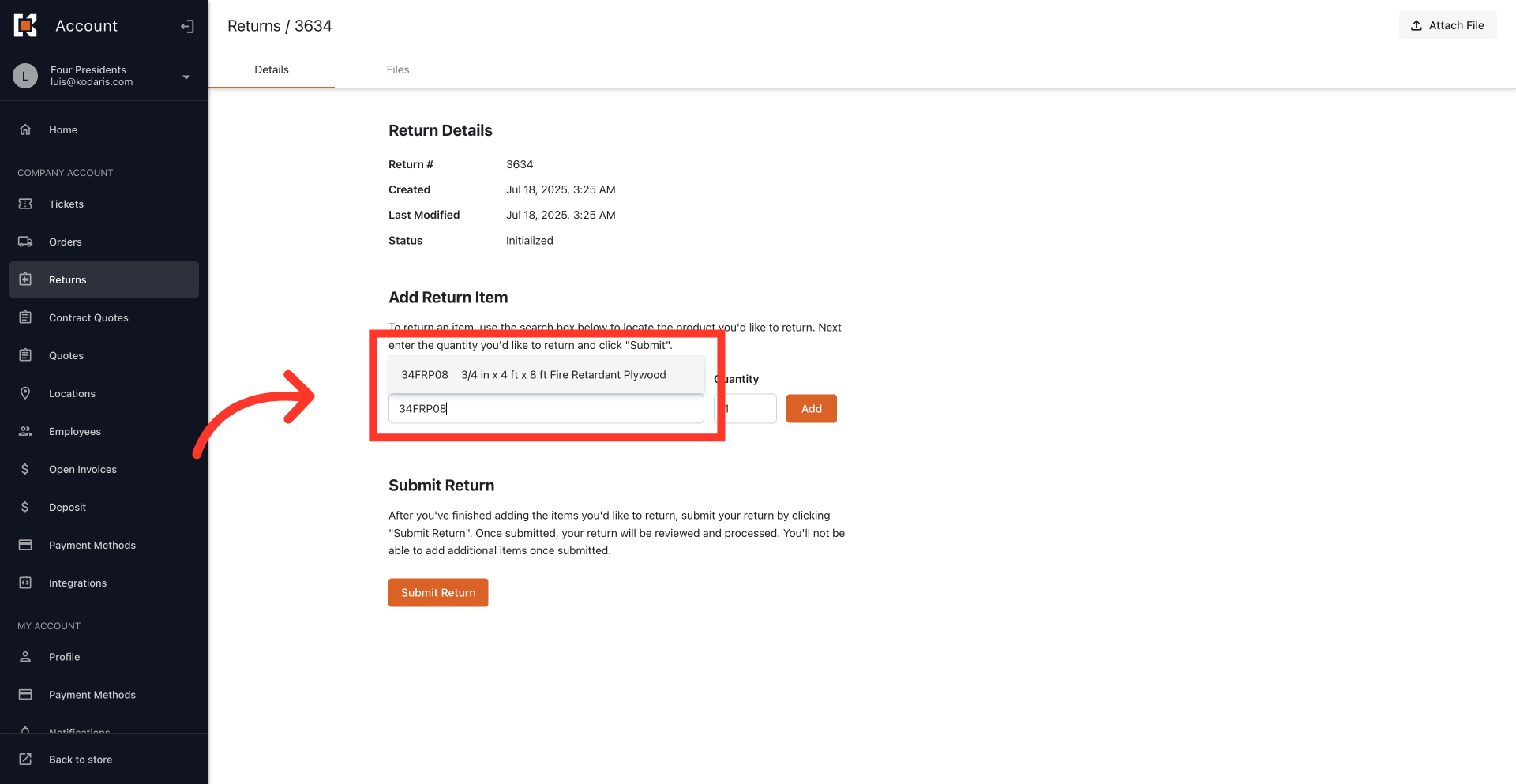
Click on the "Add" button
Enter the quantity of the item you want to return.
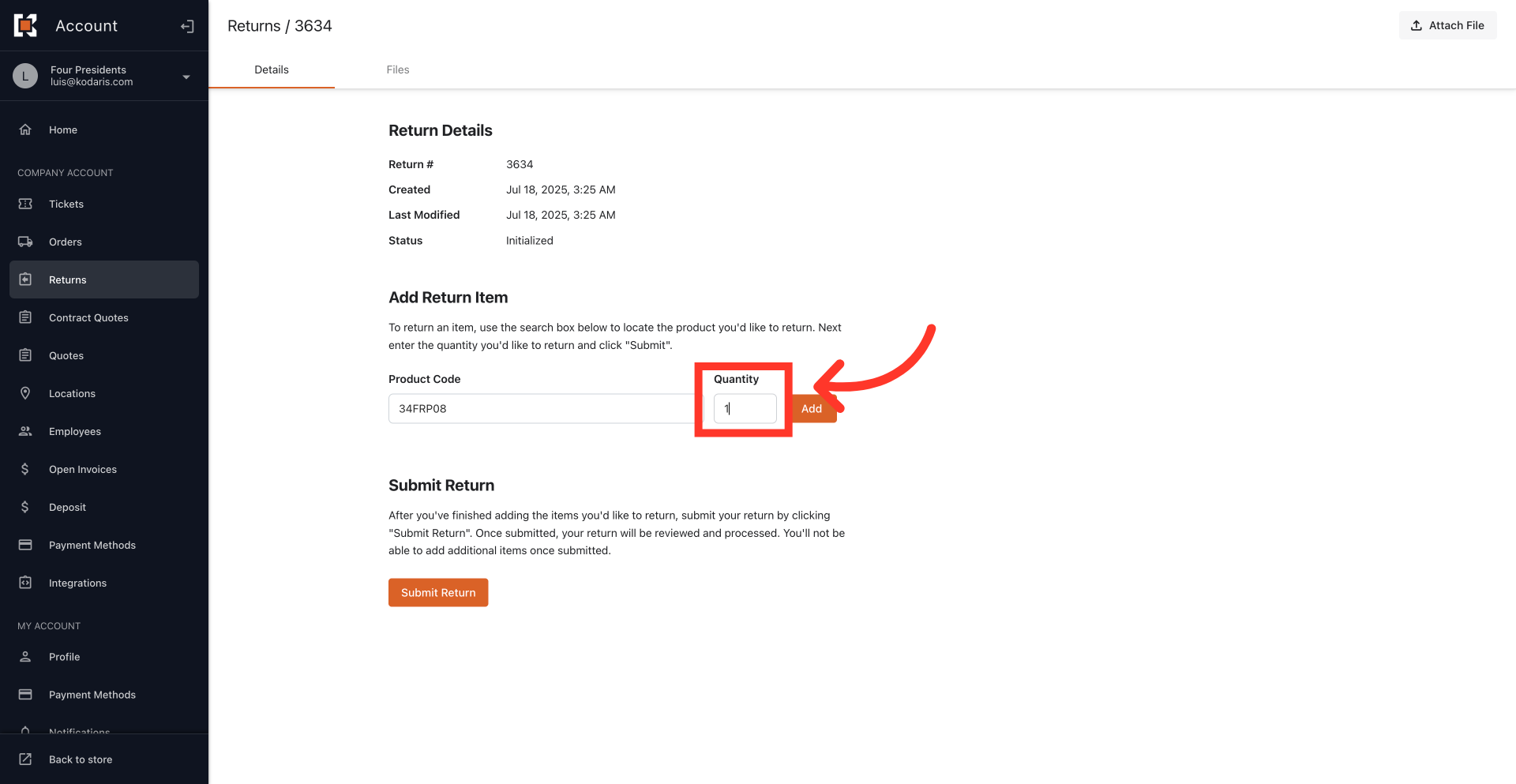
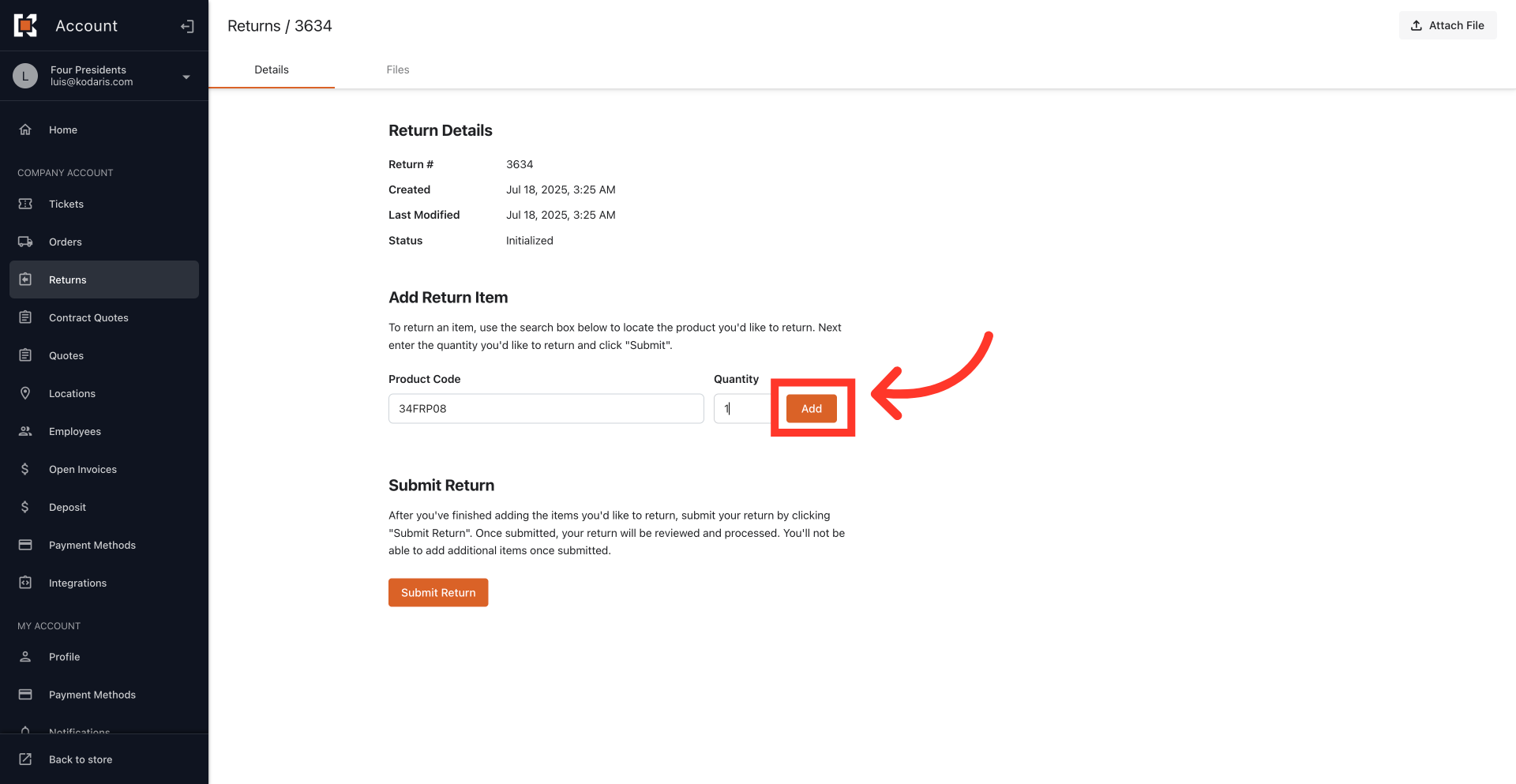
Click the "Add" button
Then, click the Add" button. The system will automatically validate the purchase and link it to your original invoices.
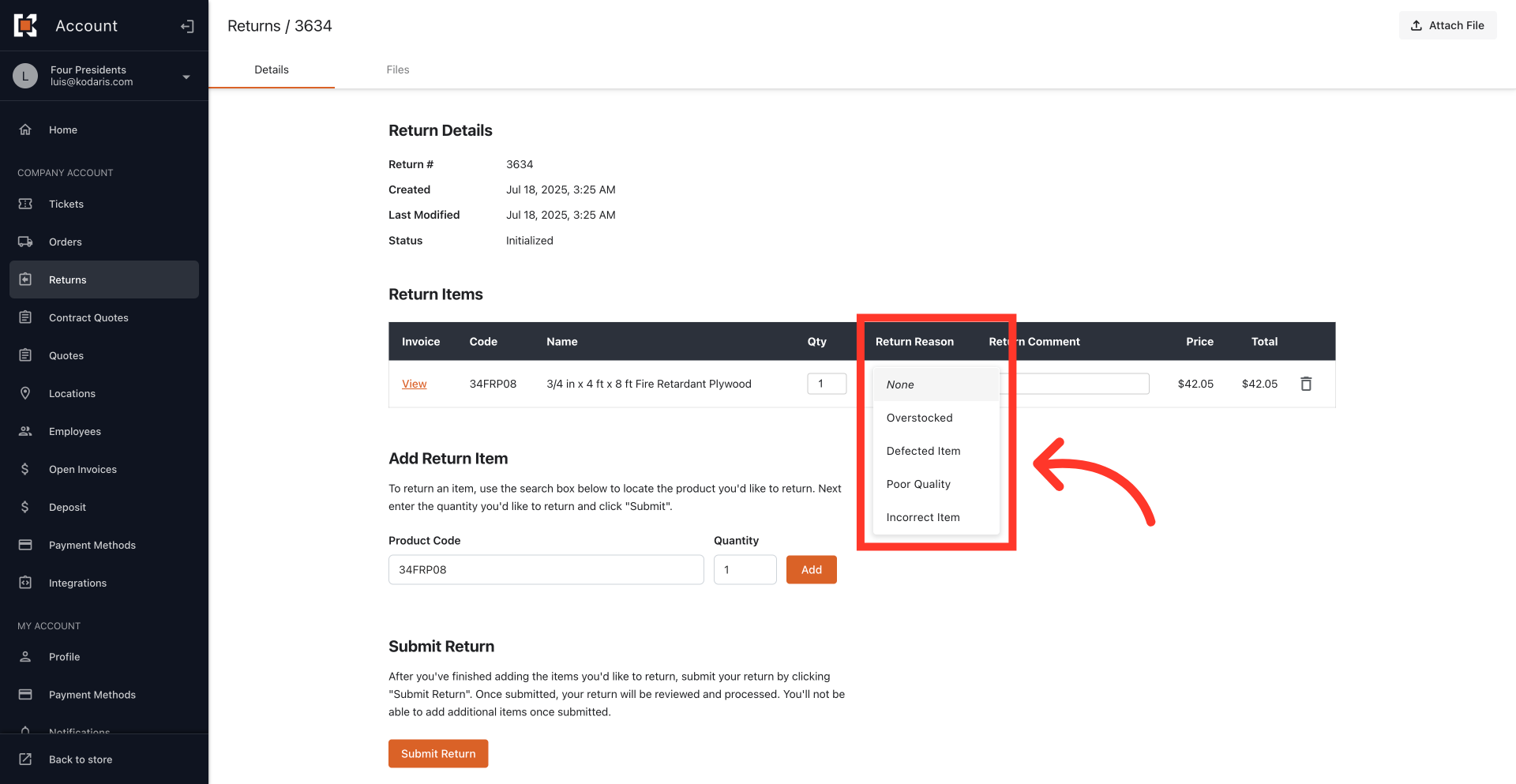
Assign Return Reason to item
The added item will now be visible in a list above the "Add Return Item" form. You can add more items if needed. For each item, click the "Return Reason" field and select your reason for returning from the provided dropdown list.
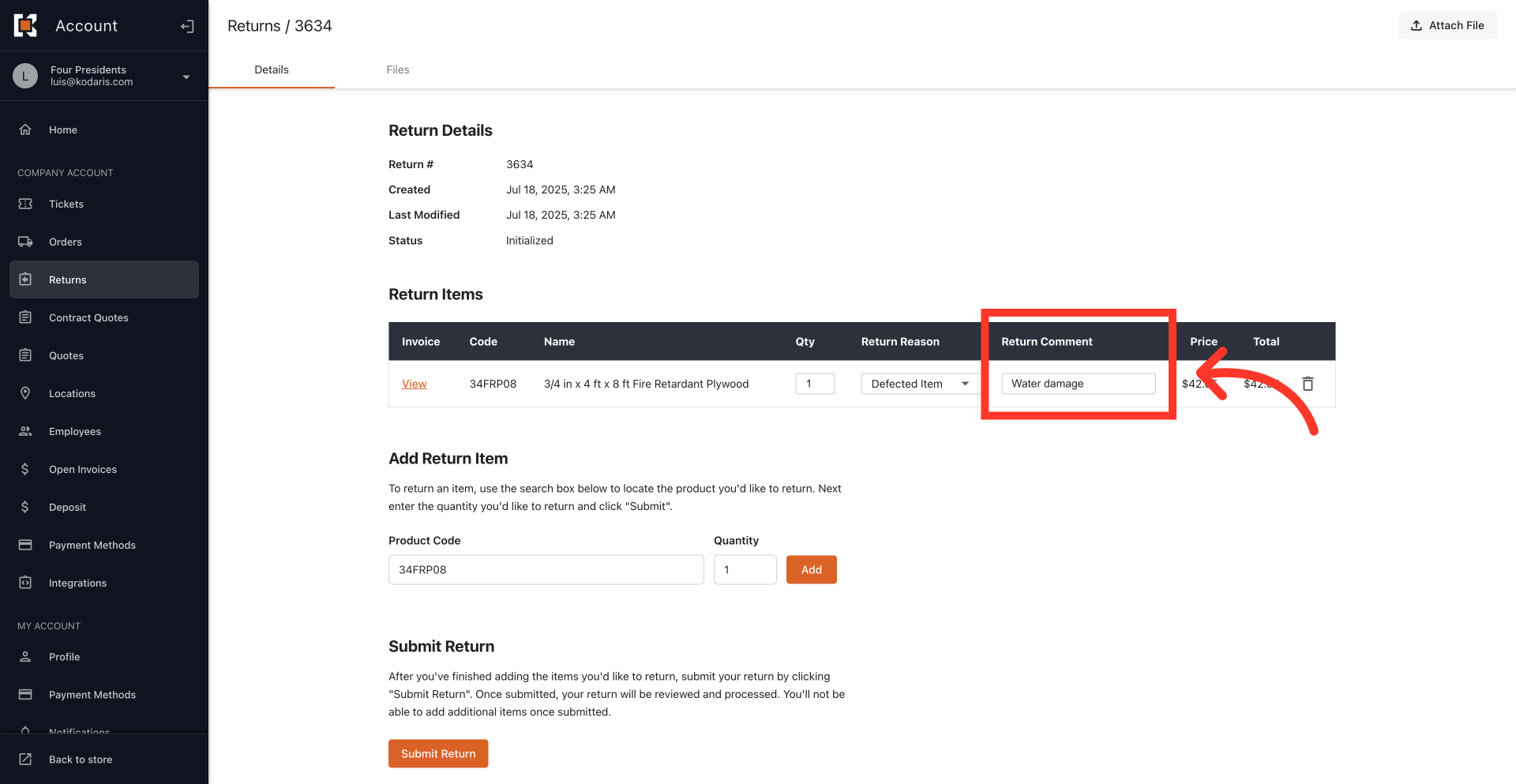
Enter return comment
Optionally, enter a "Return Comment" to provide additional details or notes regarding the return.
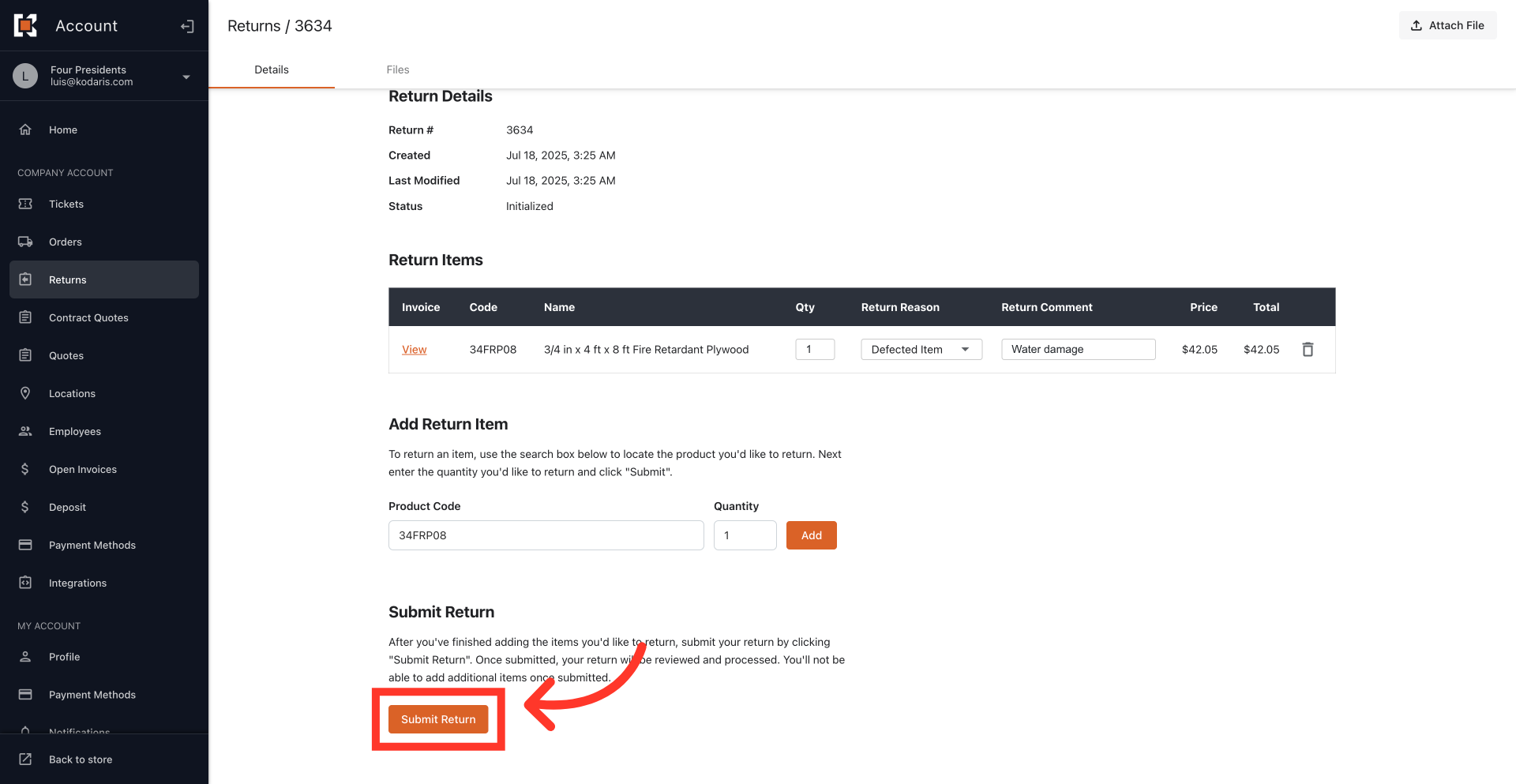
Click the "Submit Return" button
Once all items have been added, review your complete list of returns and all associated details then click the "Submit Return" button.
Return Submitted Successfully
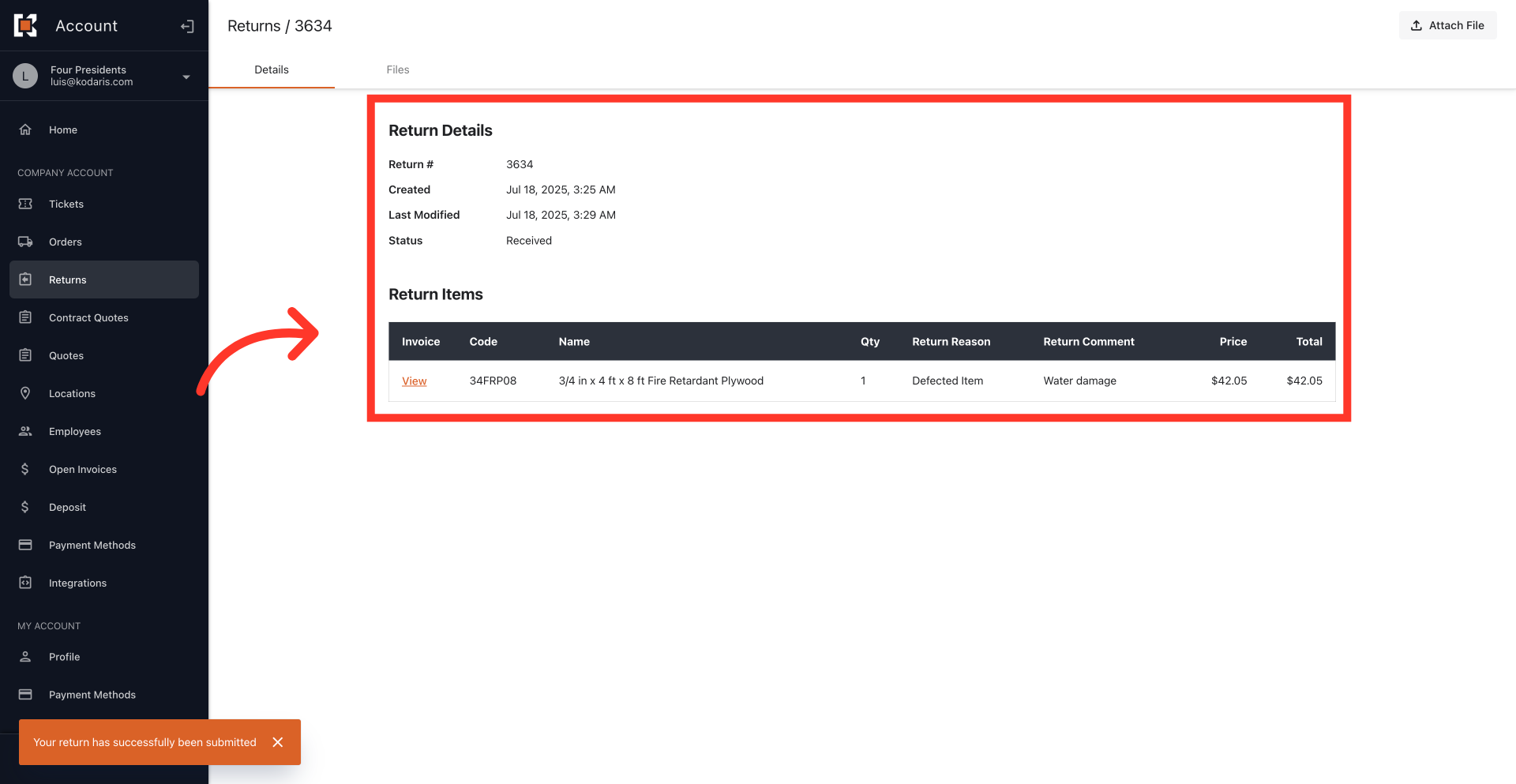
Once submitted, the system will show confirmation that the return has been submitted successfully.
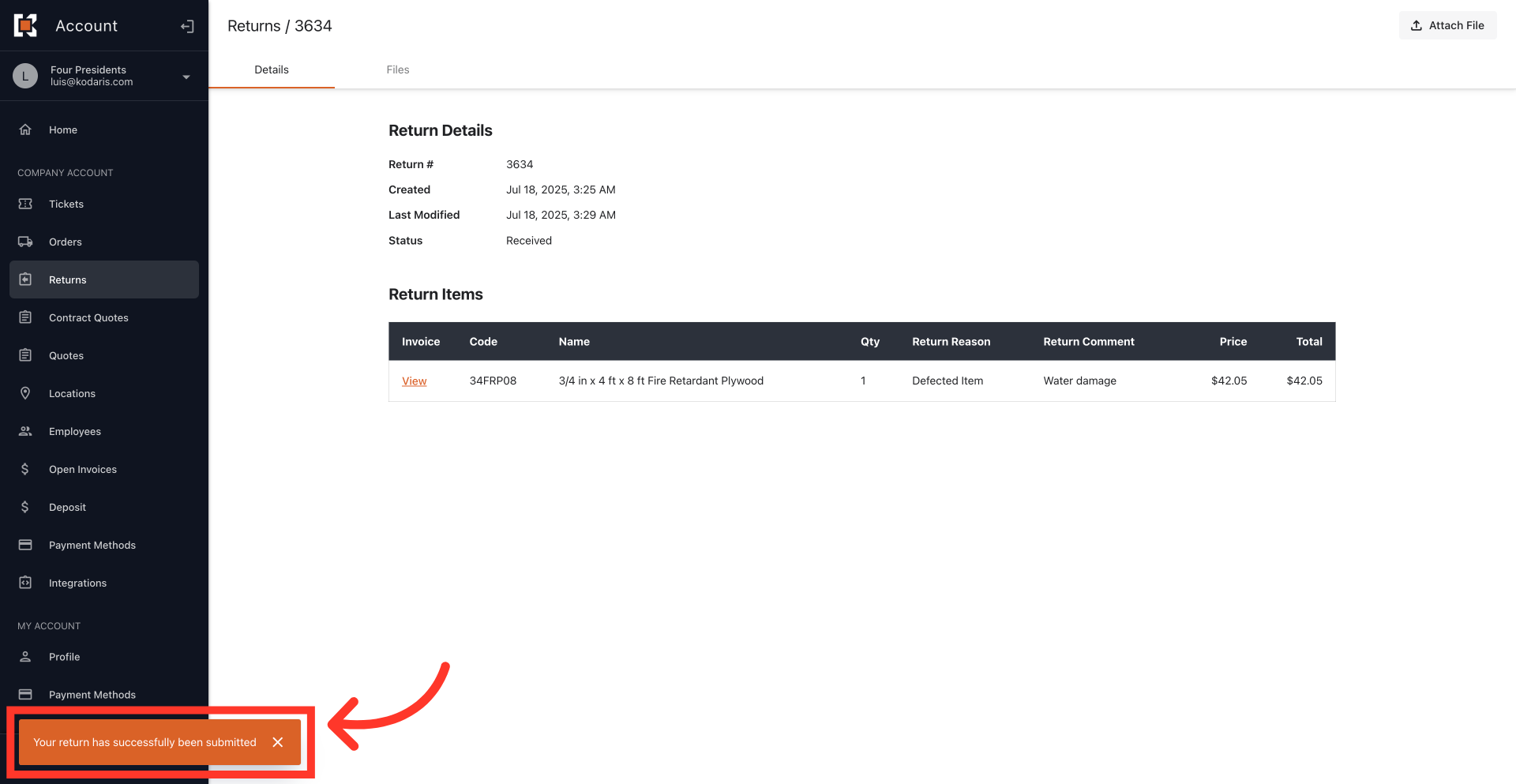
Return Details
The return status will then change to "Received" indicating it has been submitted.