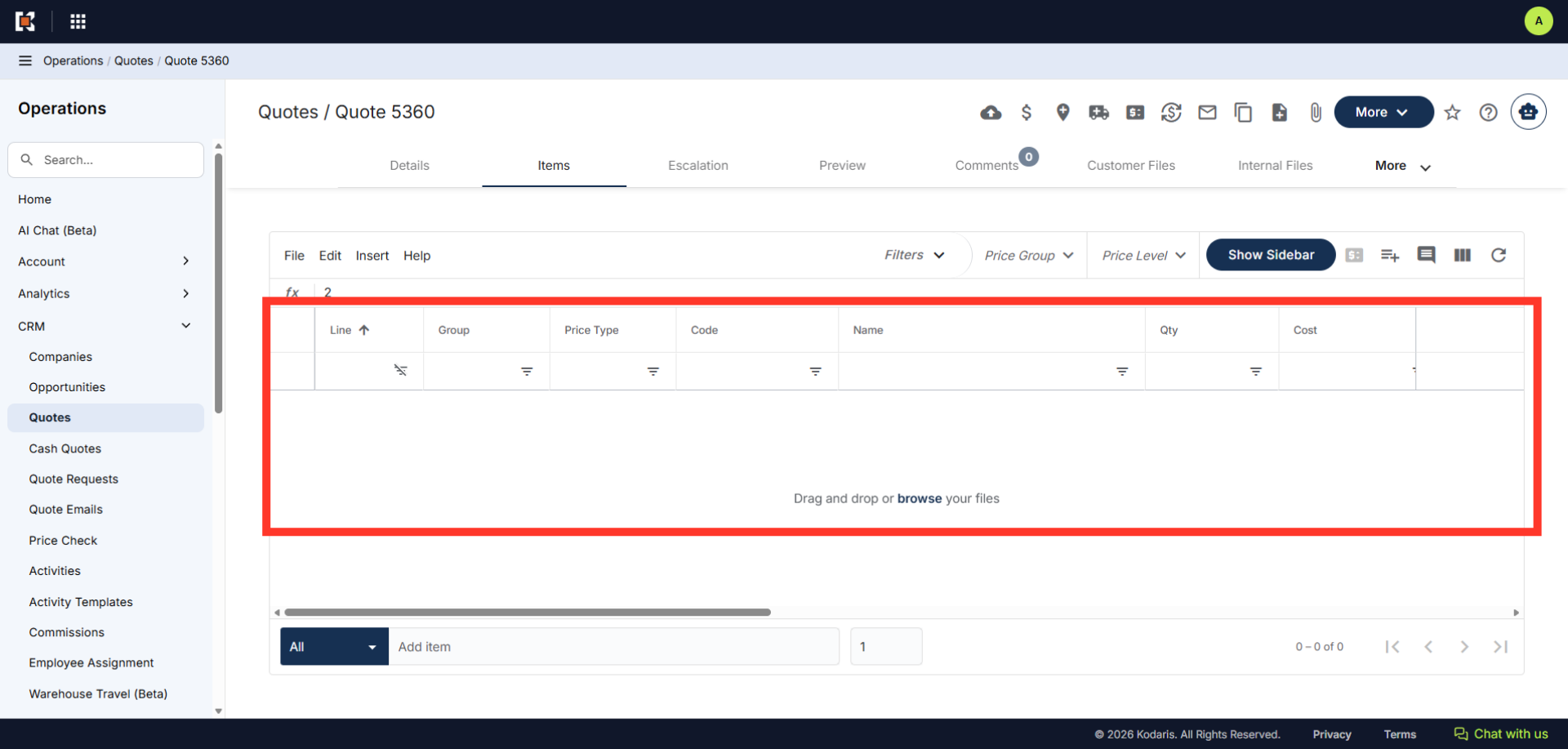
Operations CRM - Delete Items Added to a Quote
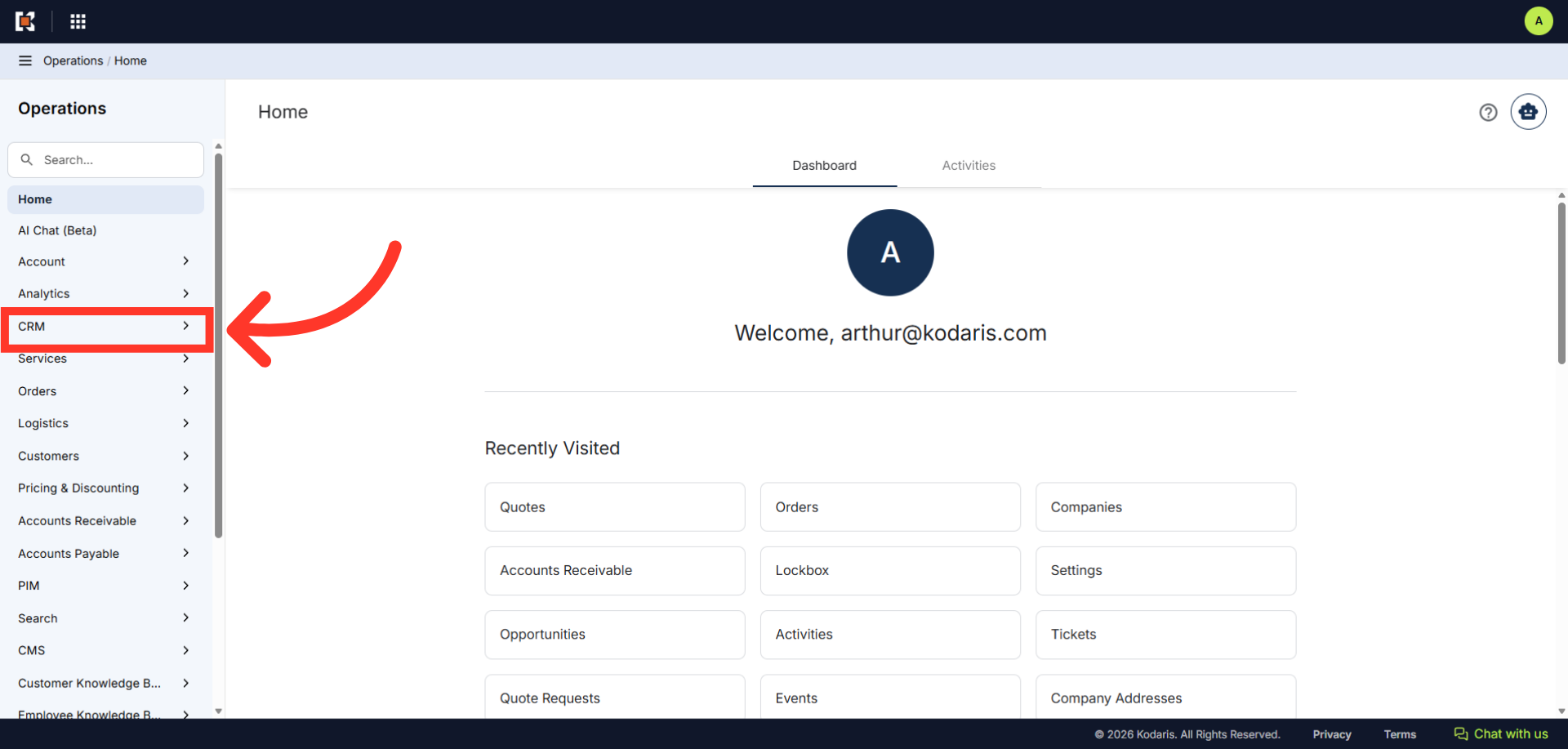
Navigate to "CRM"
If you want to delete items added to a quote, navigate to the "CRM" section in the Operations ortal.
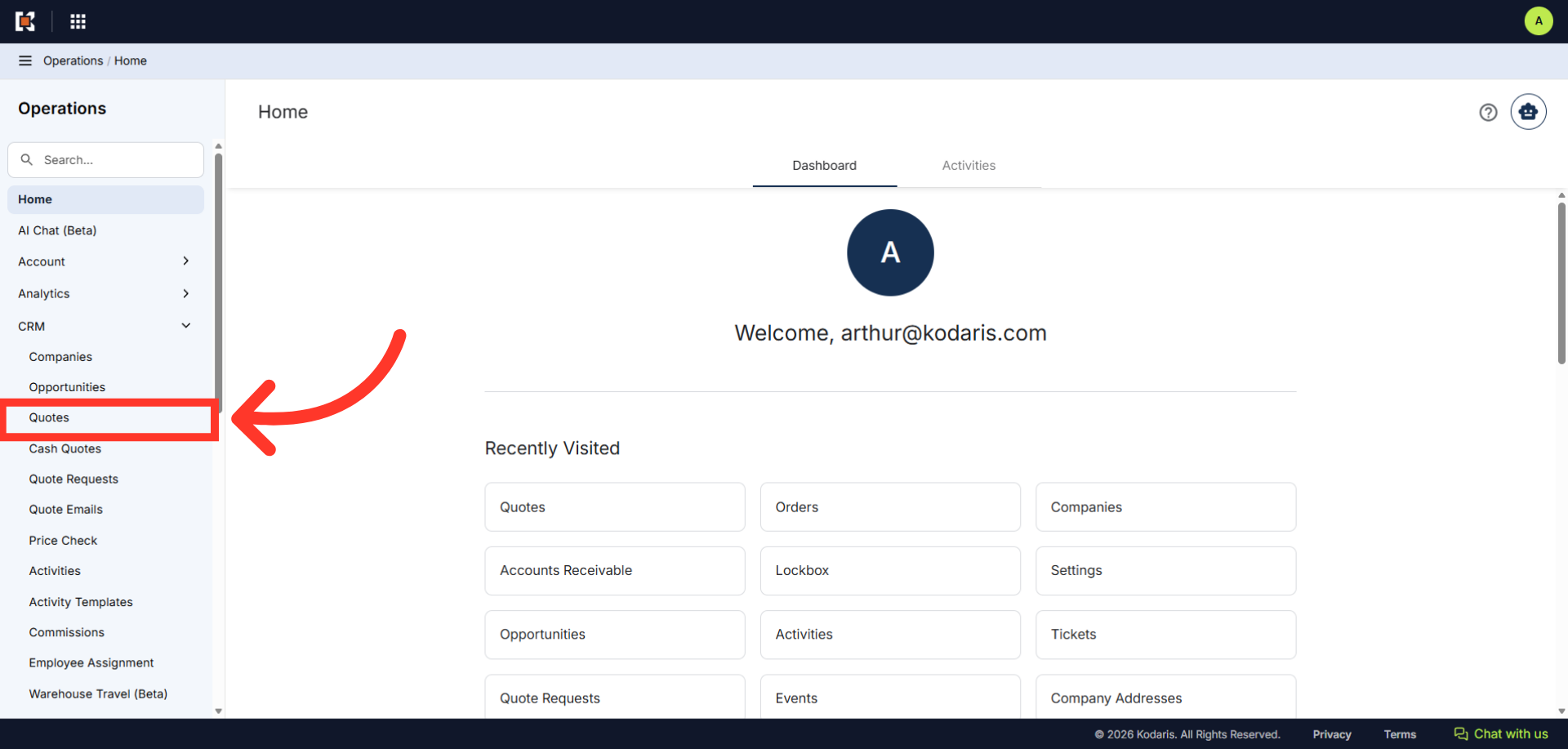
Click "Quotes"
Then, click "Quotes". In order to access Quotes, you will need to have the role of "administrator" or "superuser", or have the roles of "quoteEdit" and "accountQuoting"
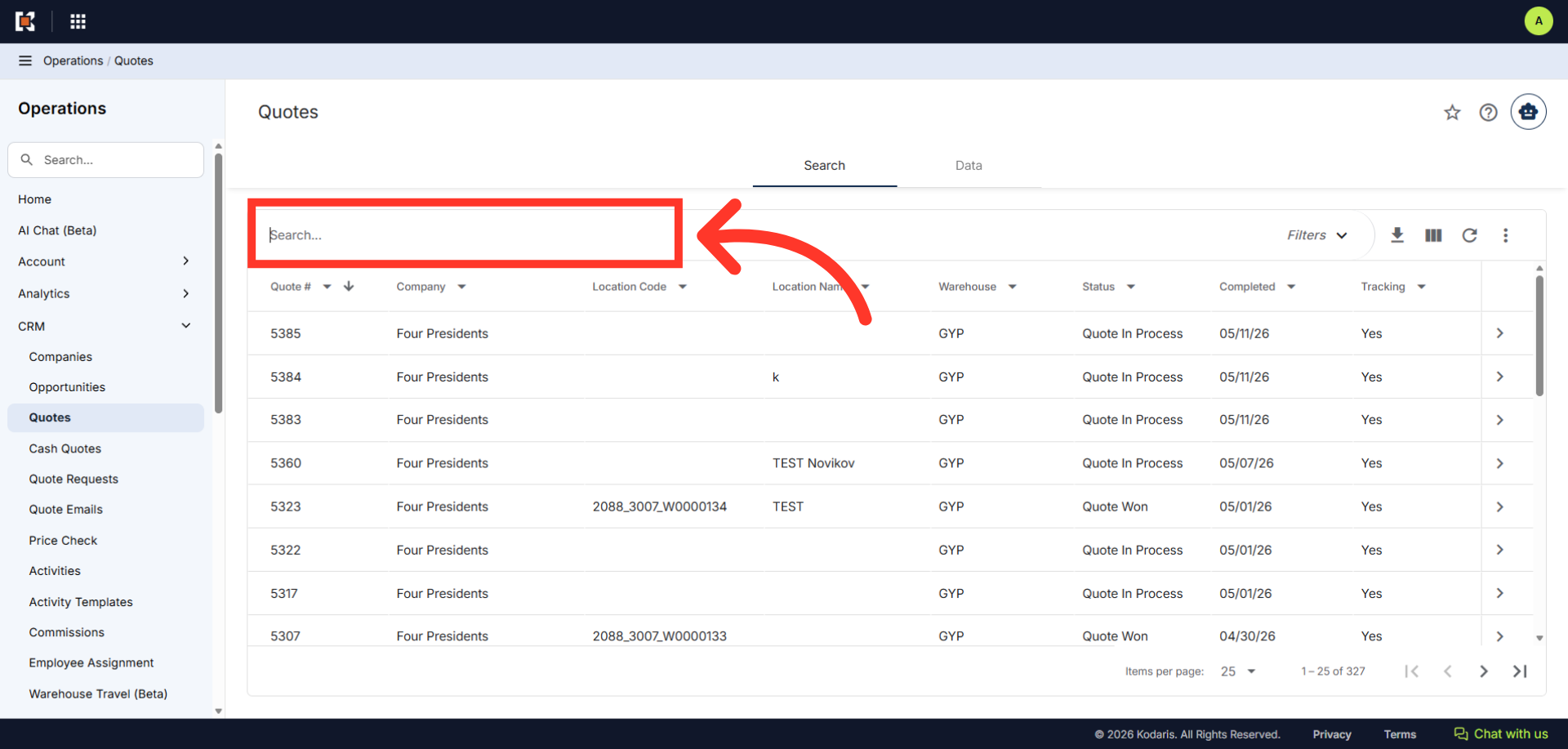
Search for the Quote
On the Quotes screen, search for a quote either by browsing the list or by entering a keyword in the "Search..." field. Results that match the keywords entered will appear as you type.
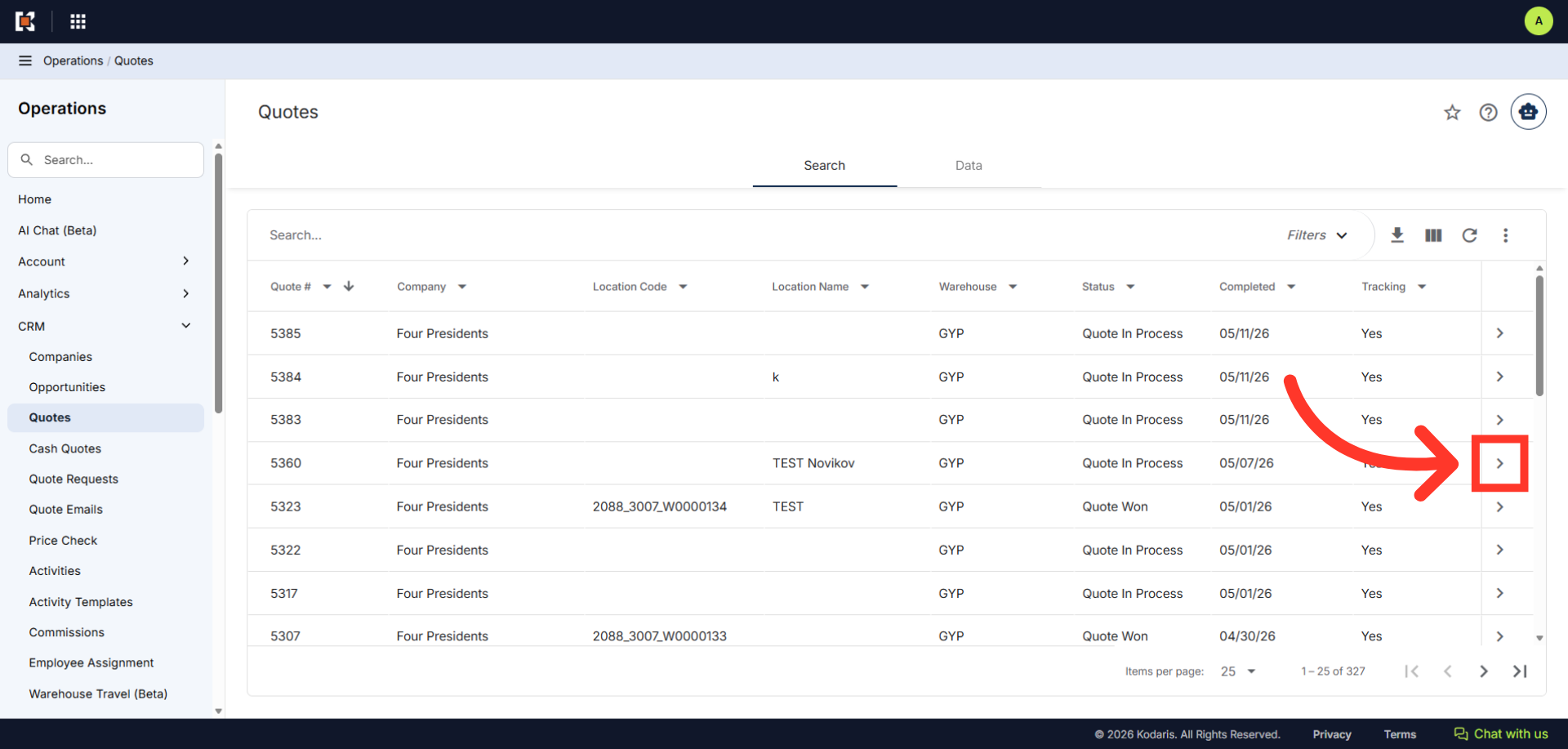
Click on the more details icon
Click on the more details icon to view its details.
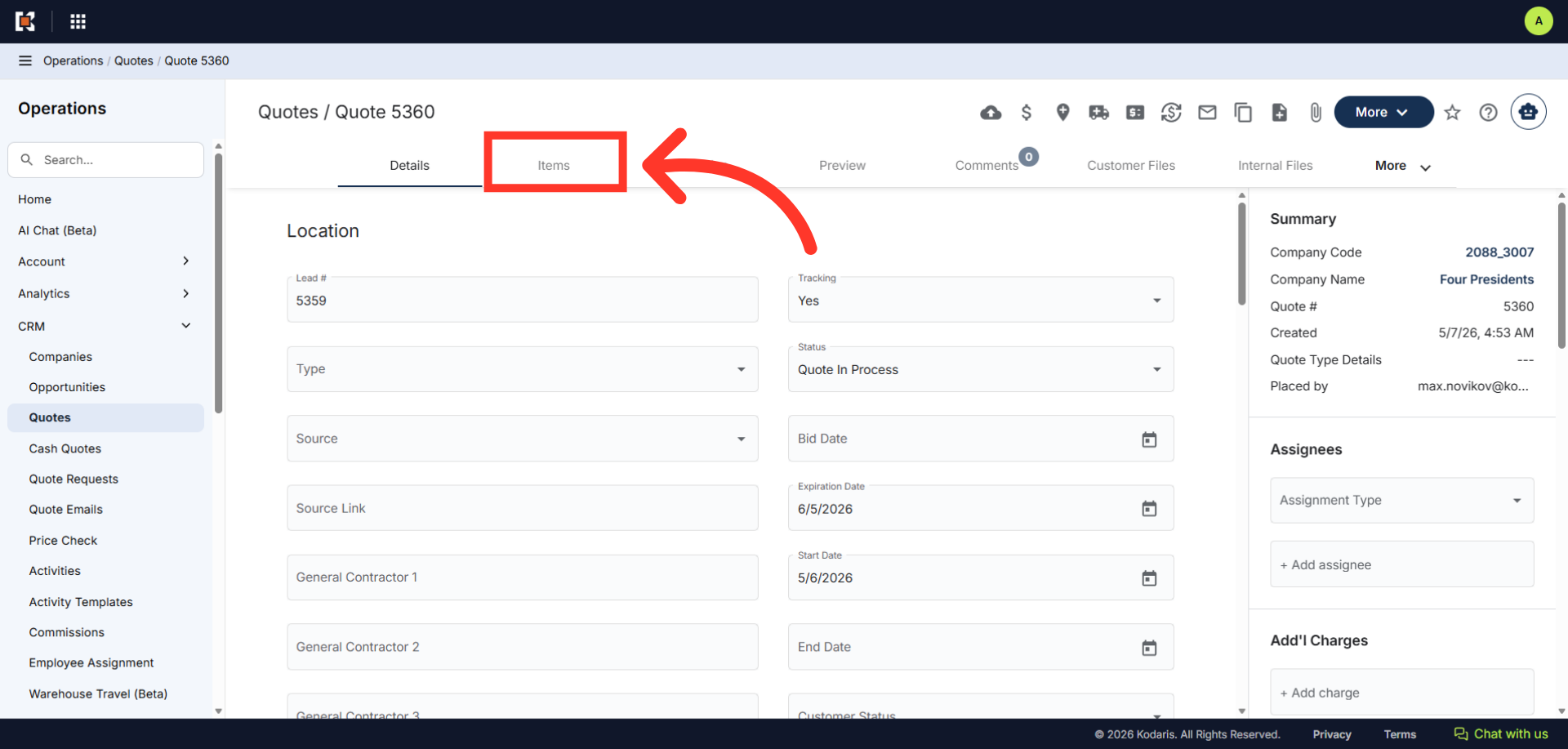
Click "Items"
Next, click the "Items" tab.
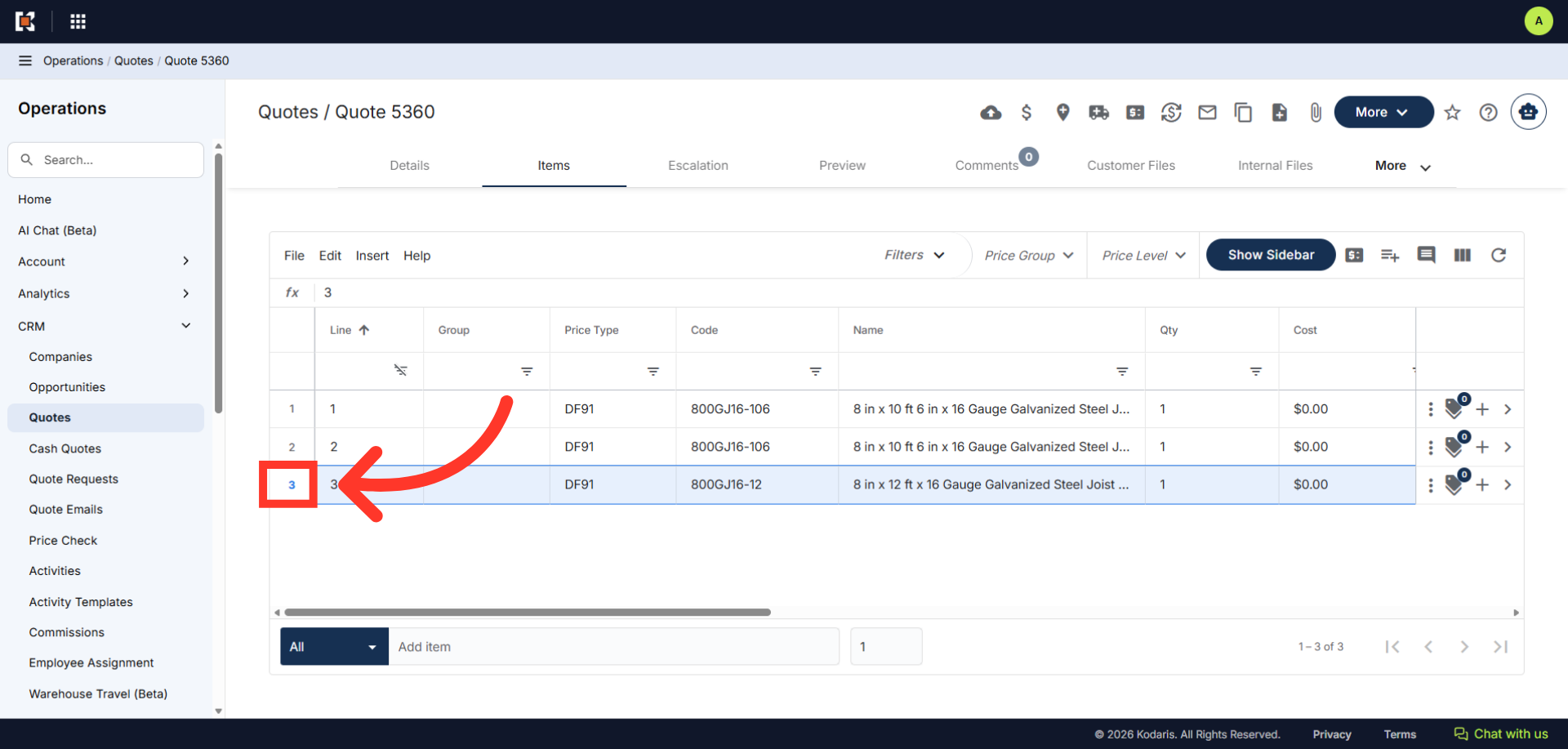
Select the item to be removed
Select the item to be removed by clicking the row number.
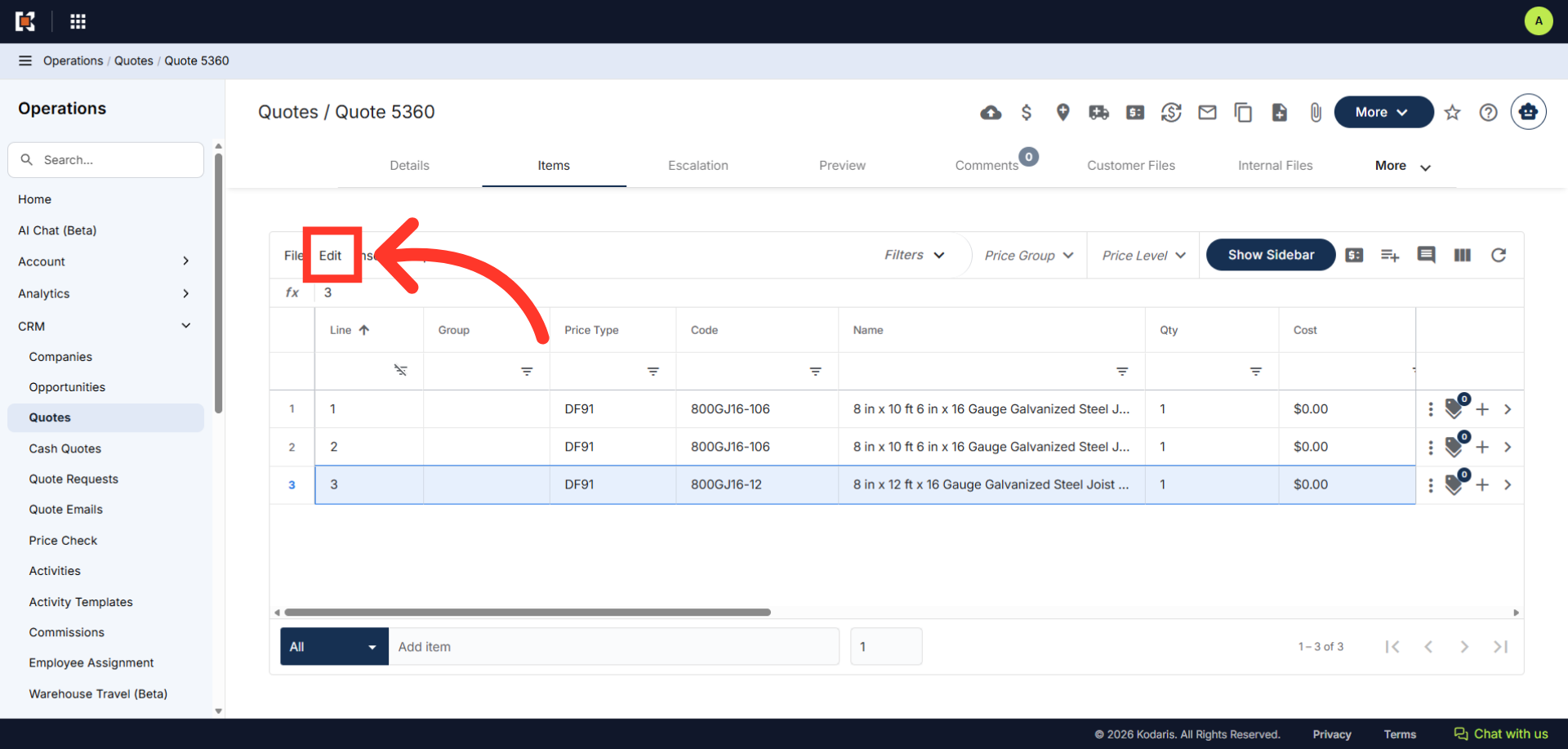
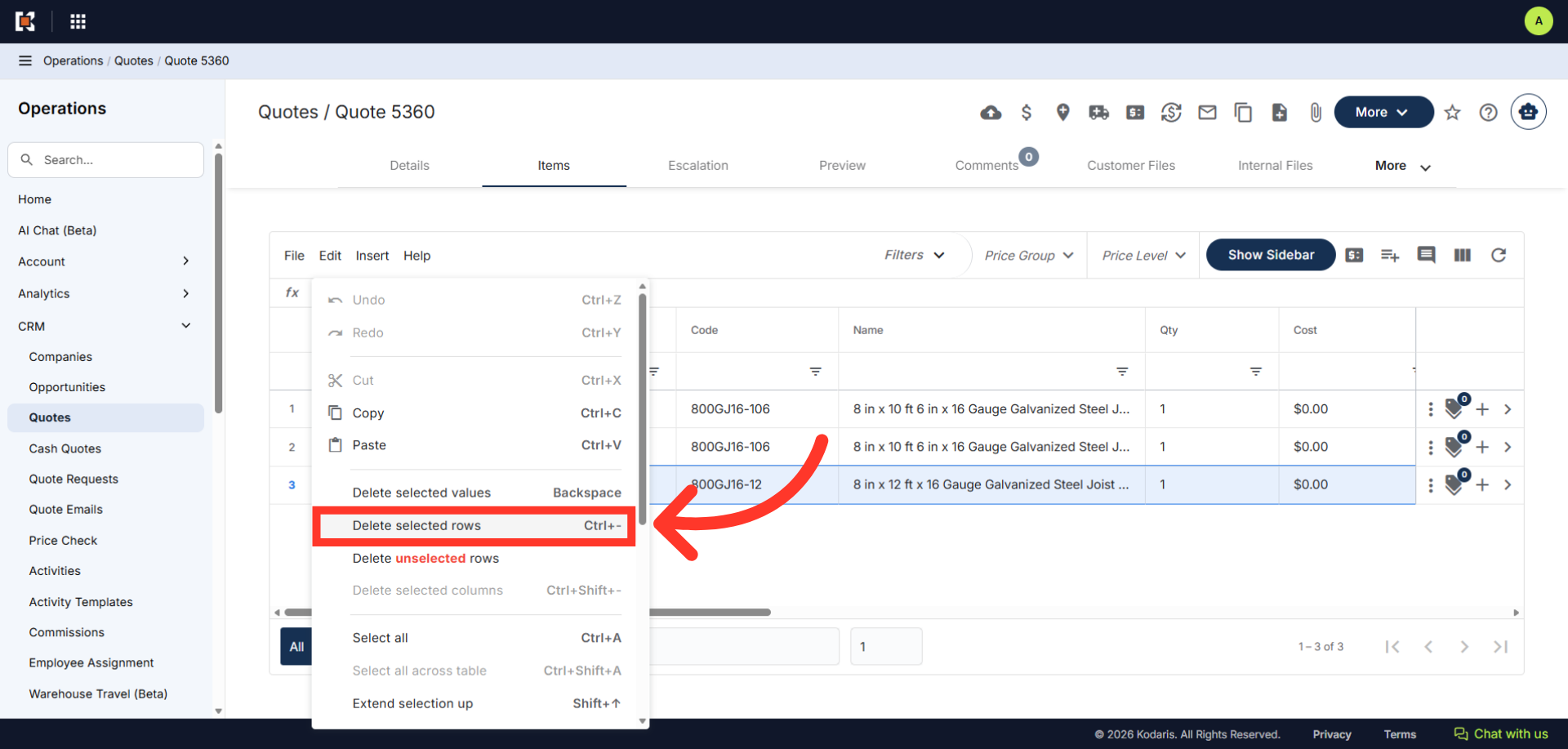
Click "Edit"
After selecting the item, click "Edit".
Click "Delete selected rows"
Click "Delete selected rows".
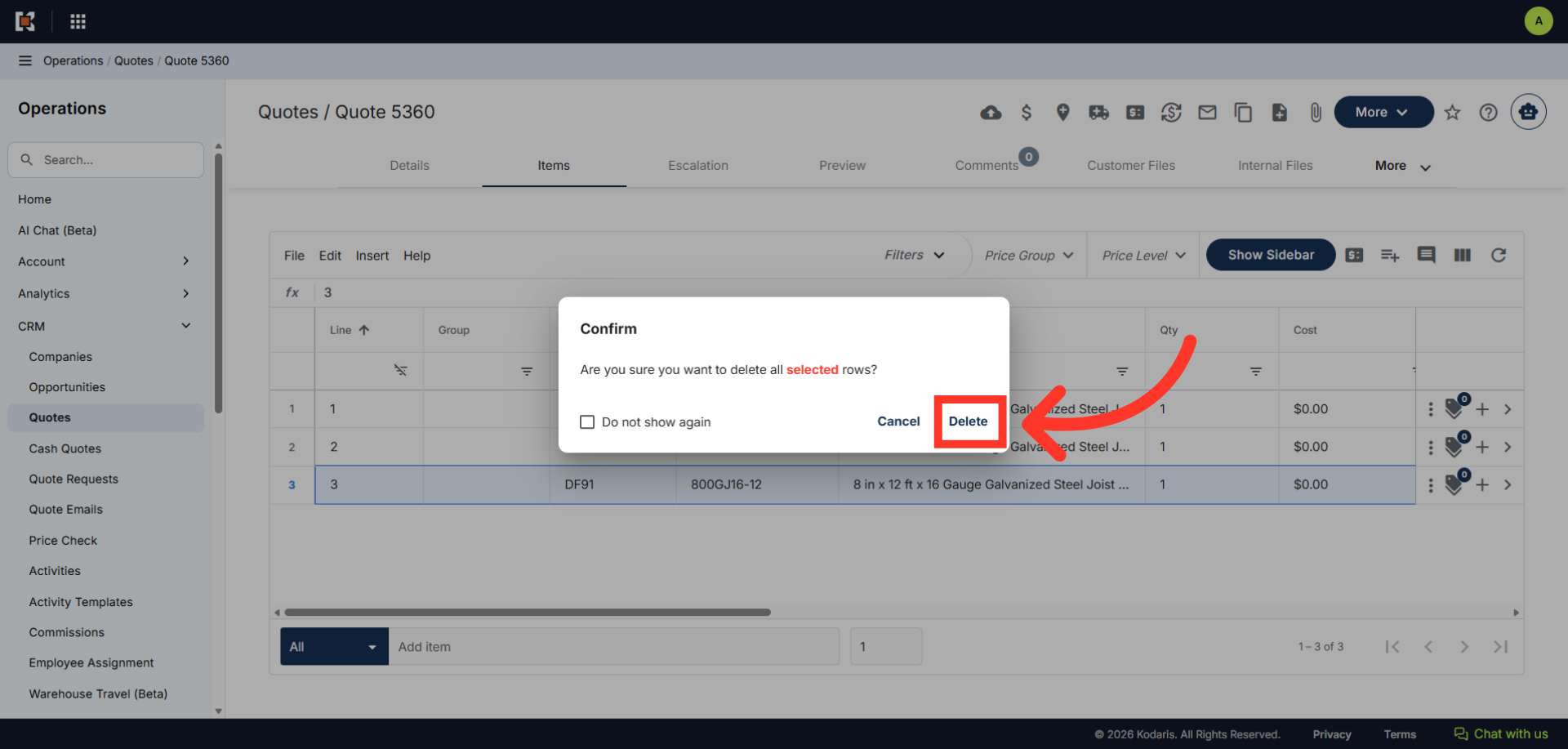
Click "Delete"
Click "Delete" to confirm and remove the selected item from the quote.
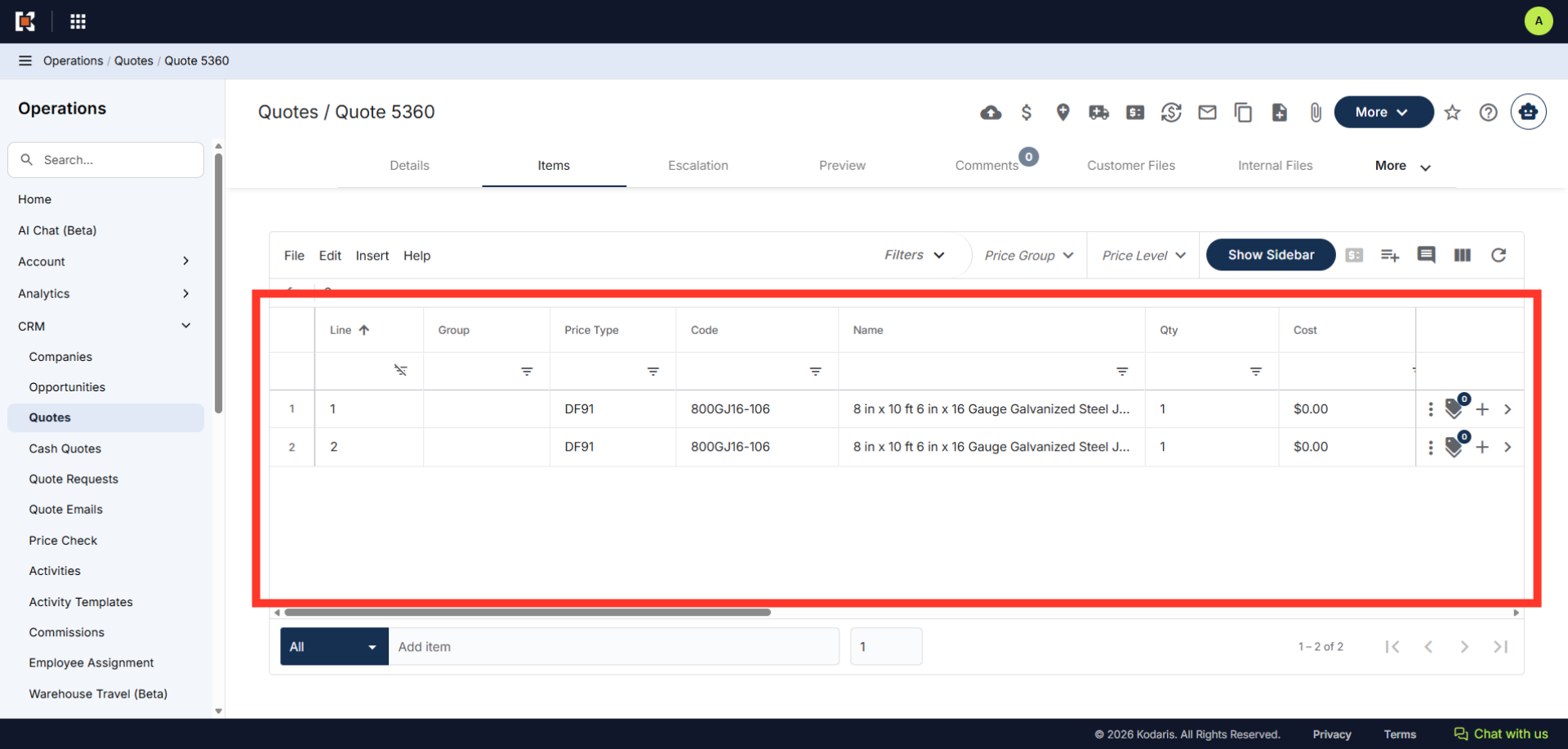
Item Deleted
Item has been deleted from the quote.
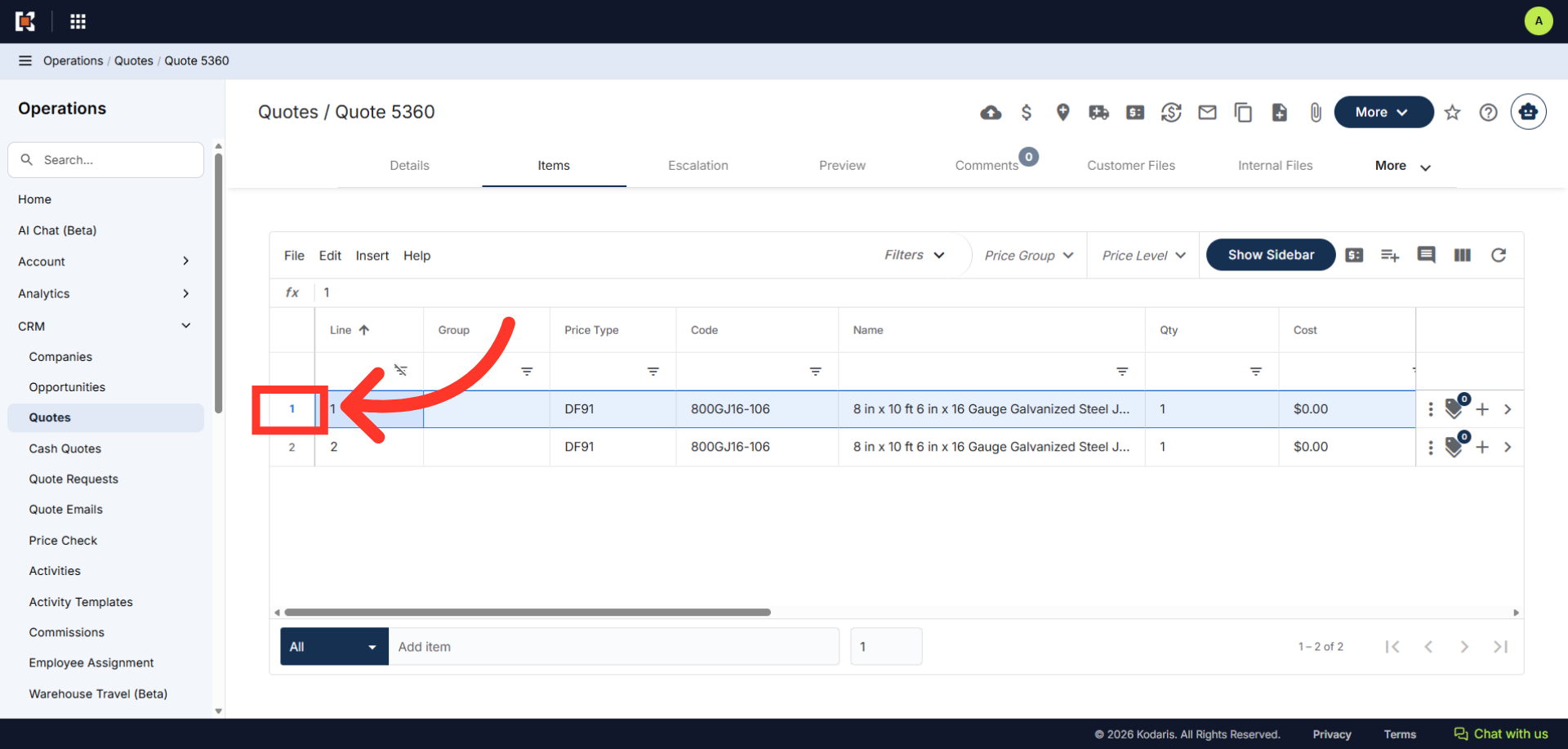
Selecting Multiple Items to delete
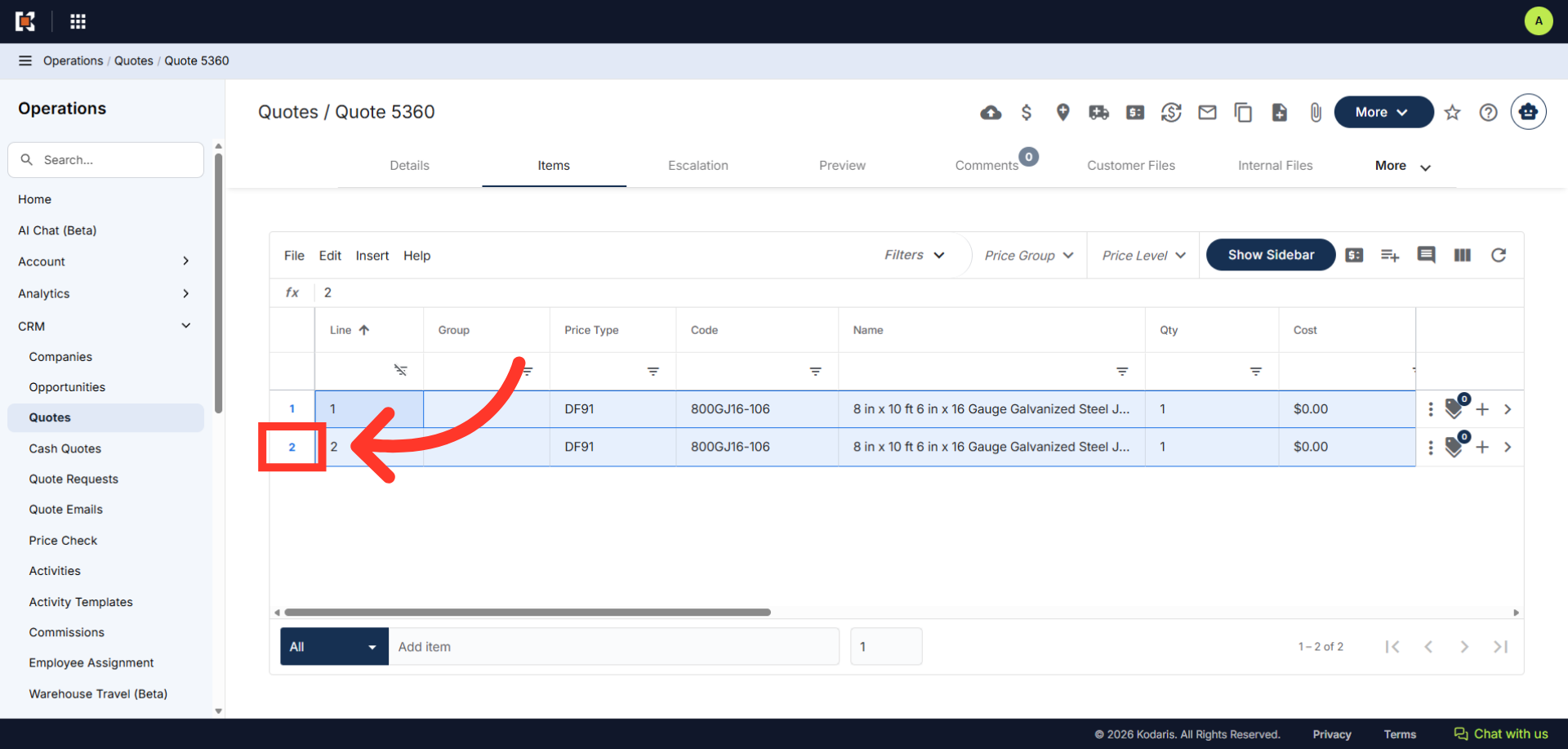
You can also select multiple items to delete from the quote. By holding down the CTRL key on your keyboard, you can click the row number of the first item to be removed.
Select the other item to delete
While still holding down the CTRL Key on your keyboard, select the other item to be removed.
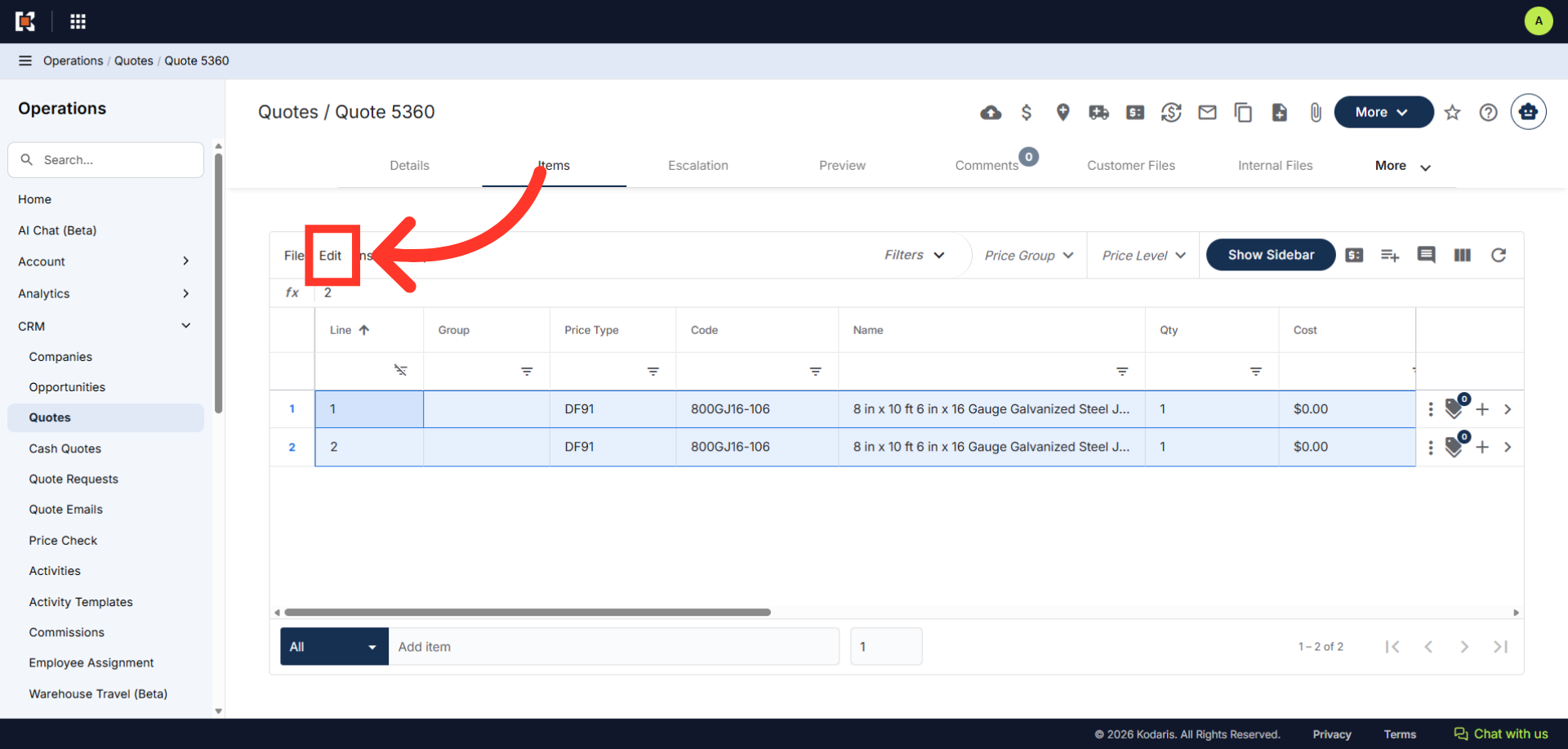
Click "Edit"
Then, click "Edit".
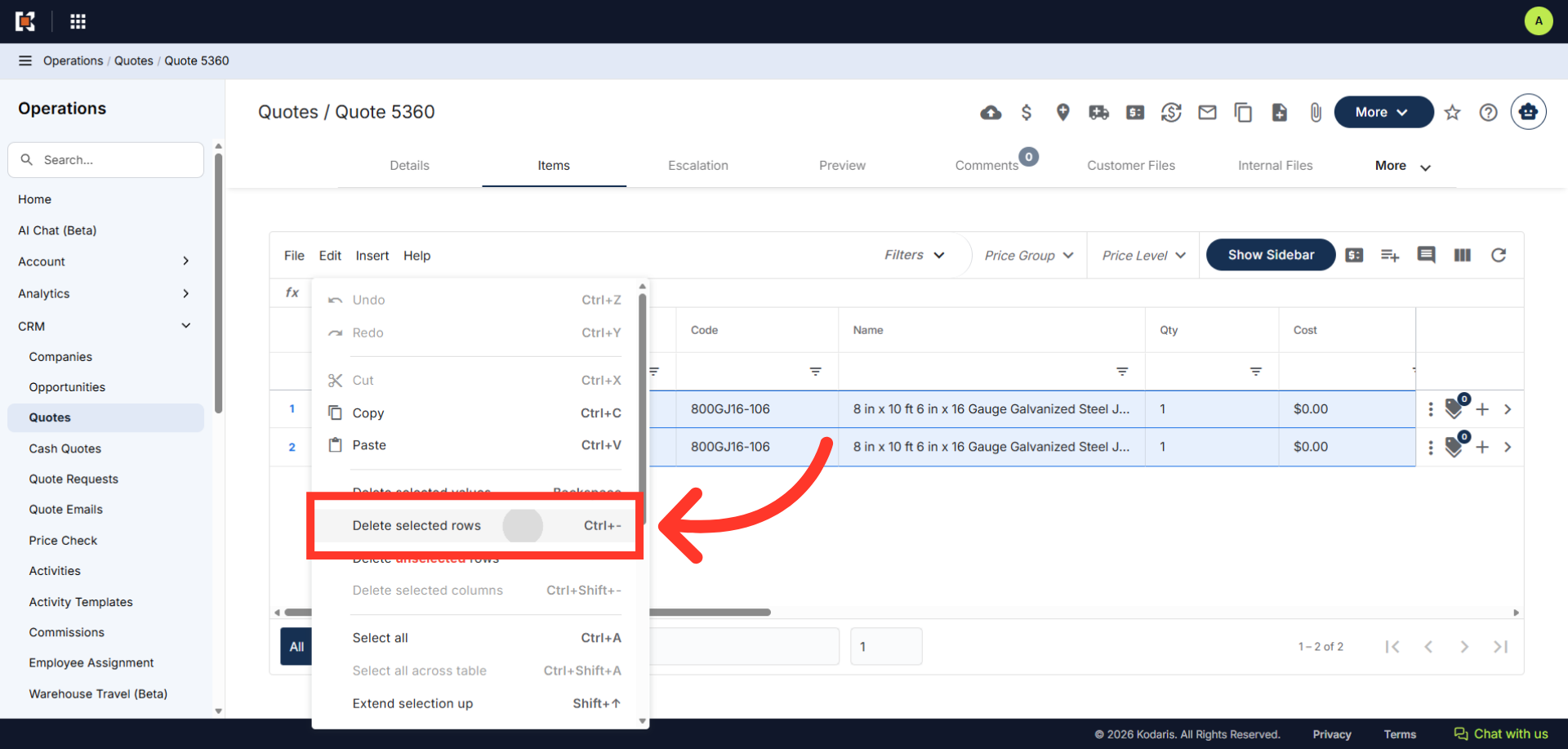
Click "Delete selected rows"
Click "Delete selected rows".
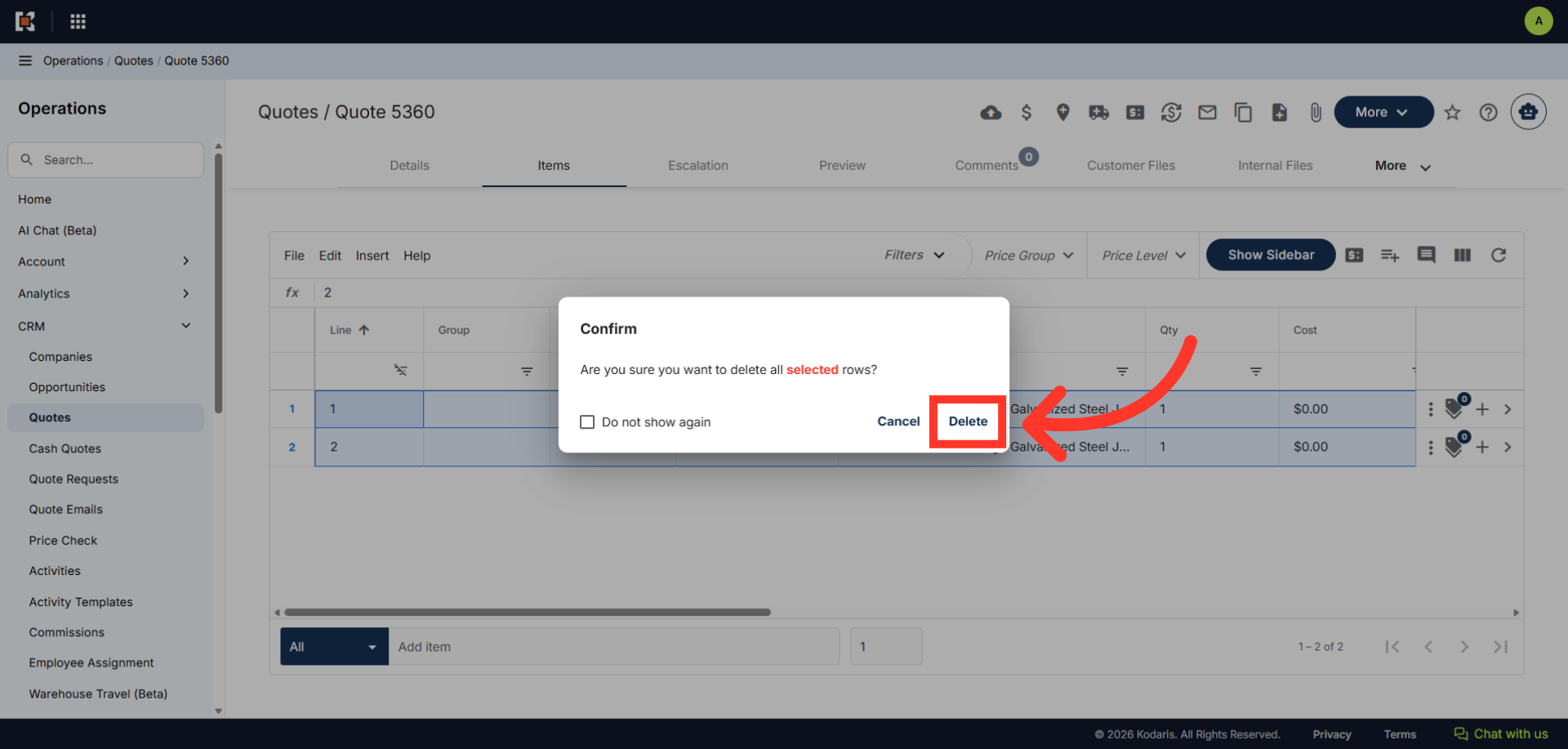
Click "Delete"
Click "Delete" to confirm and permanently remove the selected items from the quote.
Items Deleted
Items are now deleted from the quote.