Operations AR - View Customer Comments on Invoices
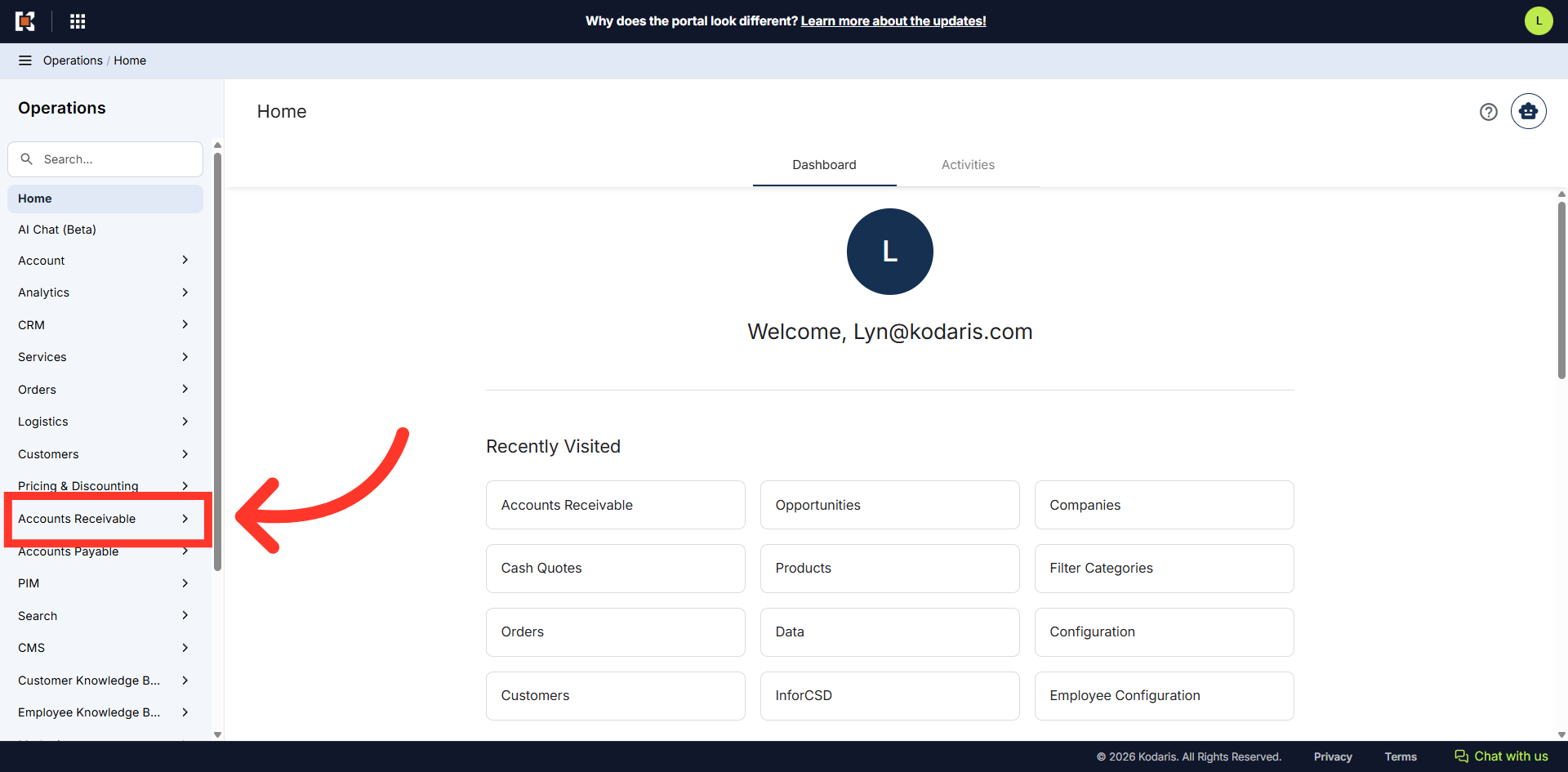
Navigate to "Accounts Receivable"
In order to view customer comments on invoices, navigate to the "Accounts Receivable" section in the Operations Portal.
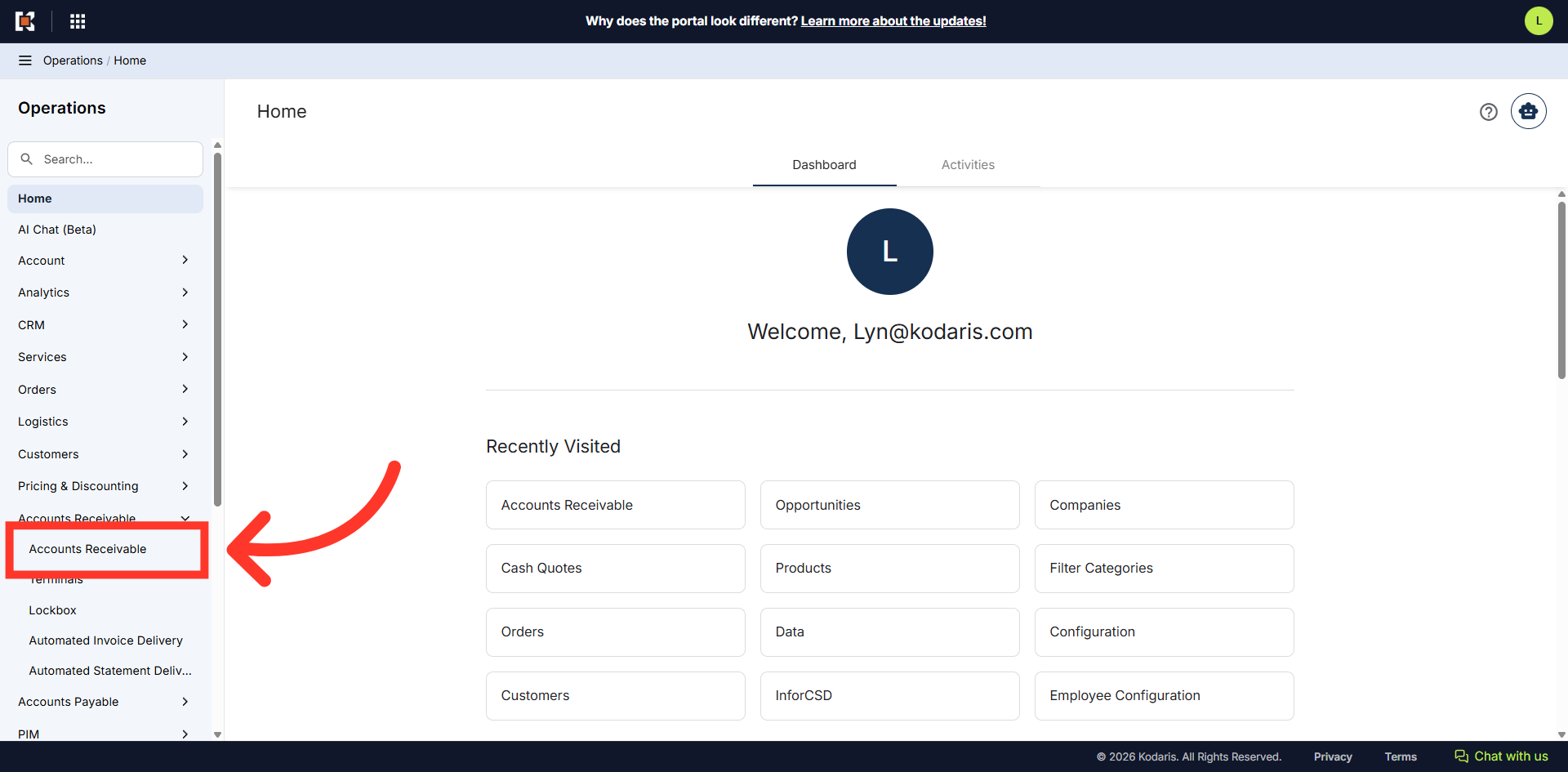
Click "Accounts Receivable"
Then, click "Accounts Receivable". In order to access and update "Accounts Receivable", you will need to be set up either as an "administrator" or a "superuser", or "accountant", or have the following roles: "paymentEdit".
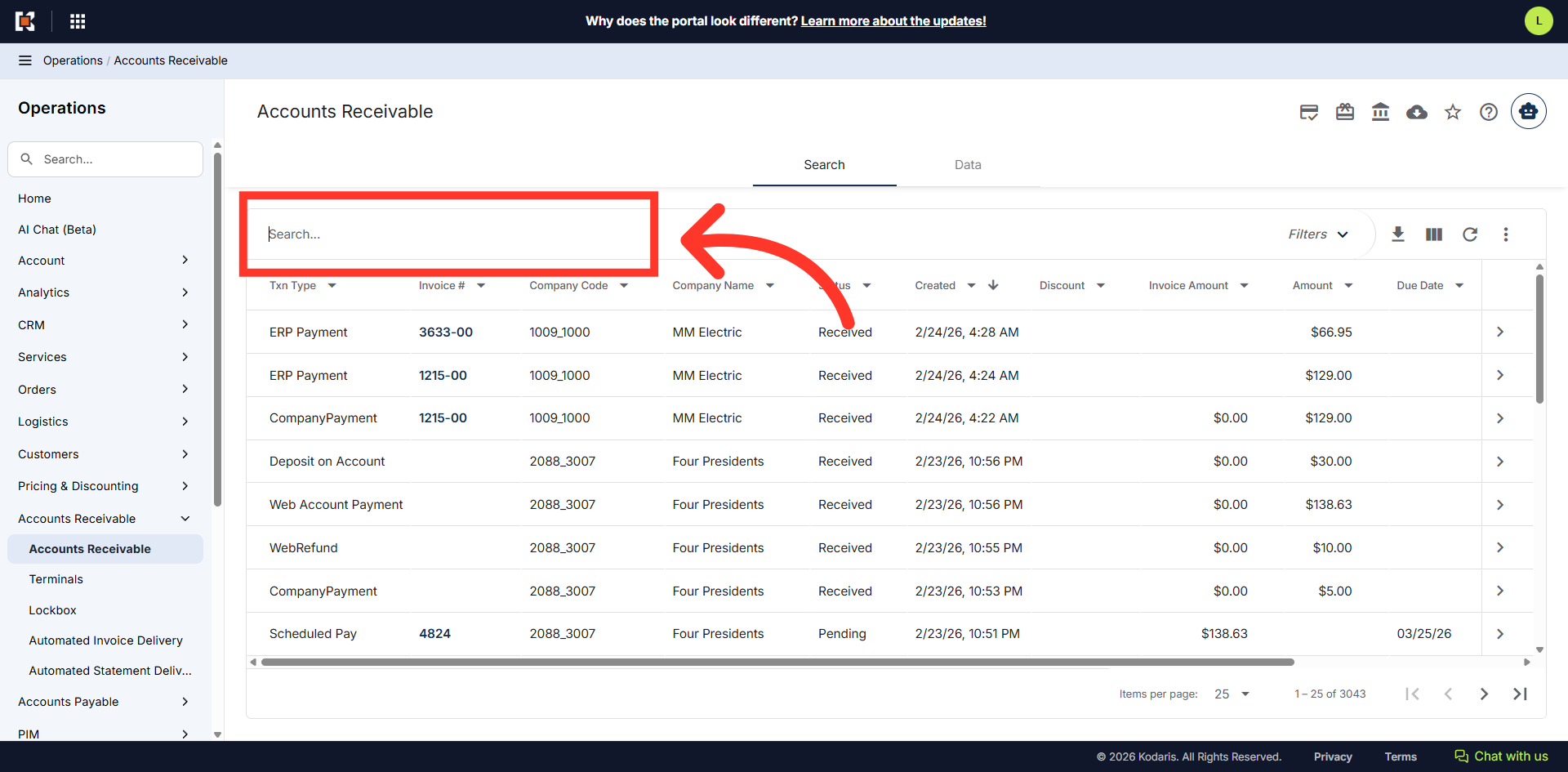
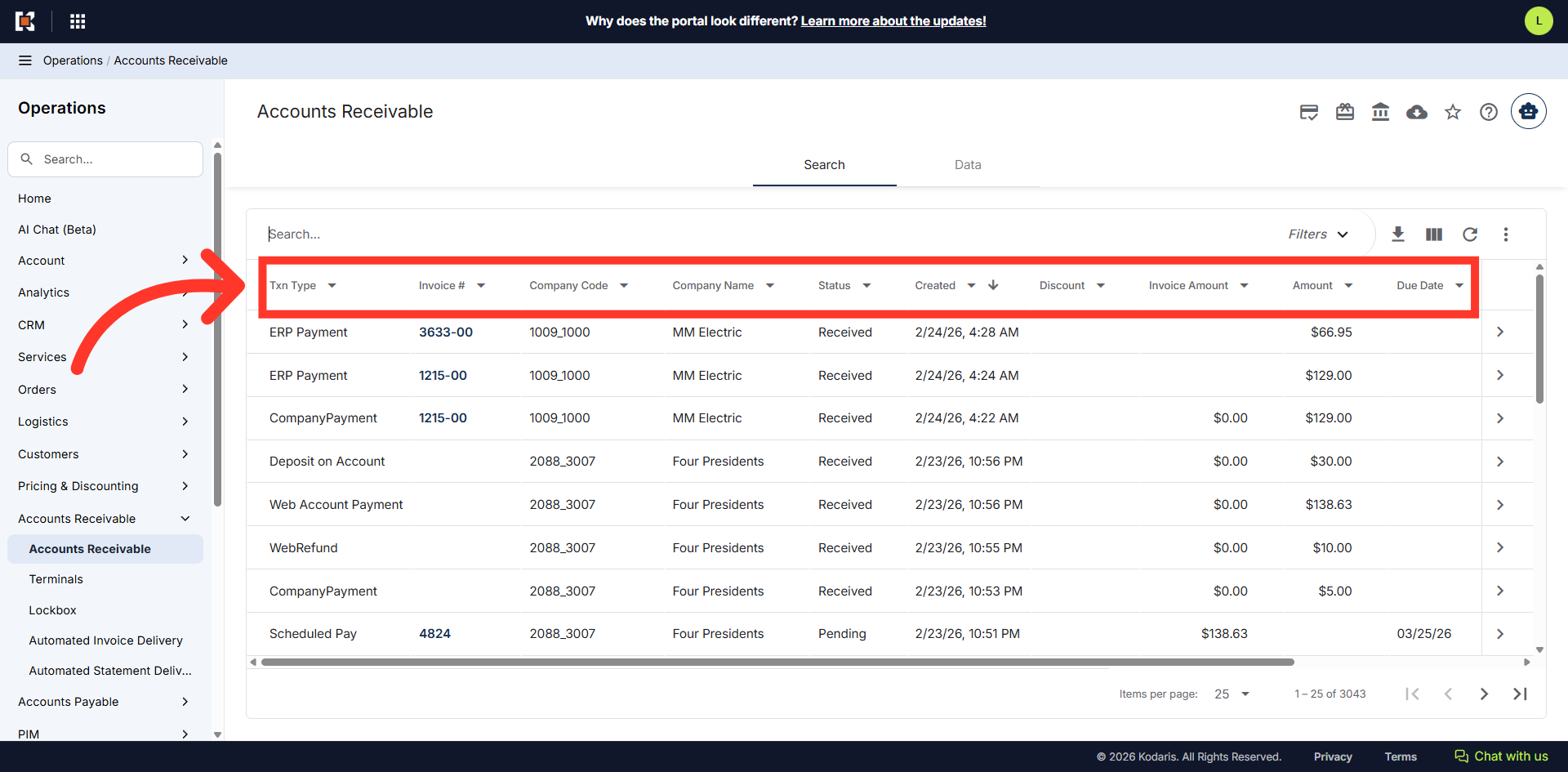
Enter the invoice number in the "Search..." field to search
If you know the invoice number, you can directly enter the invoice number in the "Search..." field to search for the invoice.
Or, use filter to narrow down the invoices
You can also use the different filters to narrow down the list of the invoices.
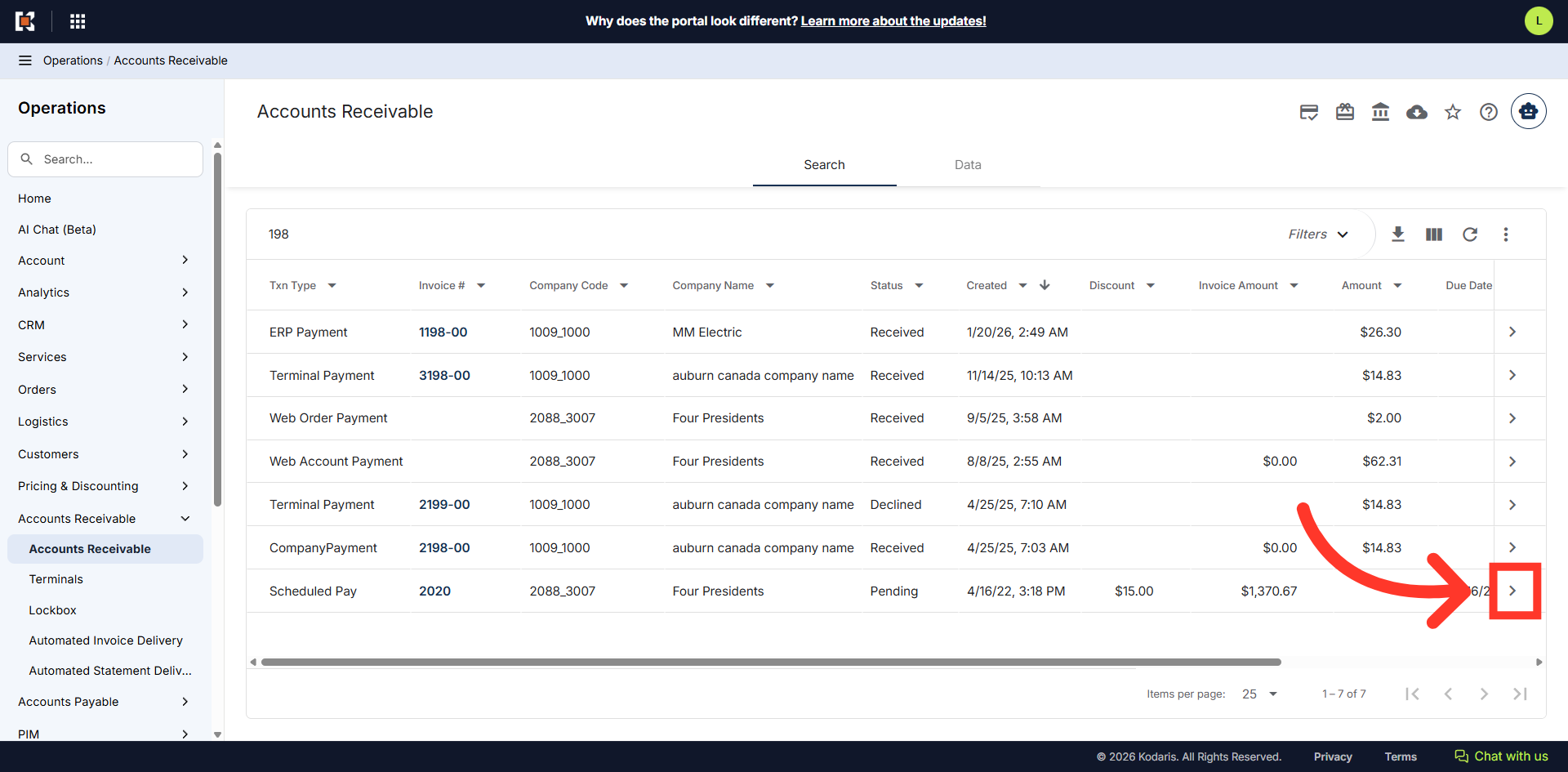
Click on the more details icon
Once you found the invoice, click on the more details icon to view invoice details.
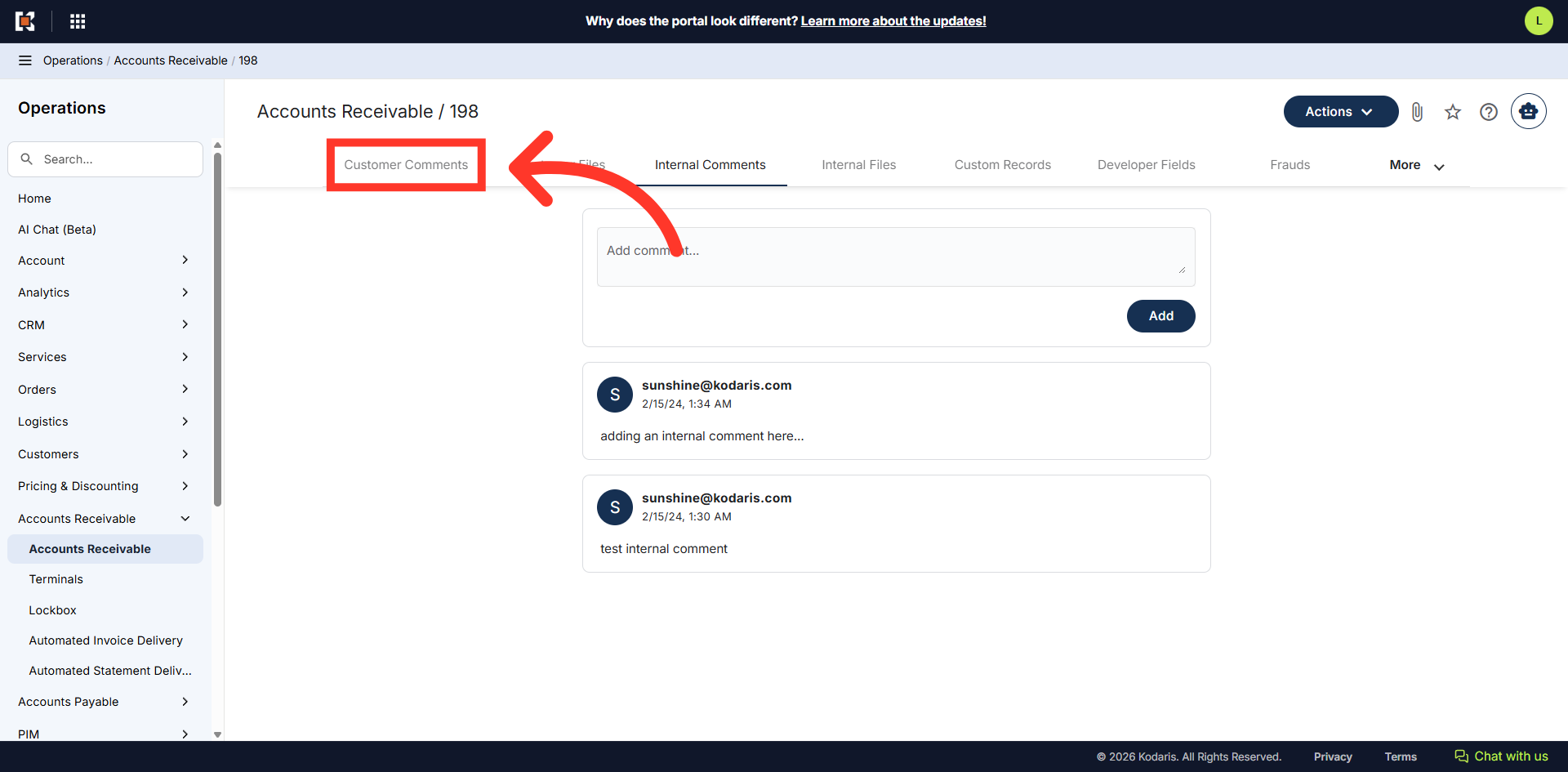
Go to "Customer Comments"
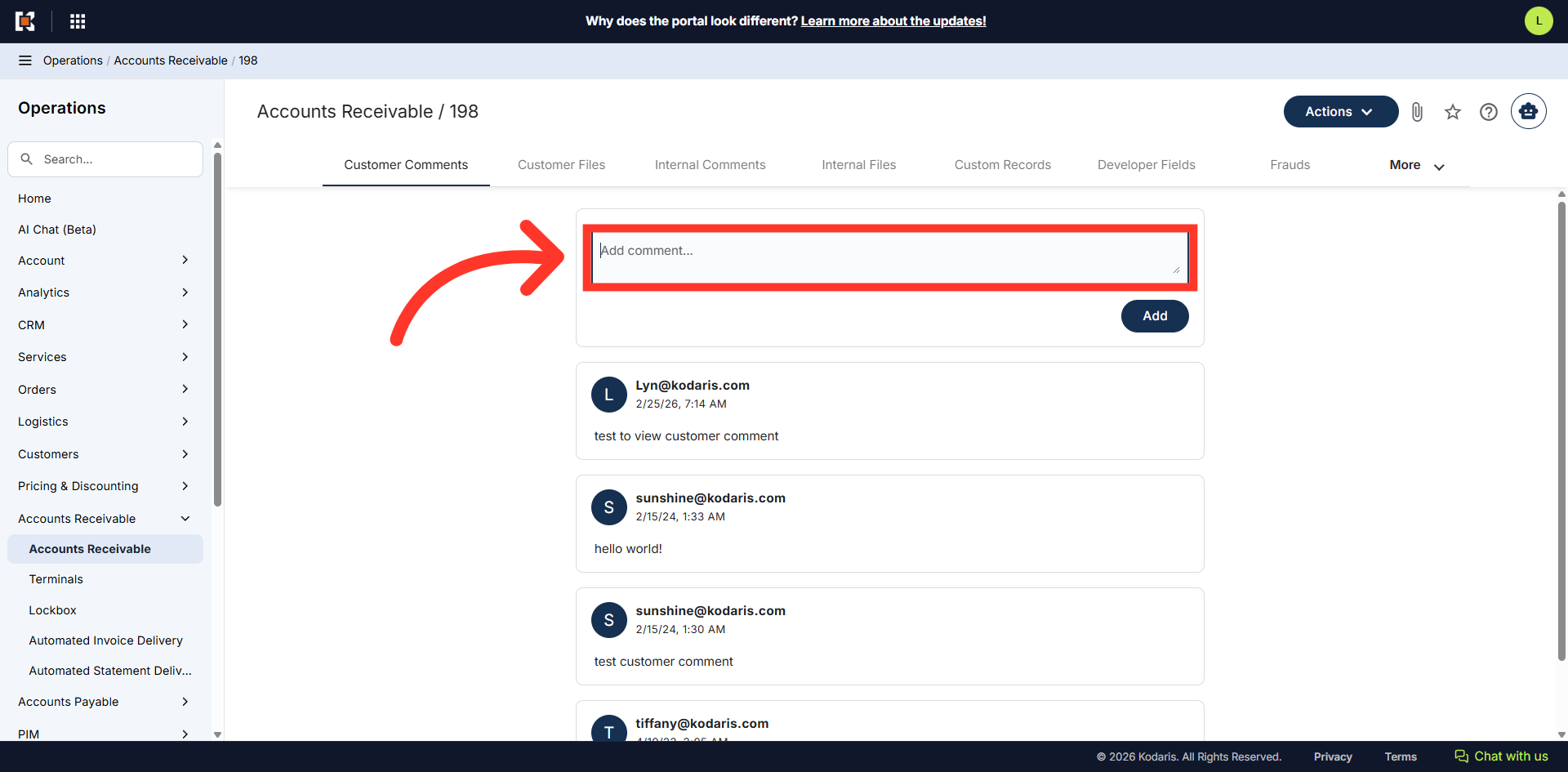
In the invoice details screen, you will see two tabs - "Internal Comments" and "Customer Comments" tabs. "Internal Comments" tab contains comments only visible to your team, while the "Customer Comments" tab contains comments visible to customers through the Customer Portal. Click on the "Customer Comments" tab to view all customer comments for that invoice.
Review comments
Customer comments will be displayed with the most recent comments at the top and are accessible by customers through their Customer Portal.
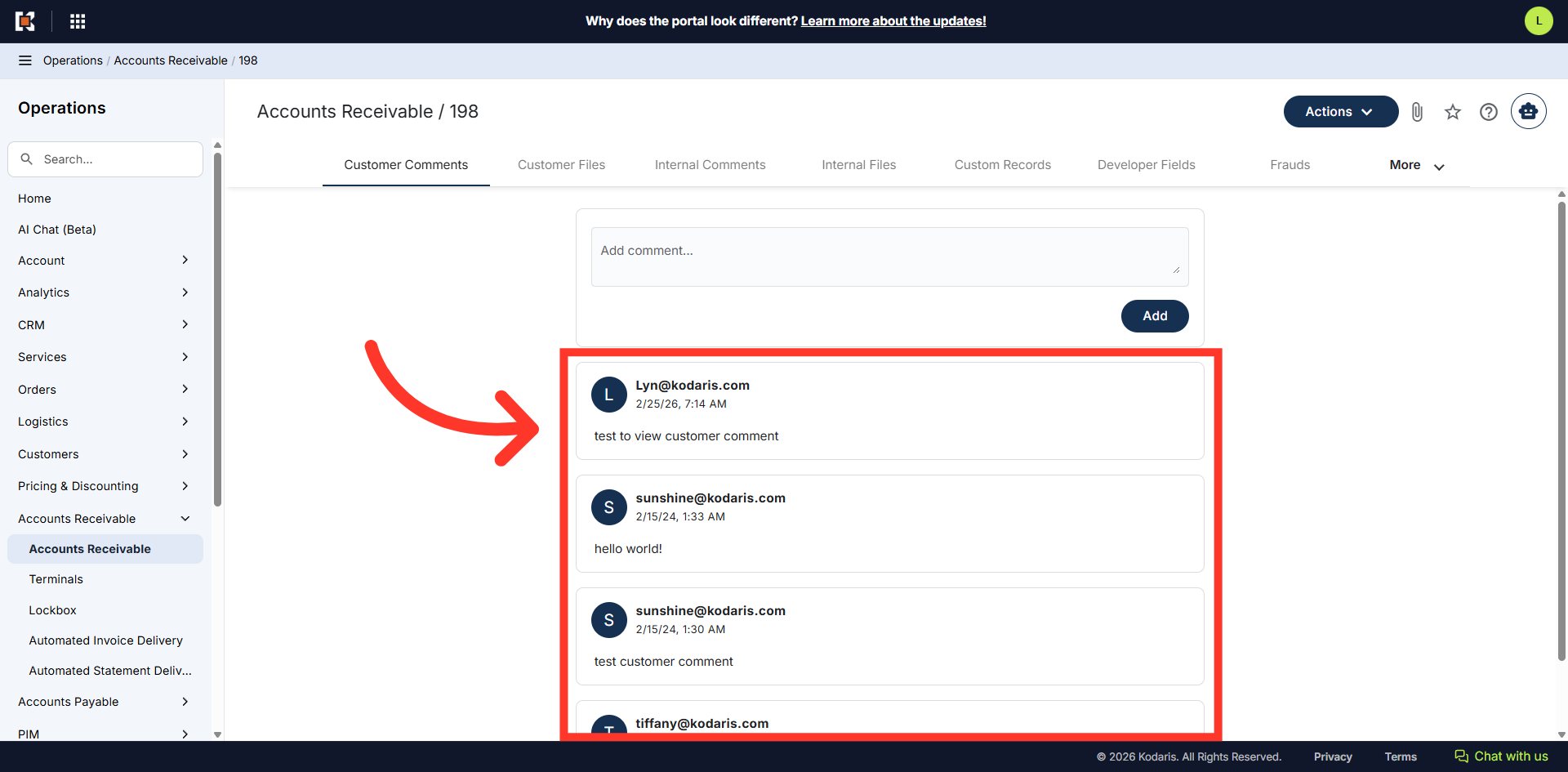
Add a comment, if needed
You can also comment to the customer from this screen by clicking in the "Add comment..." field and adding a comment.