Customer Portal - Submit Returns Using the Orders Screen
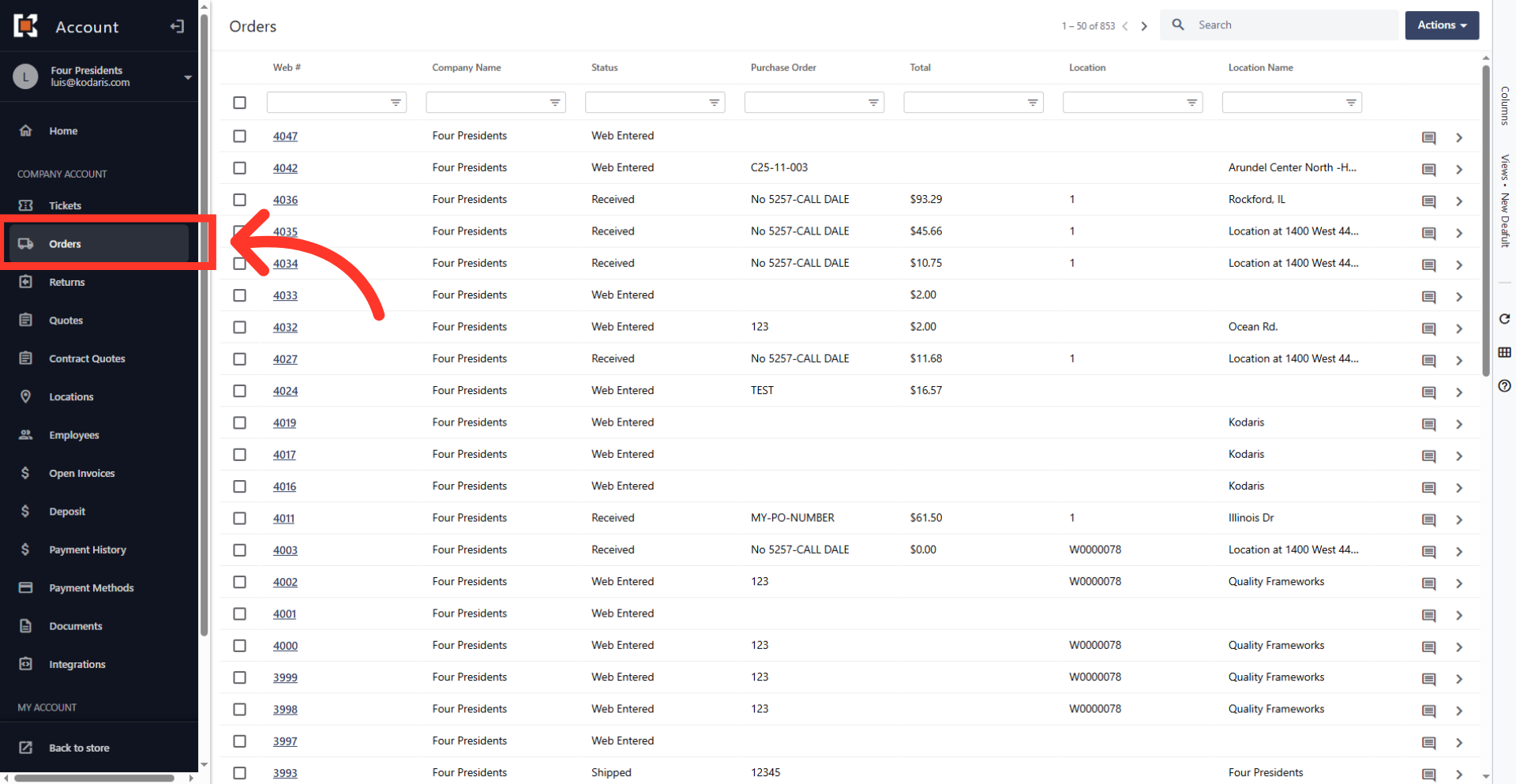
Navigate to your "Orders" screen
To submit a return, log in to your customer portal and then navigate to the "Orders" screen to view your list of purchases.
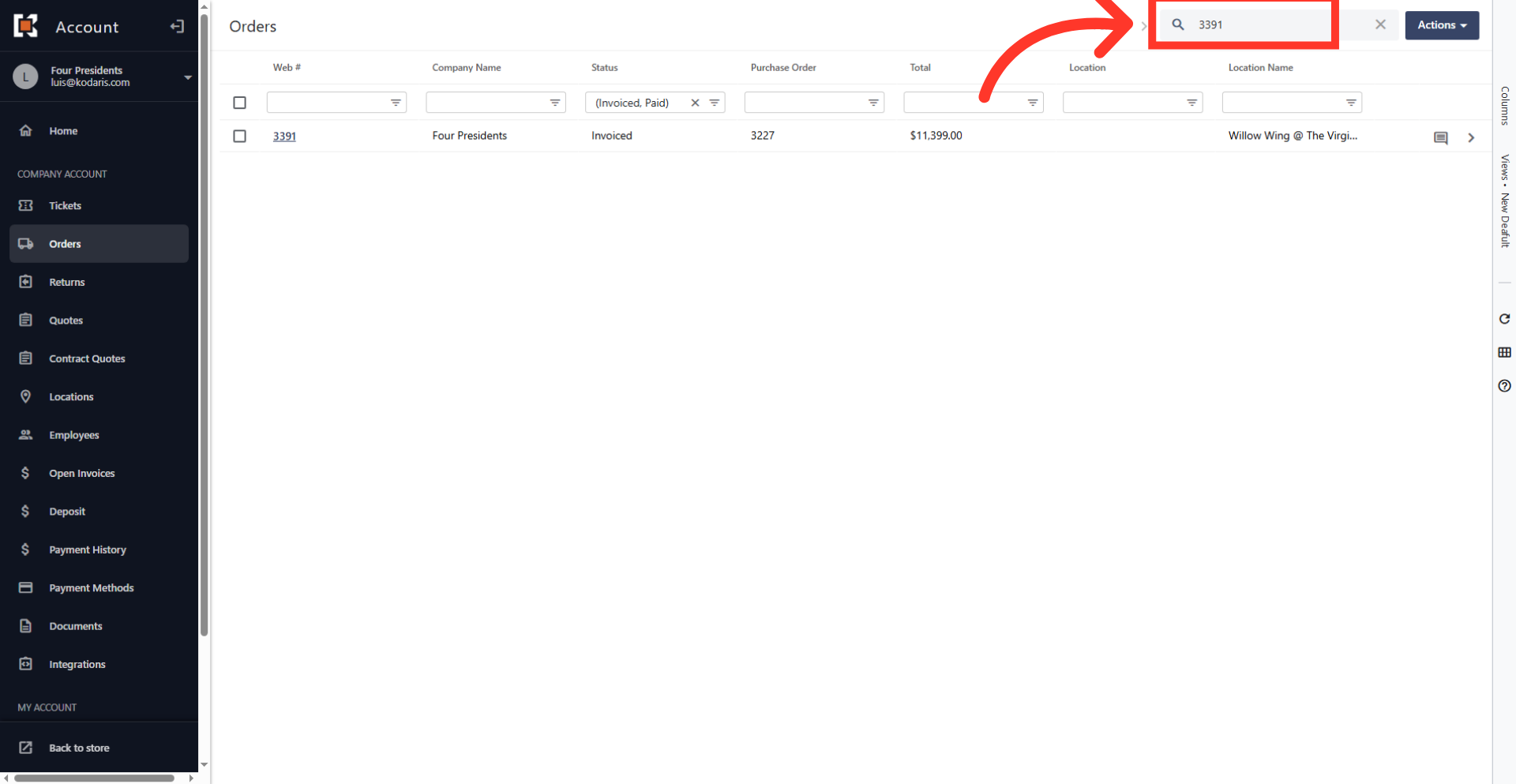
Search for the order
Enter a keyword or the order number into the search bar to quickly identify and locate the specific order that contains the item you want to return.
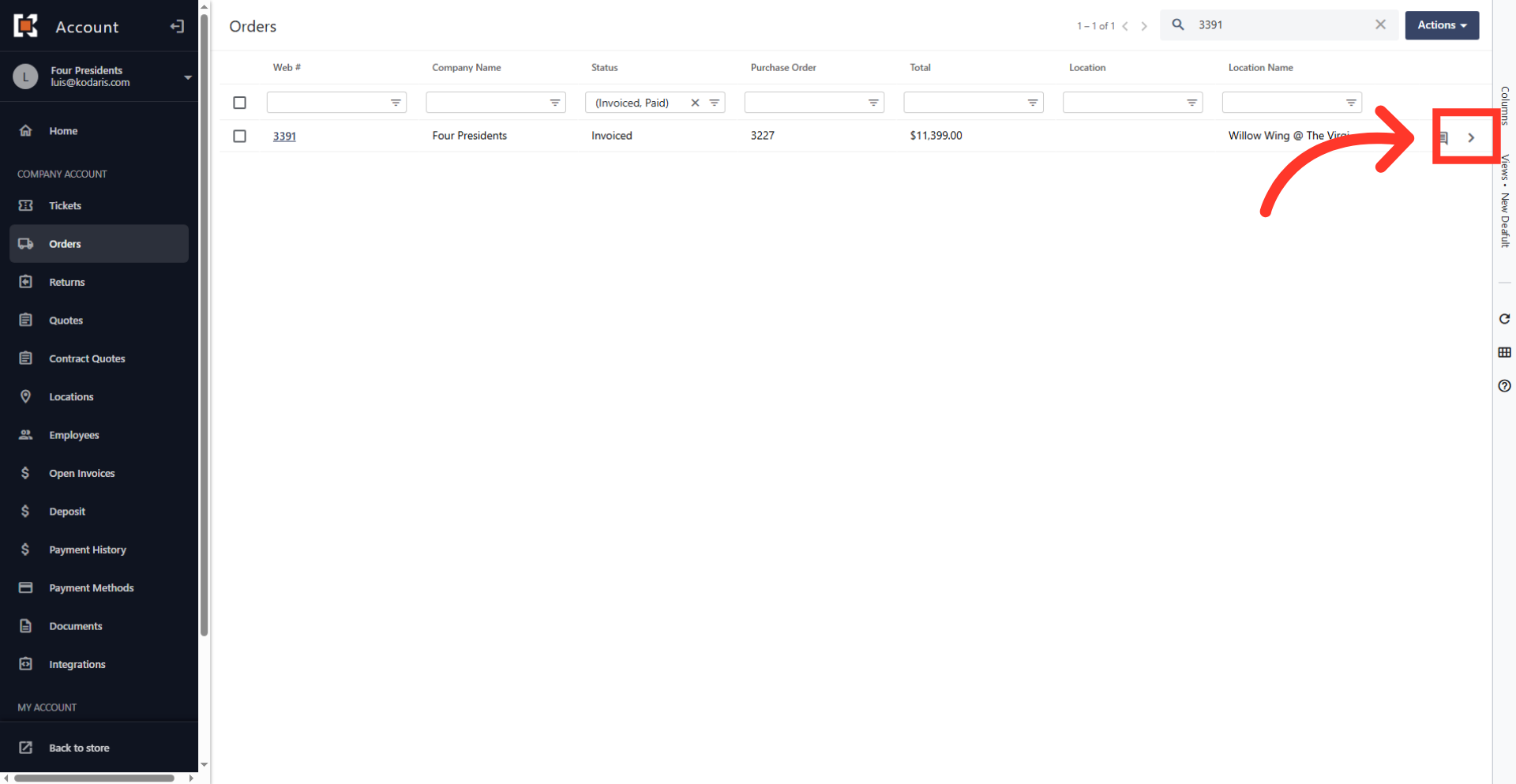
Click the more details icon
Click the more details icon on the order.
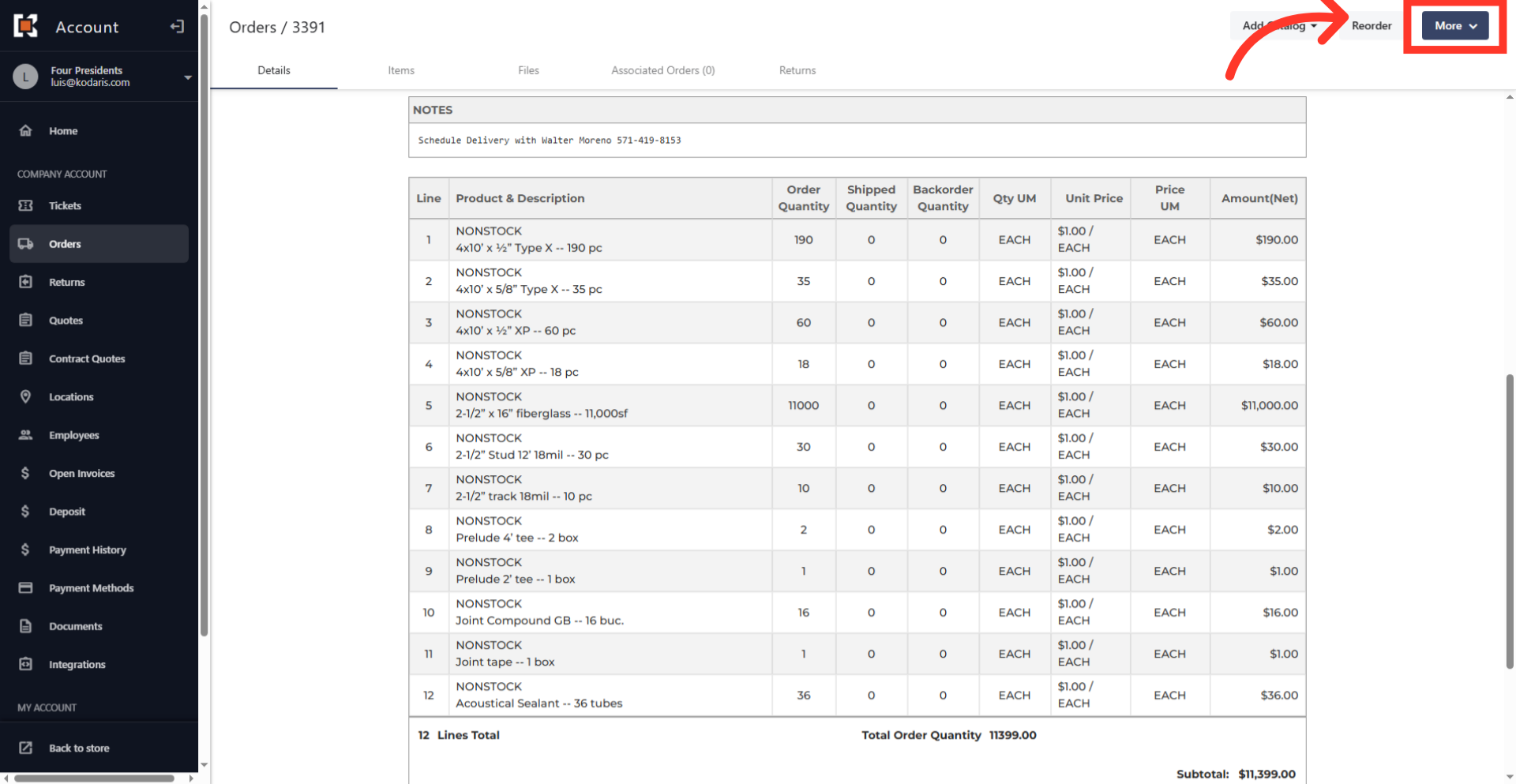
Click the "More" button
Click the "More" button to open the dropdown menu containing additional actions for the order.
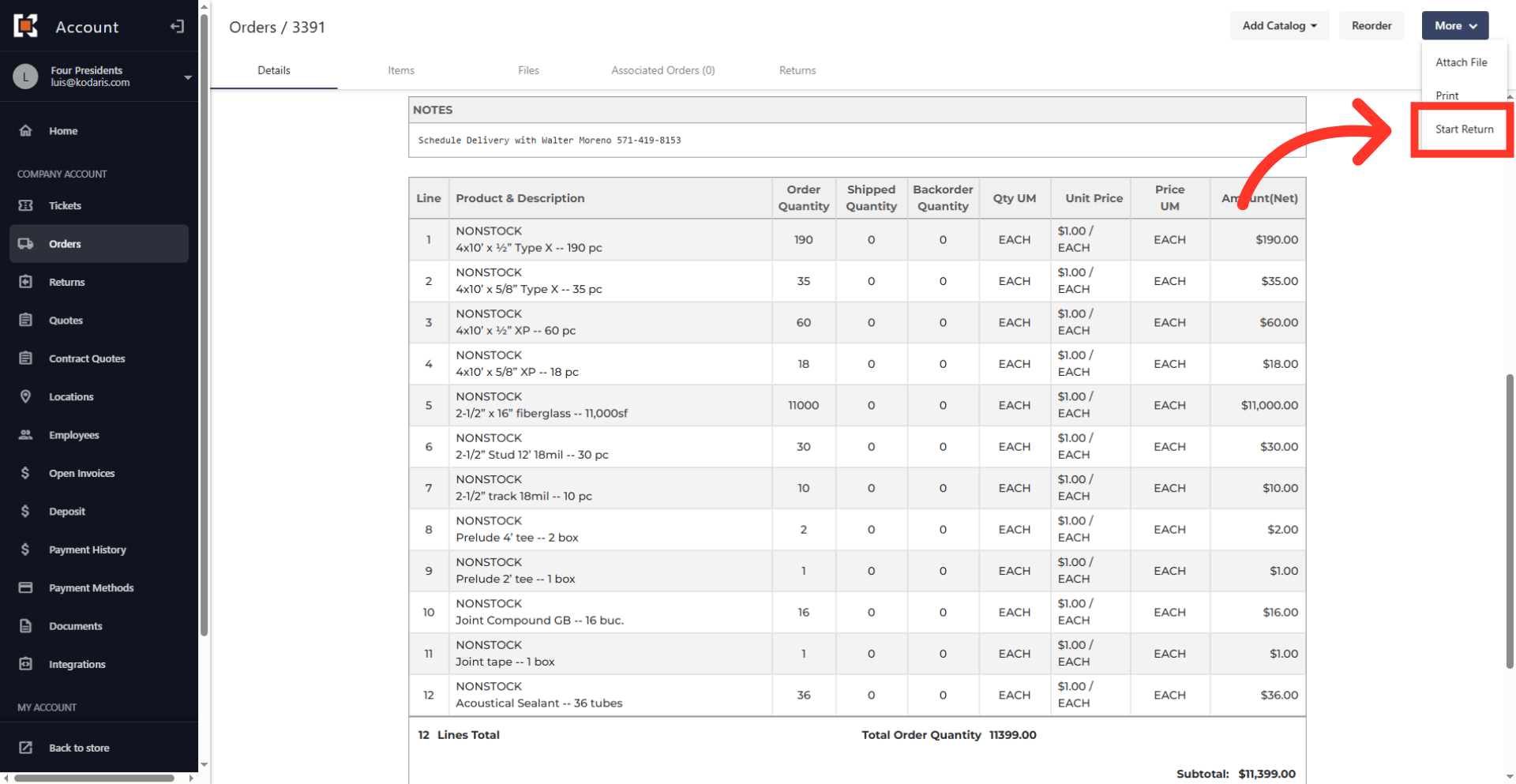
Select "Start Return"
Select "Start Return" from the dropdown menu to initiate the item return process.
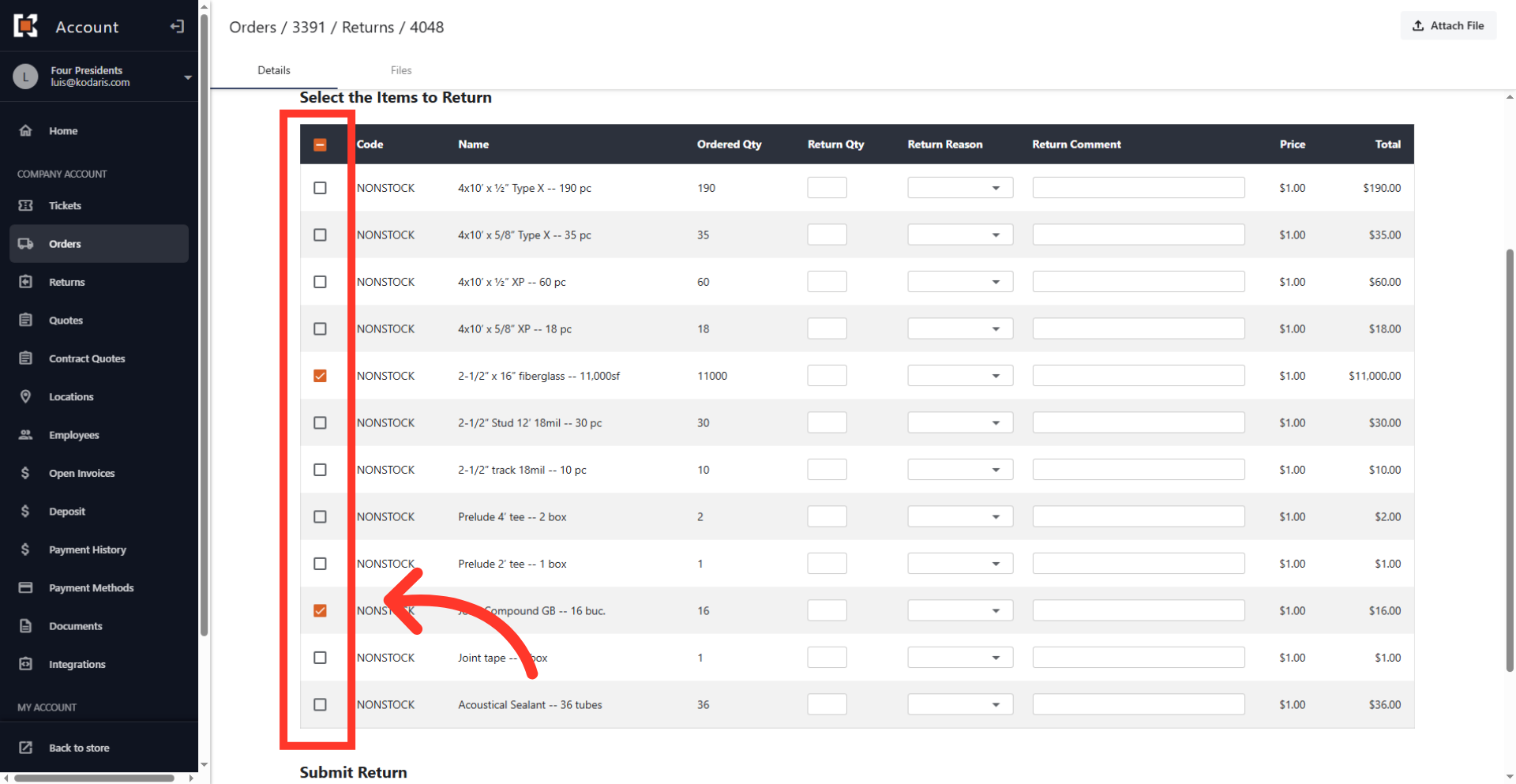
Select items to return
Check the box of the product to select that item for return. You can choose one or multiple products from the available list. Select the top checkbox to select all.
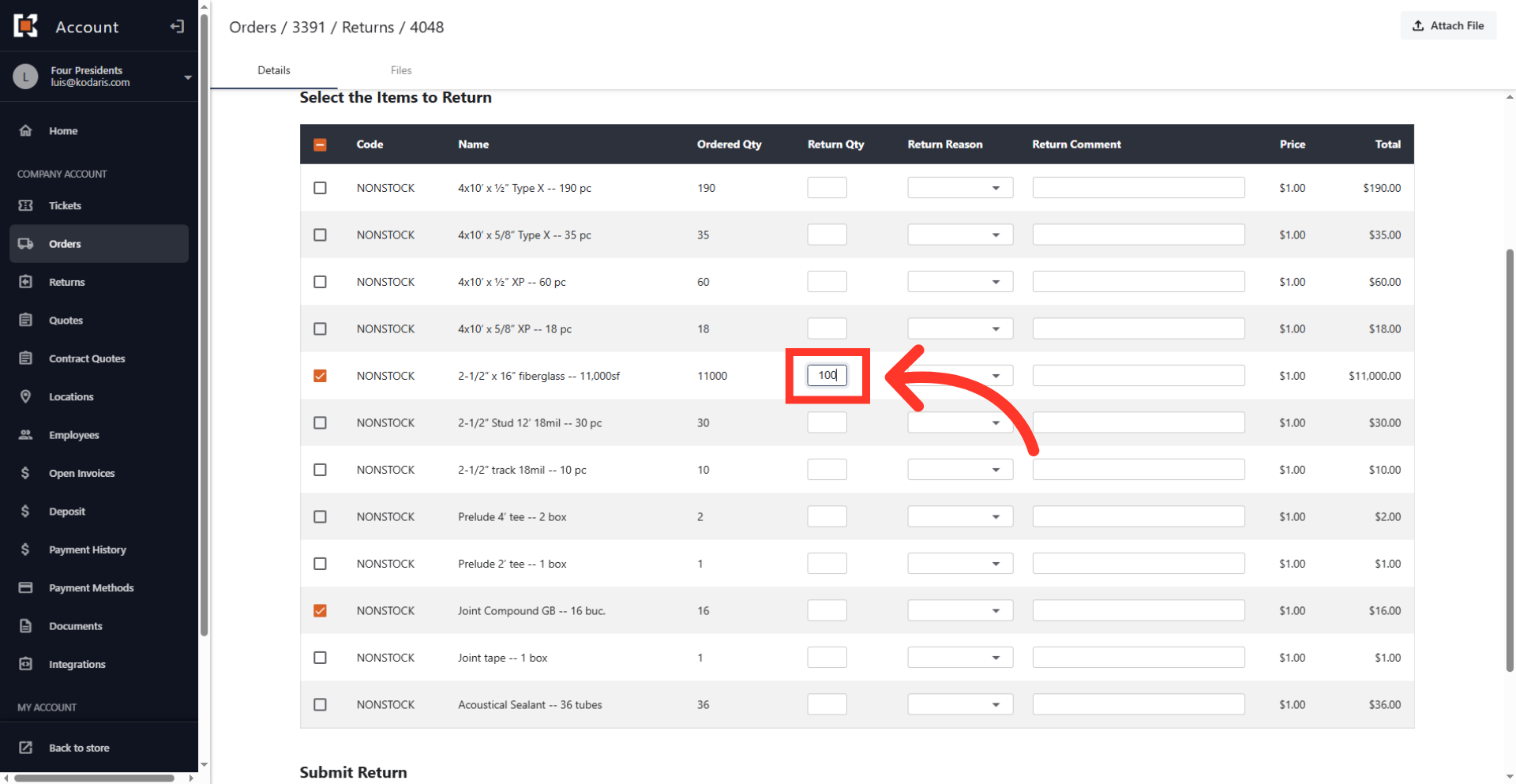
Enter the specific quantity
Enter the exact number of items you wish to return, referencing the original invoice quantity.
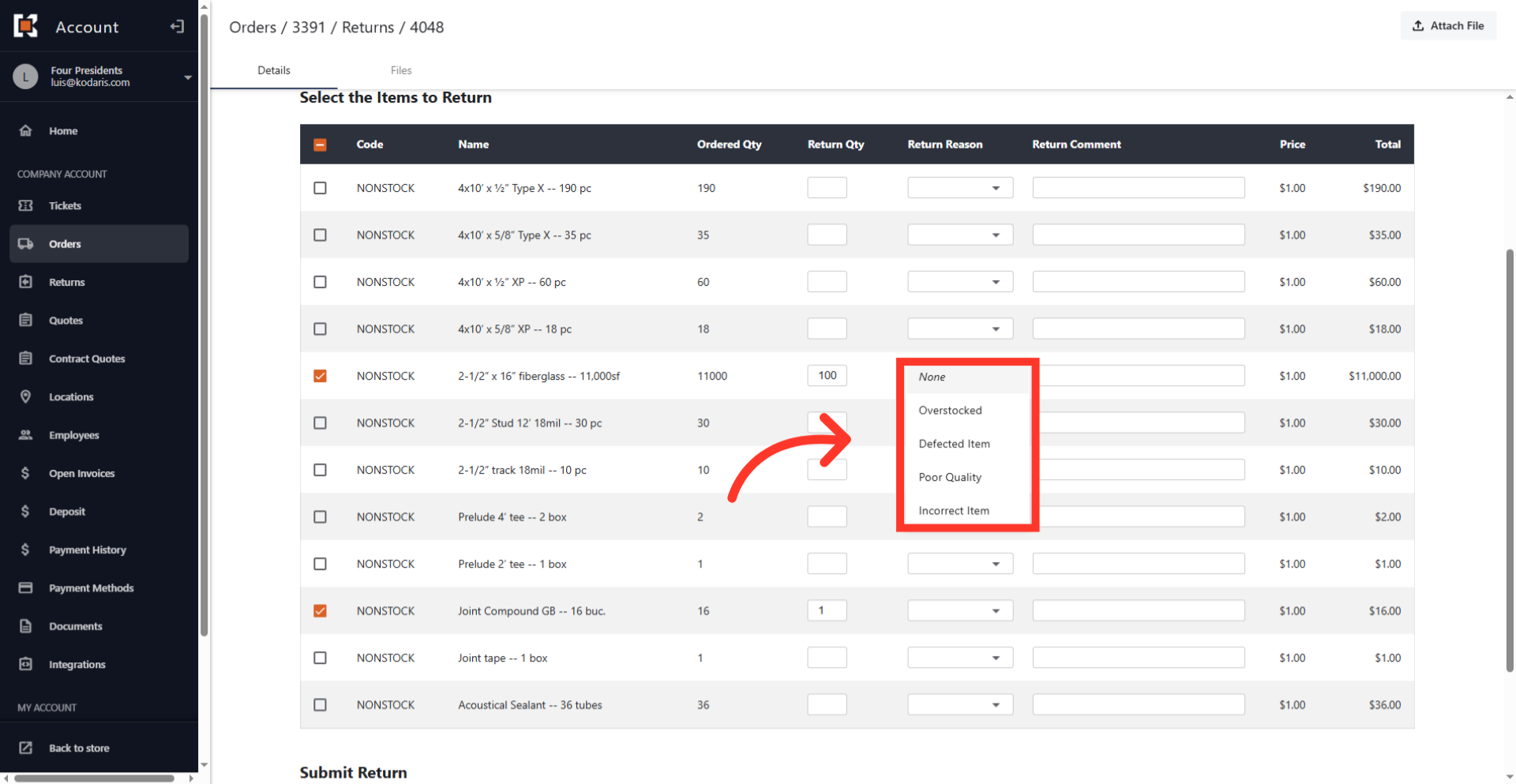
Select a "Return Reason"
Choose a specific "Return Reason" from the dropdown list, such as "Defective Item," "Overstocked," or "Other" for your return request.
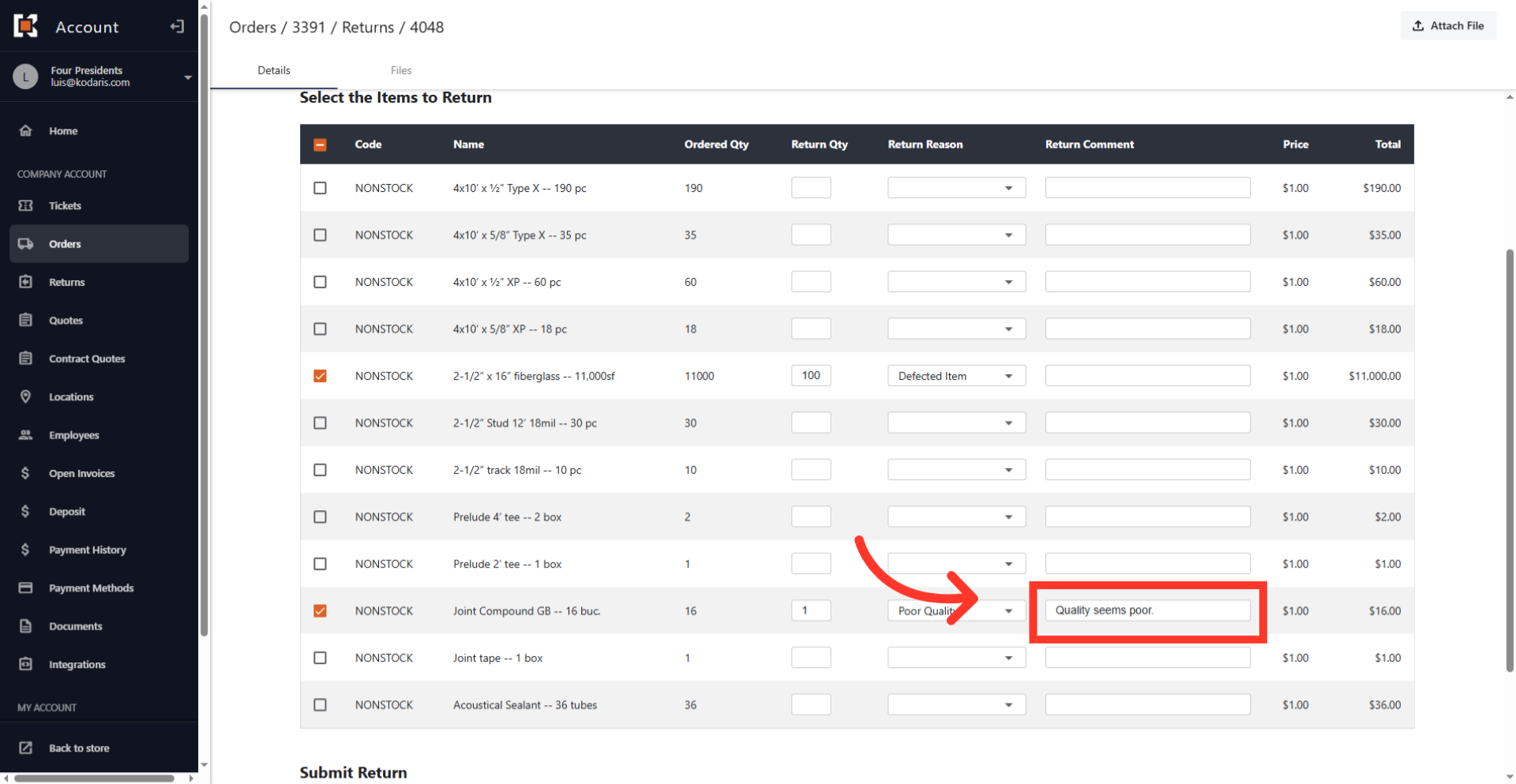
Enter a "Return Comment"
You can also provide a comment in the "Return Comment" text box to include any additional details.
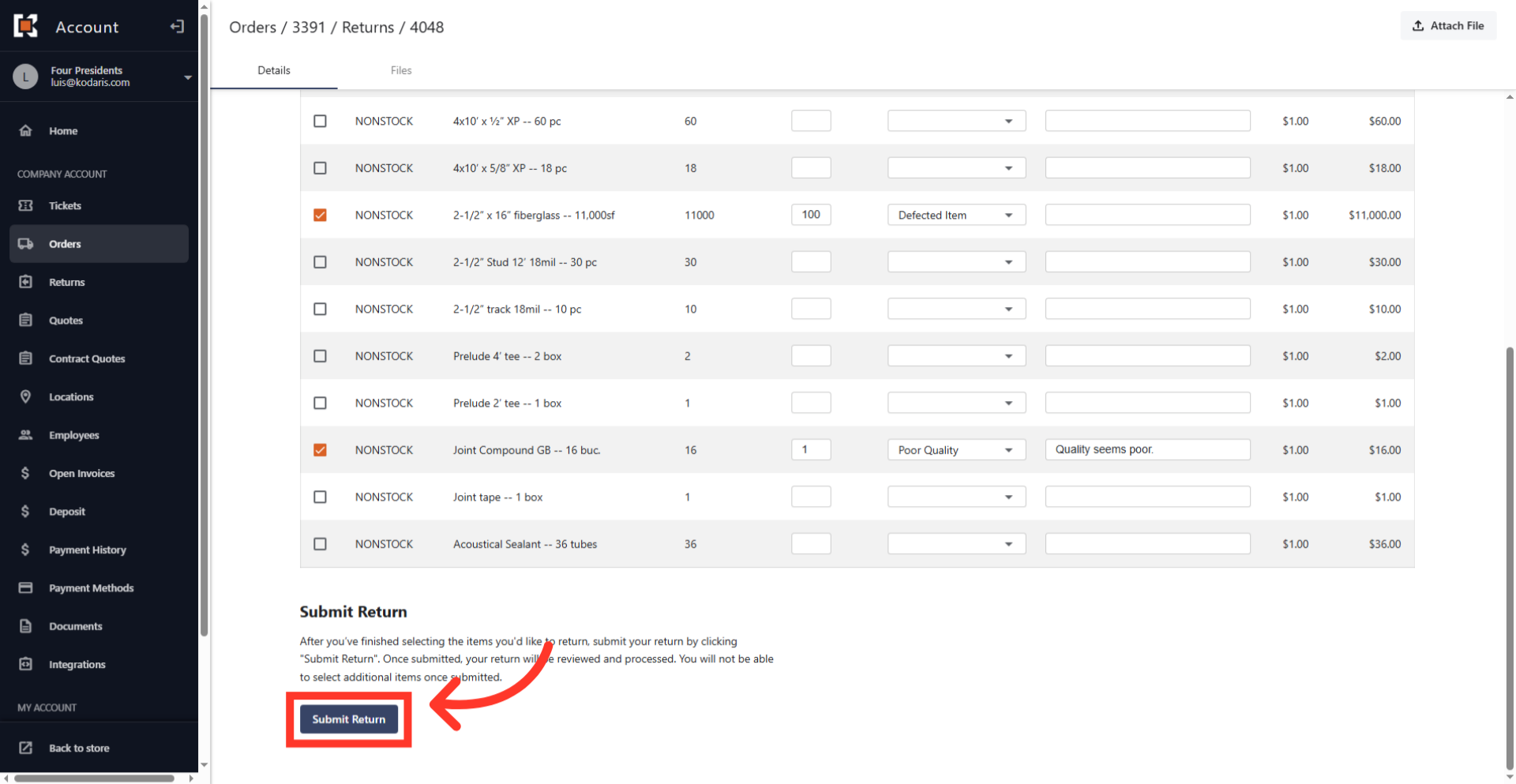
Click the "Submit Return" button
Click the "Submit Return" button to finalize the request and submit the return.
Success message
Confirm that your return request has been successfully submitted to the system.
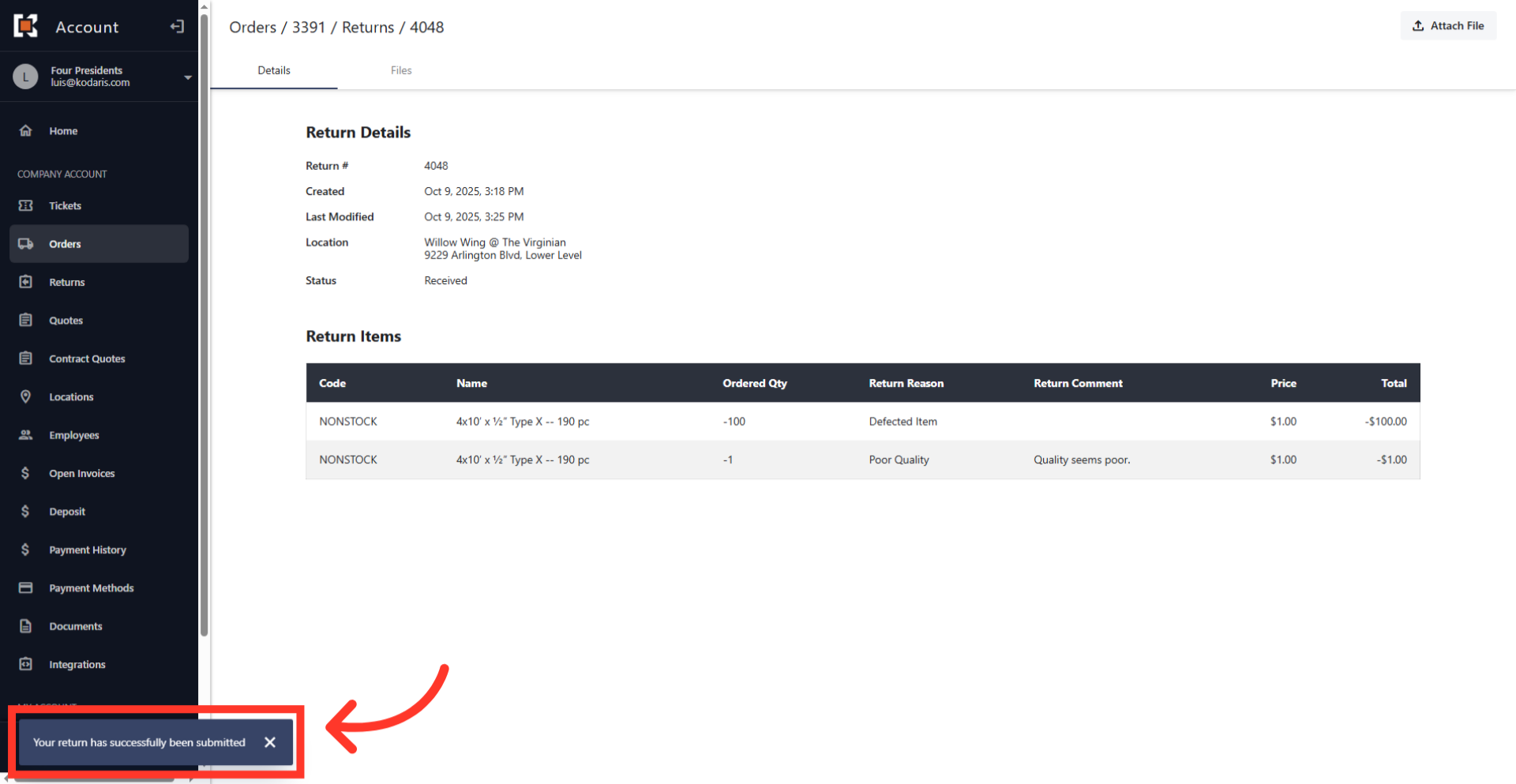
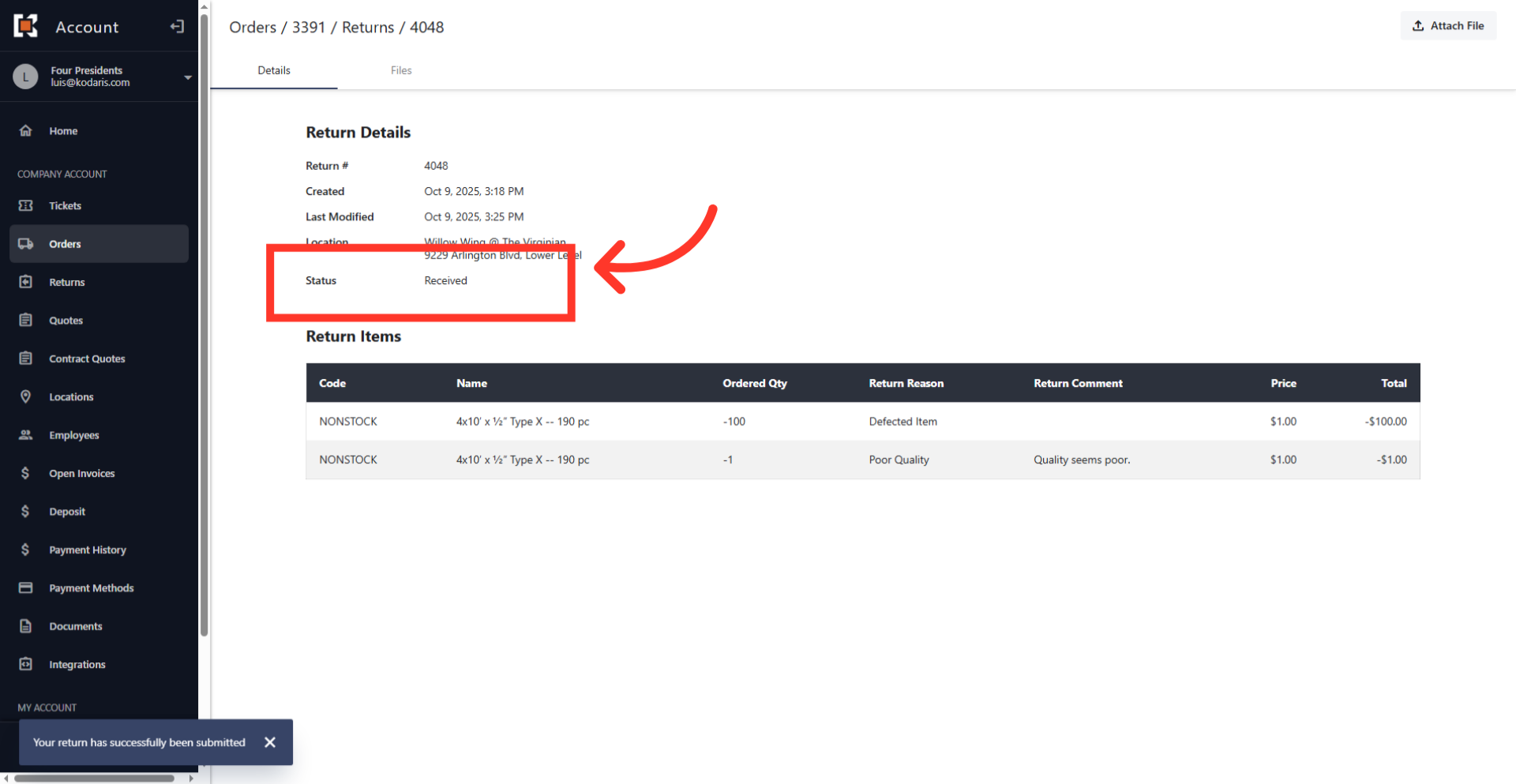
Verify return status
You can also confirm that the status has been changed to "Received."