Operations CRM - Preview Statement Mailer Template
Navigate to "CRM"
To preview statement mailer templates, navigate to the "CRM" in the operations portal.

Click "Companies"
Then, click "Companies". In order to access "Companies" the account will need to be set up either as an "administrator" or a "superuser", or have the appropriate roles: "companyView," "crmCompanyView," "companyEdit," "crmCompanyEdit," and "dispatch." Just a reminder, "crmCompanyEdit" access only allows employees to access companies that are assigned to them.

Type in a keyword
Search for the company you would like to view.

Click the more details icon
Click the more details icon to go to the company’s details screen.

Click the "Generate Statement PDF" icon
Click on the "Generate Statement PDF" icon.

Select the "Generate" option
Then, select the "Generate" option from the dropdown to create the file. "Generate & Send" will generate the file and also send the file to your customer. If you are not ready to do this, only select "Generate".

Select the template
Select the "statementPDFMailer-EJS" template from the list.

Click "Generate"
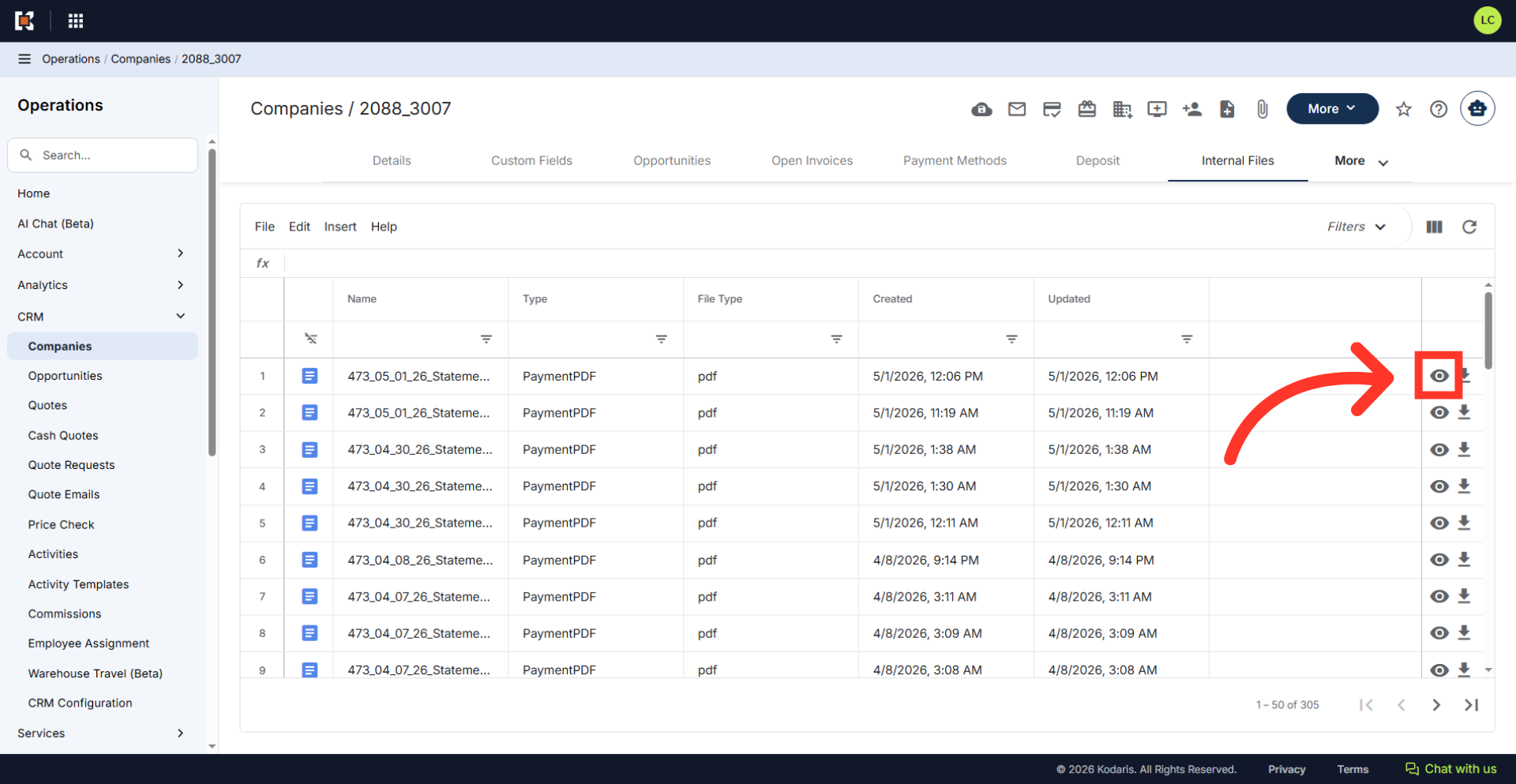
Select "Generate" to start the creation of the file. The system opens the "Internal Files" tab once the PDF file is ready.

Click the preview icon
Select the preview icon to view the file.